3-22 Starling Monitor - User Guide
Home Screen
Display Window
Navigation tabs provided in the Display window enable quick and easy navigation between four
different categories of acquired monitoring data (Clinical Range, Waveforms, Dynamic
Assessment, and Numeric), as described below.
Simply tap the appropriate tab to view the required information.
Note
By default, after system startup the Display window has the Dynamic Assessment tab selected.
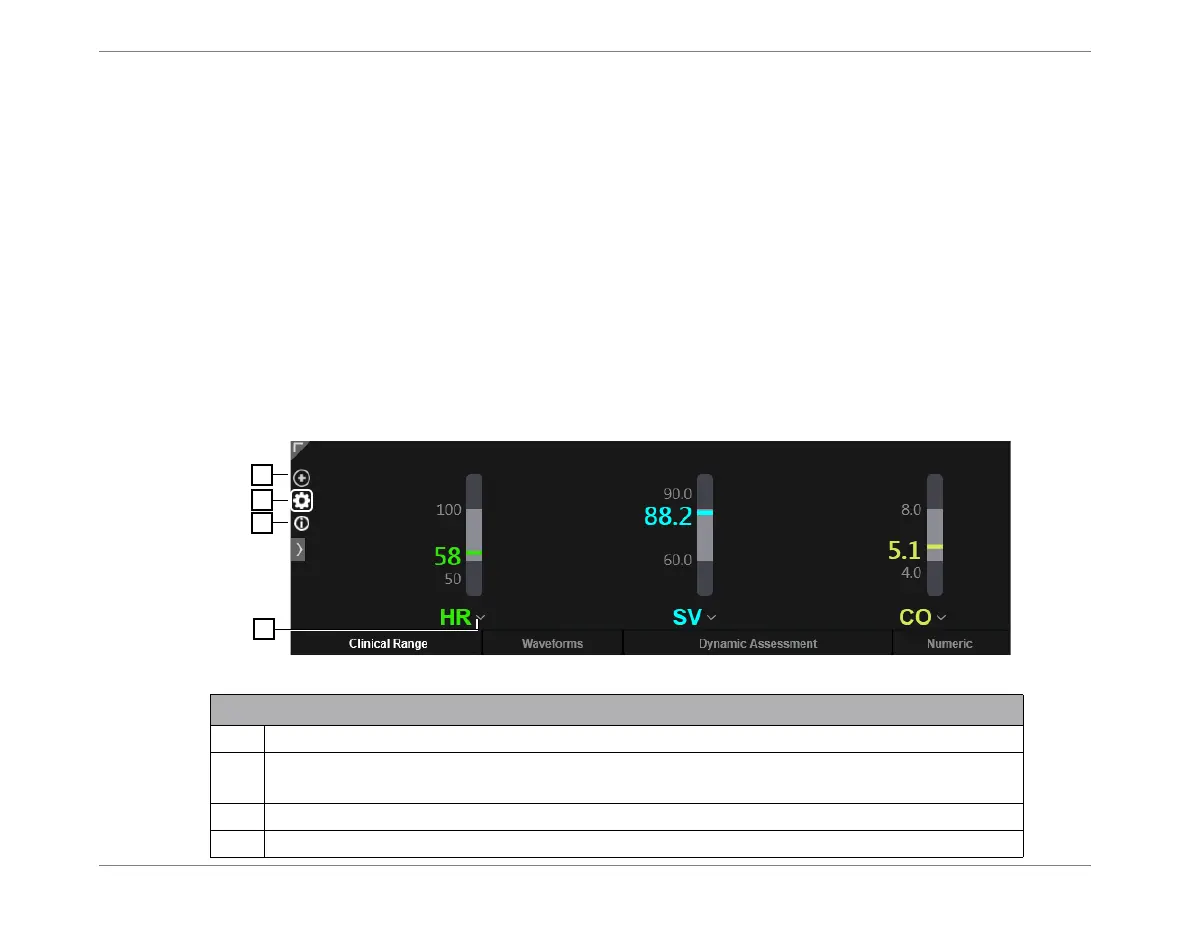
Clinical Range
The Clinical Range display shows the monitored results of each parameter value on a vertical
bar. This presents a graphic representation of each value in relation to its currently-defined
normal value
Maximum and Minimum
limits.
Note
Use the full-width or full-screen viewing options (previously described), as required. For other
controls, see table below.
Figure 3-15 Display Window - Clinical Range Tab
LegendFigure 3-15
1
Add a parameter to the display.
2
Set Clinical Range - opens dialog box to set
Maximum
and
Minimum
limits.
For instructions, see Setting or Adjusting Clinical Ranges on page 5-14.
3
Opens Help providing Clinical Range guidance.
4
Remove or Replace a displayed parameter.






 To Next Page