3-28 Starling Monitor - User Guide
Patient Management Window
Patient Management Window
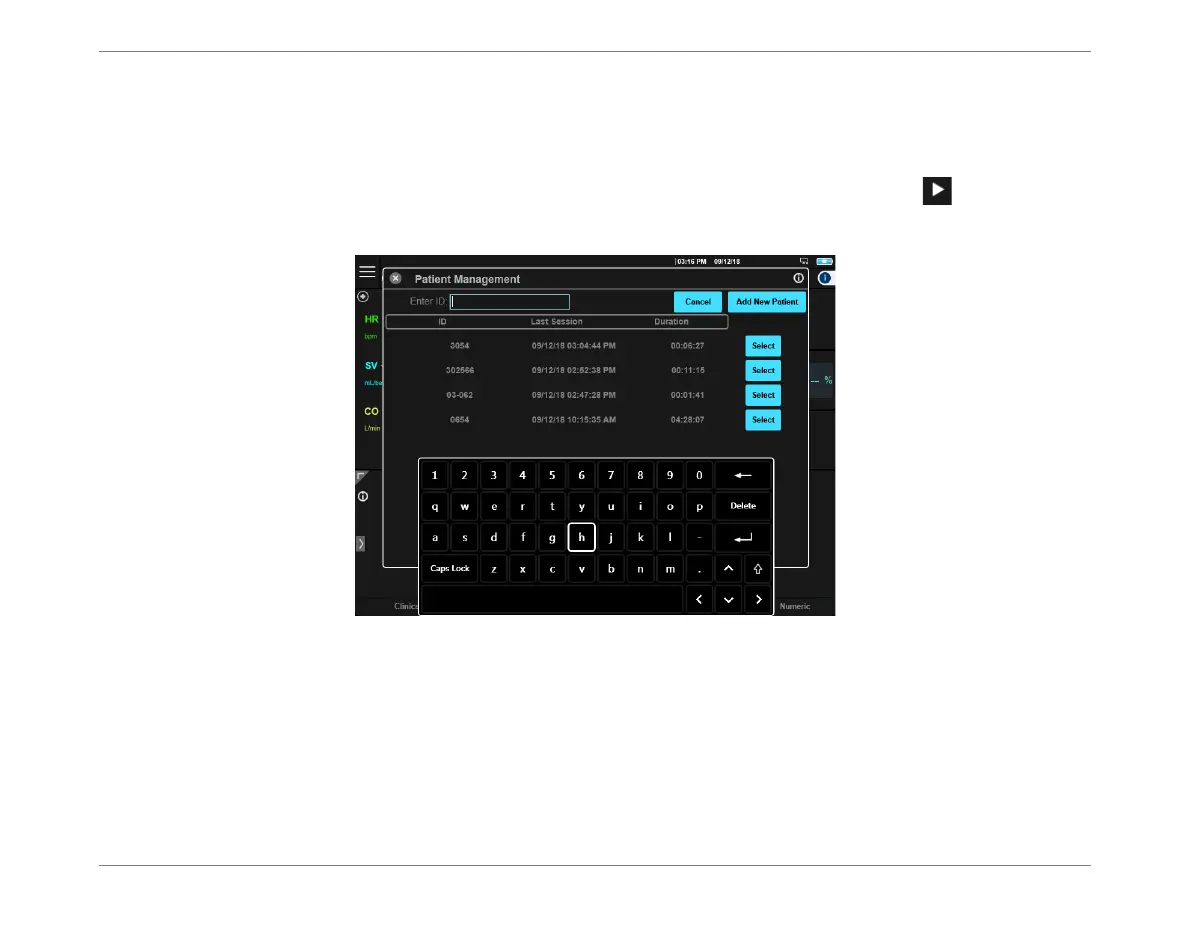
The Patient Management Window may be accessed from either the Home Screen or the Session
Browser Window, using one of the following methods:
If no Monitoring Session in progress, on the Controls toolbar tap the button
From the Main menu, select the Browse Existing Sessions option.
The Patient Management Window opens, displaying a list of all patients currently in the Starling
database, showing
ID number
,
Last Session
(date and time) and
Session
Duration
for each.
Note
Patient Files are listed chronologically, with the most-recent at the top of list; the display shows a total
of ten files. (It is not possible to sort the list order).
Any Patient File displayed in this window can be selected with the Select button. Alternatively,
use the virtual keyboard (or Display Control Knob) to search the list by typing the required
patient’s ID number in the ID field.
Figure 3-23 Patient Management Window






 To Next Page