3-4 Starling Monitor - User Guide
Home Screen
Home Screen
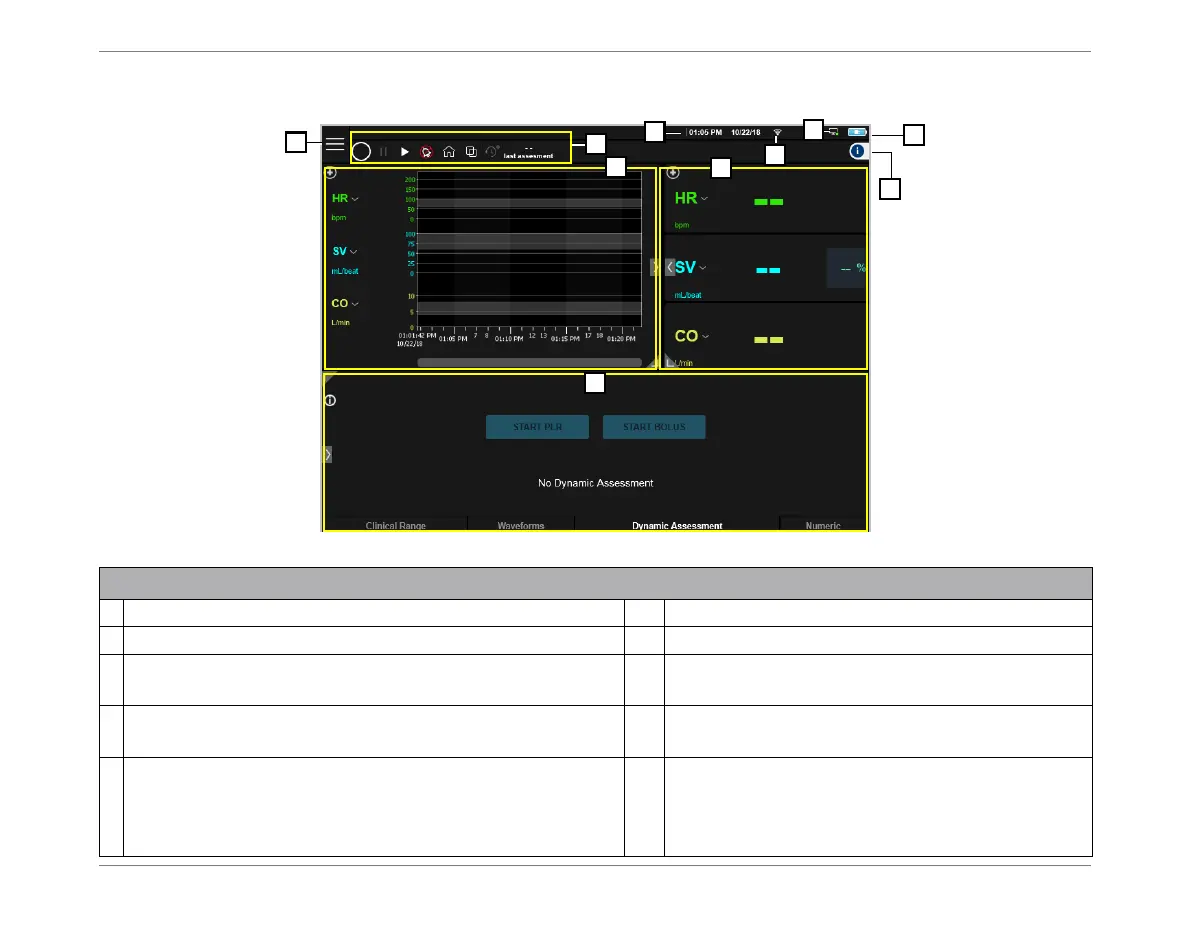
Figure 3-2 Home Screen - Default Display After Startup
Legend, Figure 3-2
1
Opens the Main menu - see Figure 3-3.
2
Controls Toolbar - see Figure 3-4.
3
Current time and date.
4
Icon indicates WiFi connectivity status.
5
Icon indicates External Patient Monitor connectivity
status.
6
Battery status icon - for an explanation of battery
status indicators, see Table 2-2 on page 2-16.
7
Opens Help menu - for list of topics, see Help Menu on
page 3-10.
8
Trends area - provides a graphic representation
of numeric data. See example in Figure 3-5.
9
Real-time Values - enlarged view of actual (real-time)
values for hemodynamic parameters currently selected
for display - see Figure 3-12.
10
Display window - provides the option to display
one of four categories of data, in accordance with
the currently-selected tab (Clinical Range,
Waveforms, Dynamic Assessment or Numeric).






 To Next Page