©2020 Baxter International Inc. 5- 61
Saving a Screen Capture
Saving a Screen Capture
At any stage during
active
or
inactive
monitoring, the user has the option to save a screen
capture (print screen) of the currently-displayed information to a USB storage device (flash
drive/disk-on-key), as described below.
Note
Screen captures are saved in .png format and may be viewed on any PC, as required.
To Save a Screen Capture
1. Ensure the information to be saved is displayed as required.
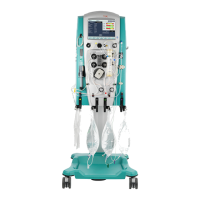
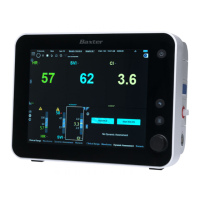
2. Insert a USB storage device into the USB port on the side of the Starling Monitor -
refer to Figure 2-8 on page 2-13.
3. Press the Display Control Knob and Power On button simultaneously for a second,
then release.
The display flashes once very quickly; the screen capture is automatically saved to the
flash drive (under a folder named Starling_Screens).
4. Remove the flash drive from the USB port.






 To Next Page