©2020 Baxter International Inc. 3-1
Chapter 3 – Starling Monitor Display
Introduction to the Touch Screen Display
and Controls
Main Screens and Controls
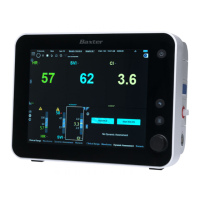
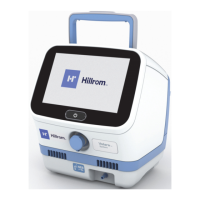
The Starling Monitor display is designed for easy operation. Screens and controls are grouped and
presented to facilitate the clinic workflow. For reference, they are described accordingly, as follows:
Home Screen
Main Menu
Trends Area
Real-time Values
Display Window
Patient Management Window
Session Browser Window
Using History Mode
Navigation and Display Options
The display may be used as a touch screen, whereby navigation and commands are initiated
by touching or tapping the screen with one finger.
In some screens, a two-finger pinch gesture can be used to zoom the view in or out, as required.
Additionally, swipe
left
or
right
to scroll horizontally.
Where applicable, menus can be swiped
up
or
down
.






 To Next Page