2-14 Starling Monitor - User Guide
System Configuration
Operator Panel
Touch Screen - LED Display
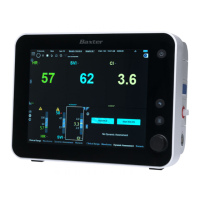
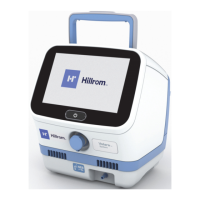
The Starling Monitor has a 10.4" LED display that enables full control and continuous real-
time monitoring of the acquired patient data. The display may be used as a touch screen,
whereby user interaction with the system is through simply touching or tapping the screen
with one finger; in some screens, multi-touch functionality by way of a two-finger pinch
gesture can be used to zoom the view in or out, as required.
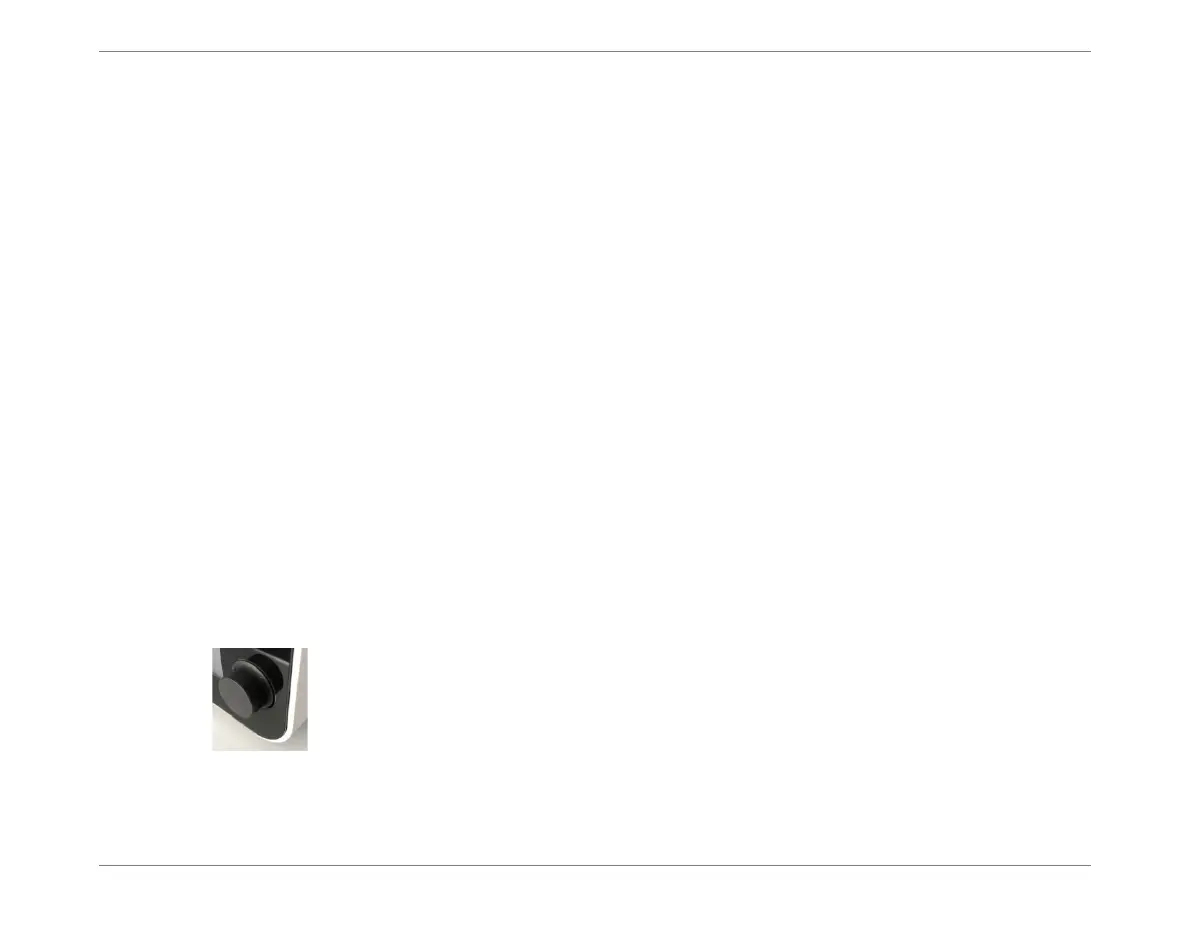
Most commands may also be initiated using the Display Control Knob (located in the lower
right corner of the operator panel) to scroll through the menus and activate the appropriate
on-screen tools.
The operator has the option of using the Touch Screen only (without using the Display Control
Knob), or a combination of both - as preferred.
Additionally, the Main Menu Button and Back Button provide quick-access shortcuts.
Note
The LED display contrast and brightness settings may not be adjusted by the user.
For a more detailed explanation, see Introduction to the Touch Screen Display and Controls
on page 3-1
Display Control Knob
Turn this knob to move through the screen areas, menus and sub-menus; the knob
can be pressed to make a selection from a drop-down menu or confirm a command
(operating like the <Enter> key on a keyboard).
Note
For instructions, refer to Using the Display Control Knob on page 3-2.






 To Next Page