3-34 Starling Monitor - User Guide
Using History Mode
Using History Mode
The Starling Monitor
History Mode
is a useful feature available whenever a selected patient
has had more than one Monitoring Session performed in the last 12 hours.
History Mode provides a convenient method of viewing a patient’s Monitoring Session history
(
Trends, Dynamic Assessment Test Results,
and
Numeric Data
) and can be used either during
active
or
inactive
monitoring.
Viewing Trends in History Mode
To View Trends in History Mode
1. Ensure the Trends area is currently displayed.
2. In the Controls toolbar, tap the Session History button.
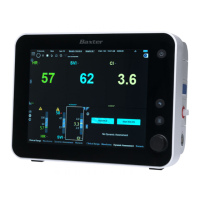
The display switches to History Mode; a Session indicator (showing numbered Sessions)
is now displayed at the bottom of the screen as shown in the example in Figure 3-27.
Note In the Session indicator, Monitoring Sessions are numbered sequentially (1,2,3 etc.) from right
to left (i.e. backwards chronologically). In addition, a vertical blue line is displayed on one
Session, indicating that is the Session for which Results are currently being viewed.
3. Proceed as follows:
EITHER
Swipe the display left or right to move through the Trends history
OR
Using the Display Control knob, place the focus on the horizontal scroll bar, press the
knob, then turn left or right, as required.







 To Next Page