[Error Information] Page
[Device Features] Page
[Device Information] Page
[Check Counter] Page
Print: [Job Status] Page
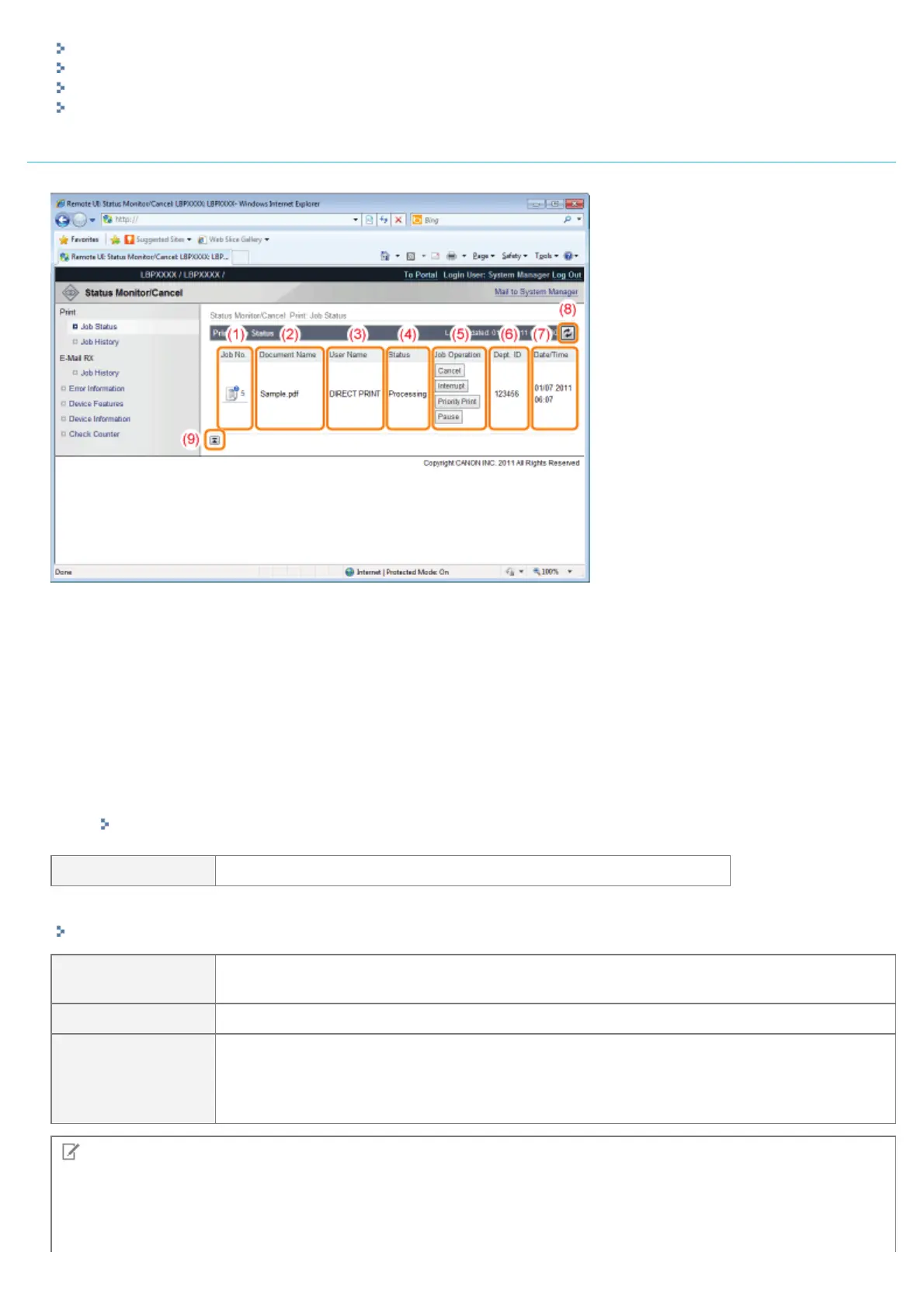
You can check the status of jobs that are currently printing and manage them using cancel/resume.
(1) [Job No.]
The Job No. of the job is displayed. When you click the Job No., the job's details are displayed.
(2) [Document Name]
The name of the job is displayed. For e-mail printing jobs, the subject of the e-mail is displayed.
(3) [User Name]
The user name of the job is displayed. For e-mail printing jobs, the e-mail sender is displayed.
(4) [Status]
The status of the job is displayed.
(5) [Job Operation]
It runs the job operation. Click the button for the operation that you want to run.
"Managing Print Jobs"
[Cancel] It cancels the printing of the job that you clicked on and deletes the job.
If [Interrupt Print] is set to [On], you can perform the following operations.
"[Setup] Menu ([Control Menu] Options)"
[Interrupt]
It pauses the job that is currently being output, and makes the new job the printing priority.
When the new job is finished printing, it resumes printing the paused job.
[Priority Print] The output order of the job is moved up by one.
[Pause]/[Resume]
When you click [Pause], it pauses the job output. The button for the paused job changes to
[Resume].
When you click [Resume], the paused job resumes. The button for the resumed job goes back
to [Pause].
NOTE
[Job Operation]
When logged on in End-User mode, it is possible to operate jobs with user names that match using [Management
Settings] of [Settings/Registration] - [Management Settings] - [Security] only when job operation by end users is
㻡㻟㻟㻌㻛㻌㻥㻣㻜



 To Next Page