CS193/CS173/CS163 5-59
Troubleshooting
5
Main
unit
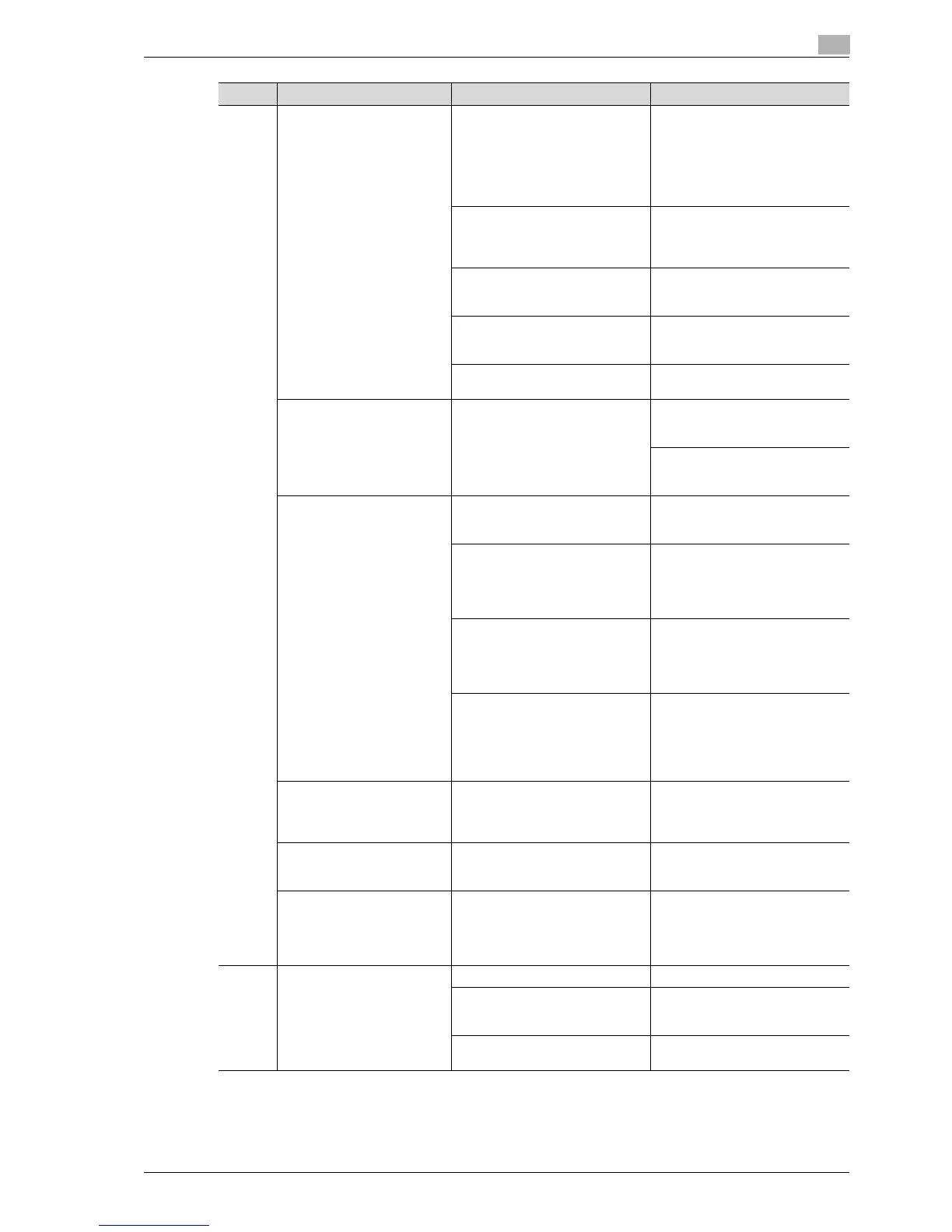
The image is not aligned
properly on the paper.
Is the original incorrectly posi-
tioned?
Correctly position the original
against the original scales. (See
p. 3-9.)
Load the original into the ADF, and
slide the adjustable lateral guides
to fit the size of the original. (See
p. 3-8.)
Is the original incorrectly posi-
tioned in the ADF?
If the original cannot be fed cor-
rectly through the ADF, make cop-
ies by positioning the original on
the original glass. (See p. 3-9.)
Is the left partition glass dirty (while
using the ADF)?
Clean the left partition glass with
the left partition glass cleaner. (See
p. 10-3.)
Are the adjustable lateral guides
incorrectly positioned against the
edges of the original?
Slide the adjustable lateral guides
against the edges of the original.
Was curled paper loaded into the
paper tray?
Flatten the paper before loading it.
The printed page is curled. Was paper that curls easily (as with
recycled paper) used?
Remove the paper from the paper
tray, turn it over, and then load it
again.
Replace the paper with paper that
is not damp. (See p. 2-43, p. 2-45
and p. 2-47.)
The edge of the printed out-
put is dirty.
Is the original pad dirty? Clean the original pad with a soft
cloth dampened with a mild deter-
gent. (See p. 10-5.)
Was the selected paper size larger
than the original (with a Zoom set-
ting of "Full Size" (100.0%)?
Select a paper size that is the
same size as the original.
Otherwise, select the "Auto" Zoom
setting to enlarge the copy to the
selected paper size. (See p. 3-37.)
Is the orientation of the original dif-
ferent from the orientation of the
paper (with a Zoom setting of "Full
Size" (100.0%)?
Select a paper size that is the
same size as the original. Other-
wise, select a paper orientation
that is the same as that of the orig-
inal.
Was the copy reduced to a size
smaller than the paper (with a re-
duced zoom ratio specified)?
Select a zoom ratio that adjusts
the original size to the selected pa-
per size. (See p. 3-37.)
Otherwise, select the "Auto" Zoom
setting to reduce the copy to the
selected paper size. (See p. 3-40.)
Even though the paper mis-
feed was cleared, copies can-
not be produced.
Are there paper misfeeds at other
locations?
Check the touch panel for other
paper misfeed indications, and
then remove any misfed paper at
all other locations. (See p. 5-6.)
Printing with the "2-Sided >
1-Sided" or "2-Sided > 2-Sid-
ed" settings are not possible.
Have settings been selected that
cannot be combined?
Check the combinations of the se-
lected settings.
Copying is not possible even
though the password is en-
tered on a machine with user
authentication/account track
settings specified.
Did the message "Your account
has reached its maximum allow-
ance." appear?
Contact your administrator.
ADF The original is not fed. Is the ADF slightly open? Securely close the ADF.
Is the original one that does not
meet the specifications?
Check that the original is one that
can be loaded into the ADF. (See
p. 7-21 and p. 7-22.)
Is the original correctly loaded? Position the original correctly. (See
p. 3-8.)
Symptom Possible cause Remedy



 To Next Page