CS193/CS173/CS163 8-27
Application functions
8
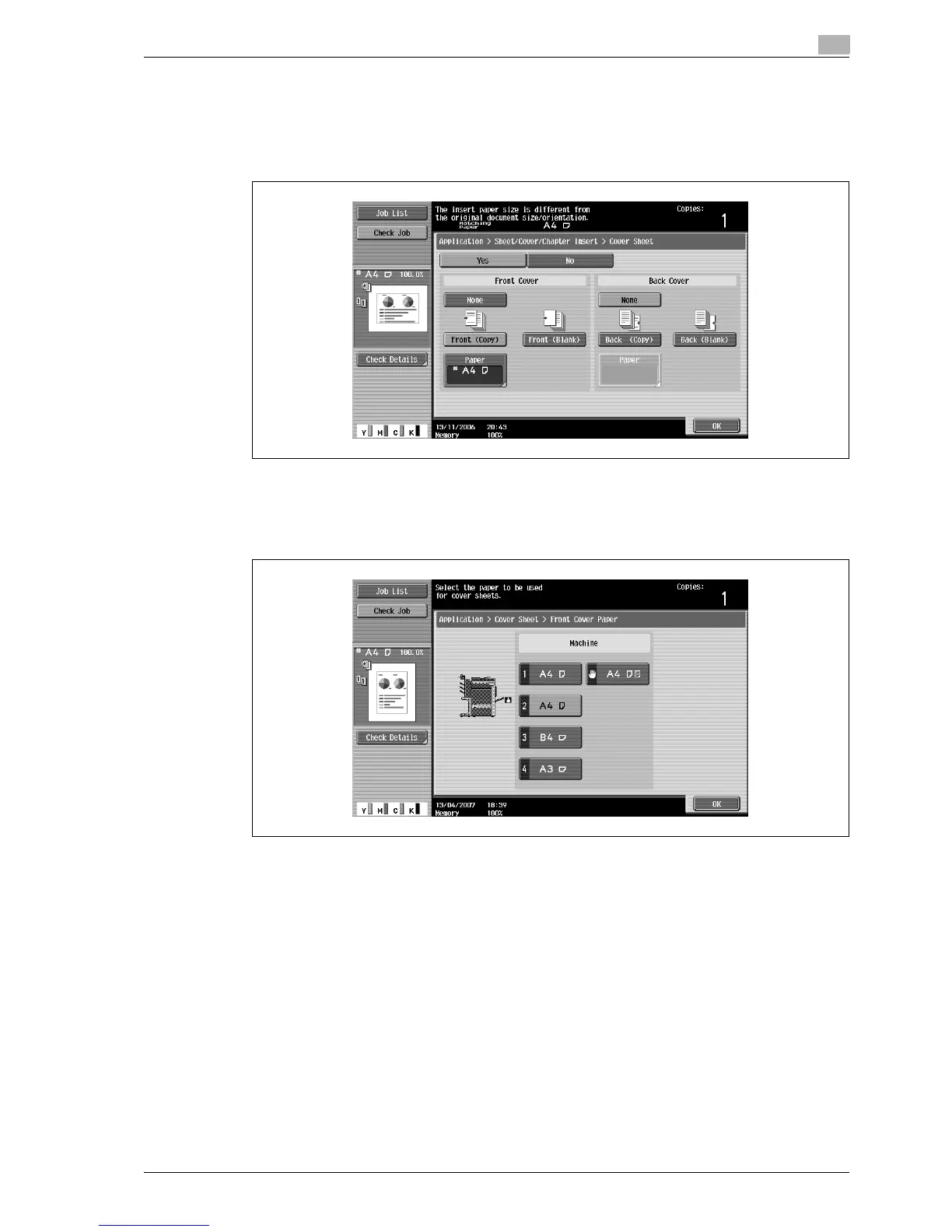
5 Select the desired cover page settings.
– To cancel the setting and select the default, press the [Reset] key.
– To cancel the "Cover Sheet" function, touch [No].
– The default setting for the paper tray loaded with cover pages can be specified from the Utility
mode. For details, refer to "Copier Setting" on page 12-32.
6 If desired, touch [Paper] under "Front Cover" or "Back Cover".
The corresponding Cover Paper screen appears.
7 Select the paper tray loaded with the paper for the cover pages.
8 Touch [OK], and then touch [OK] in the next two screen that appears.
9 Specify any other desired copy settings.
10 Using the keypad, type in the desired number of copies.
11 Press the [Start] key.



 To Next Page