SETTING STEP LENGTH
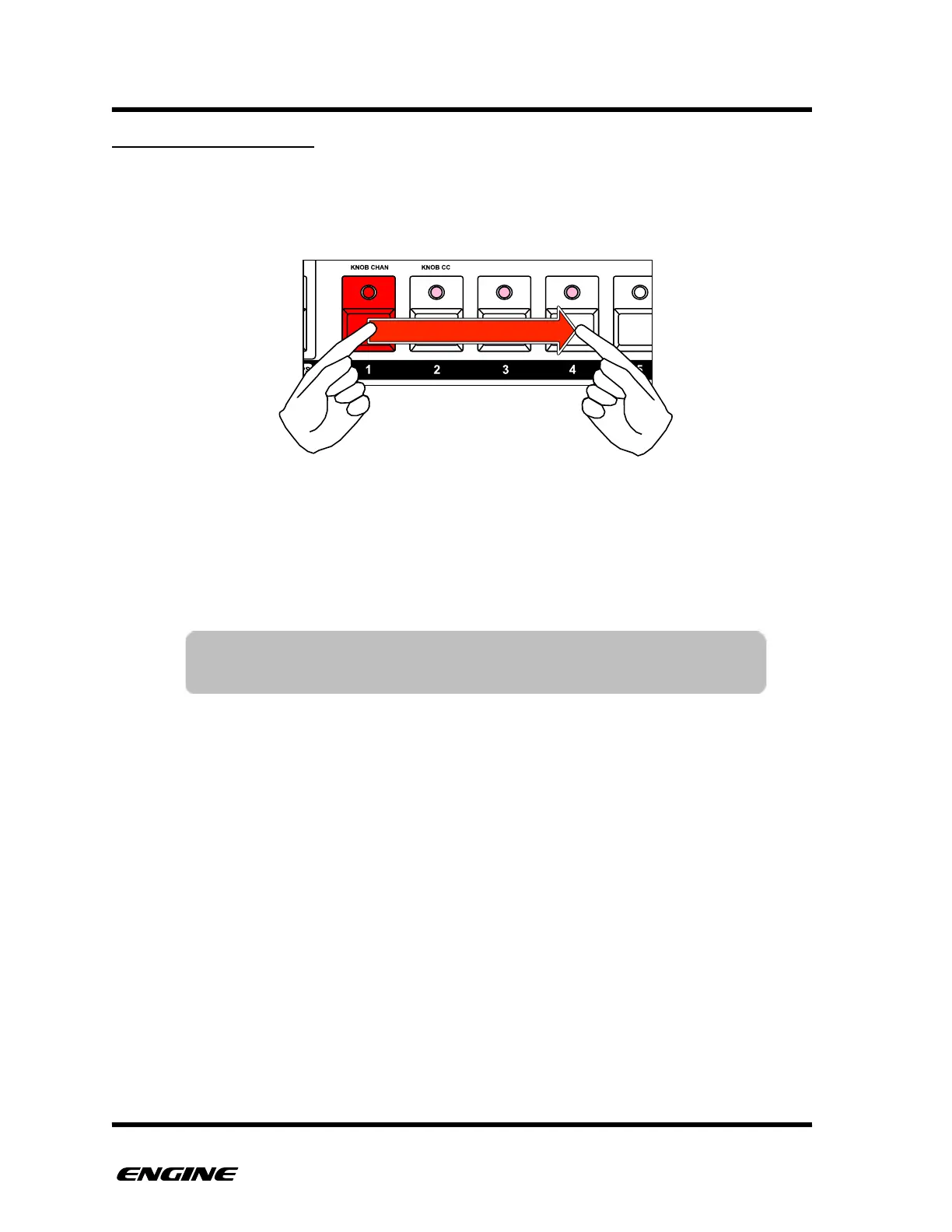
To set the overall length of a step, press and hold the step button and then click a second
step button. The beginning of the step is shown with a brightly lit step LED, and the length
of the note is shown by a chain of dimly lit step LEDs.
You can shorten the step by clicking a second step button closer to the start of the step.
To make the step one step long again, click the first step button to turn it off, and then
click it again to turn it back on. This removes any programmed step length.
TIP: To create notes that are longer than 16 steps or stretch across
pattern sections, use the length feature in STEP FUNCTION mode.


 To Next Page