6. GUI orientation
6.39 Settings Menu > WebKit area > Tools > Manage Software
General
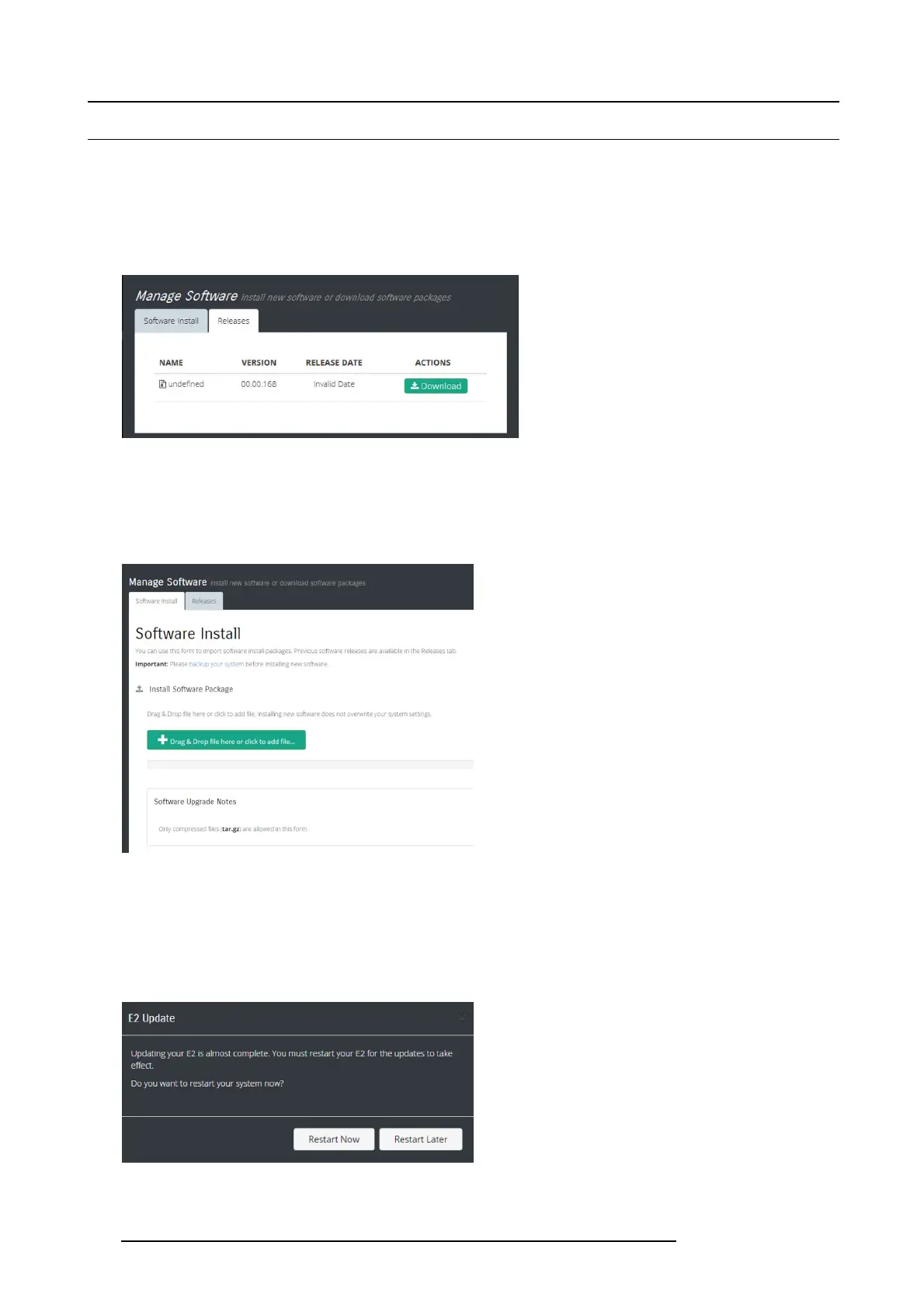
When you select the “Manage S oftware”, two tabs are presented. The “Software Install” tab and the “Releases” tab.
Releases
From this menu you can select and download a new file from the Barco Server. A dialog box allows you to select the location on
your computer where the file will be stored.
Image 6-77
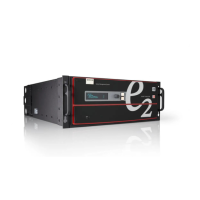
Software Install
How to upgrade your s ystem:
1. Outside of the GUI open a new window and navigate to the folder containing the file you want to use to upgrade your system with.
2. Select the file and “drag an d drop” it on top of the green button. The file is co mpressed and it has tar.gz extension.
Image 6-78
3. Click on the blue “Upload” button. This action will c opy the file from the compu ter into E2.
4. A green bar appears indicating the prog ress of the upload process.
5. While the unit up dates its software the following message appears:
The system will now restart. Please w ait...
Note: The u pload process takes several minutes.
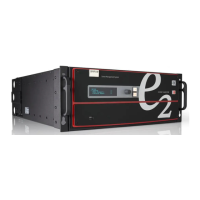
6. When the upload is complete, a w indow a
ppears instructing you to restart the unit.
Image 6-79
7. While the system reboots and in
stalls the new software, the web ap p displays a message indicating that it can’t c omm unicate
with the unit. This is normal and no action is required on your part.
150
R5905948 E2 12/12/2014


 To Next Page