8. Updating firmware
8.2 Upgrading firmware using the web Upgrade
The upgrade operation begins w ith a step of validation to check if a new version is available .
How to upgrading firmware
1. Verify that the E2 has internet access. Contact your system administrator if neces sary.
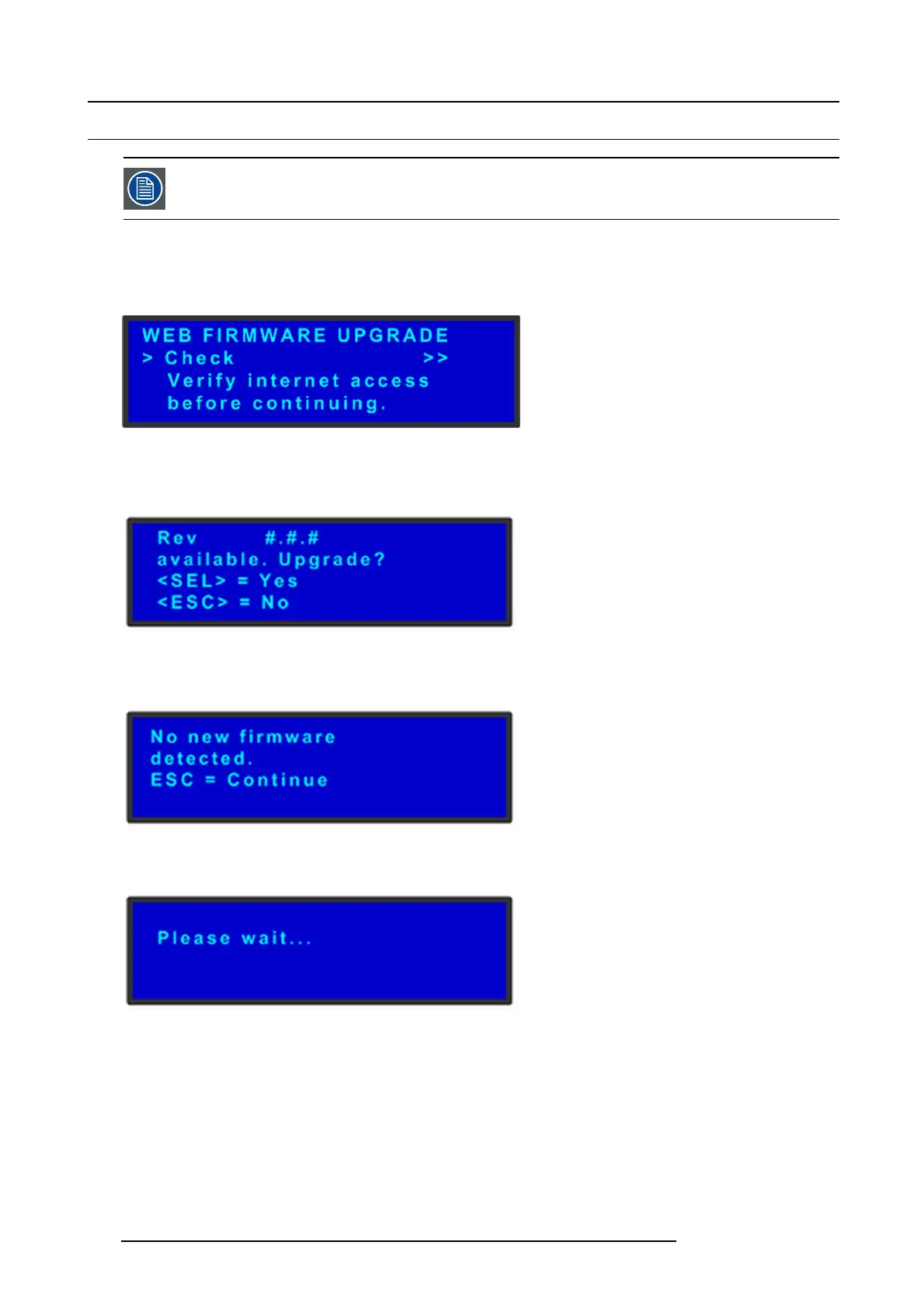
2. Select Setup > Firm wa re Upgrade > Web Upgrade. The submenu shown in the following illustration appears.
Image 8-4
Web F irmware Upgrade Submenu
3. Select Check.
A mes sage informs you if a new firmwa re versio n is ava ilab le .
Image 8-5
Firmware Version-Upgrade Message
Or,
If during the “Check” process new firmware is NO T detected, the follow
ing message will show:
Image 8-6
No Firmware Available Message
4. Press SEL to start the upg rade. A message will inform the user to “Please wait...”
Image 8-7
Upgrade Wait Message
5. After t he upgrade is finished, the E2 will automatically reboot.
186
R5905948 E2 12/12/2014


 To Next Page