9. General operation example
9.6 Multiviewer (MRV) Menu
Make sure t hat yo u h ave assigned conne ctors to MVR o utputs as outlined in s ection C 7 b efore you proceed.
Overview
Click on the Multiviewer icon on the left hand side of the screen to reach the Multiviewer Menu , the module used to setup the
Multiviewer outputs to the MRV m onitors. You should see two screens since two Multiviewer outputs were declared.
We will setup the top window to display all the inputs and the bottom window to display the Program and preview screens.
Setup the “Sources” window
1. Click on the top t ab that is labeled “MVROut1”.
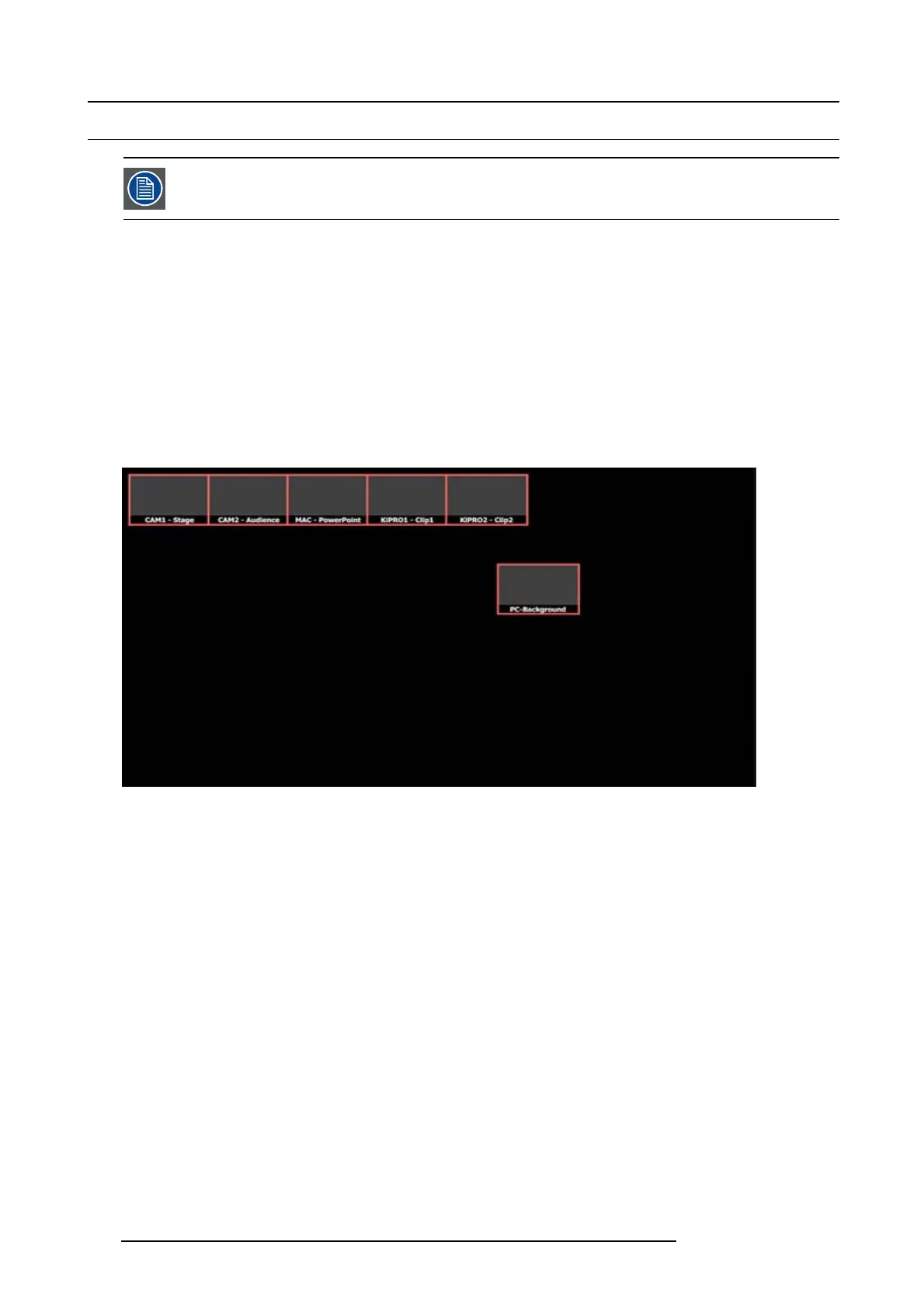
2. Click on the Auto Layout Input button that is located at the bottom of the display area . All of the sources will appear lined up at
the top of the window.
3. Click on the B ackground tab and the top of the r ight hand side.
4. Drag the P C-Backg round into the Window area.
Image 9-26
5. Resize and arrange the PIPs to fill the screen.
210
R5905948 E2 12/12/2014


 To Next Page