6. GUI orientation
6.8 Configuration Menu > Device area
General
This part of the Sys tem config uration page allows to list devices a vailable o n the local network and identify the devices.
Description
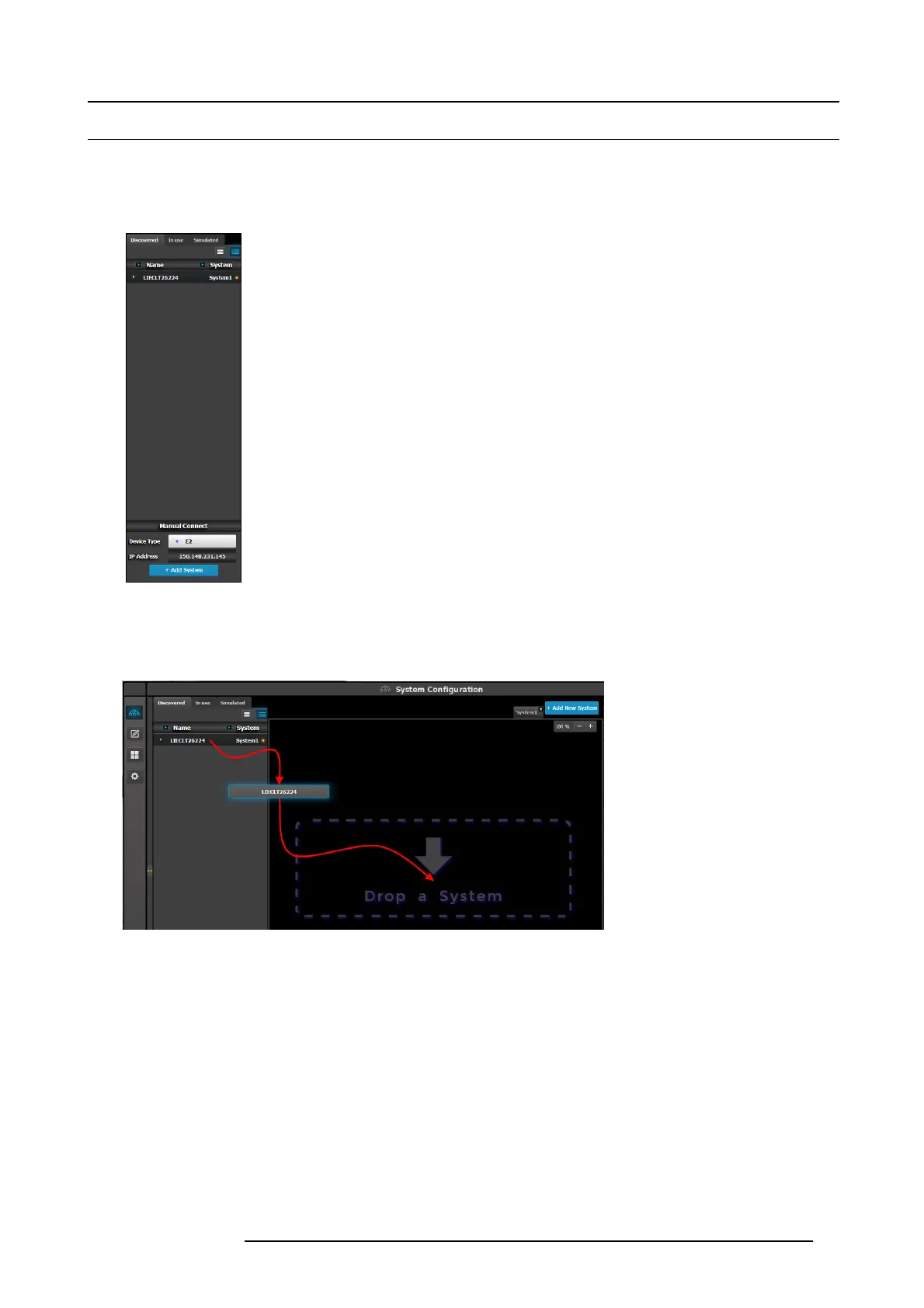
There are 3 tabs in this section:
• Devices in use: Lists the devices in the selected Sy stem. If multiple Systems are present, the list
will display the devices in the s elected s ystem
• Discovered: Lists the discovered devices on the local network regardless of t he selected System.
• Simulated: List of simulated devices we support will be shown, regardless of the selected System.
This is post release 1 feature. Note: When this tab is selected, the Event Master Control Software
will continuously send a UDP bro adcast over the network to locate devices (every 5 sec onds)
Next to the device name an LED indicates the status of the u nit:
• Yellow : Fou nd in network but not assigned
• Green: A ssigned and currently has an open or active communication port
• Red: Assigned but currently has errors trying to comm unicate (heart beat c omm unication failure,
TCP connection dropped, etc. )
• Orange: There is a co nfiguration er ror with the unit:
- Input / O utput ca rds not right justified. Refer to the corresponding s ection below of the c ard
placement rules and error color co de.
- Input / Output configuration mismatch with the actual unit. Refer to the corresponding
configuration section of the card placement rules and error color c ode.
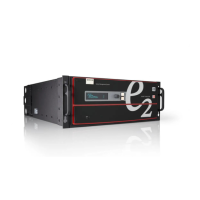
How to add a device into the selected system?
1. Left click on the device to be assigned to the selected s ystem .
2. Drag it to the System diagram area.
Image 6-7
How to manually add a device into the selected system?
To m anually add a device, use the “Manual Add” section.
1. Select the type of device from the drop down (showing list of supported devices).
2. Enter the IP address.
3. Press the “Add” button.
R5905948 E2 12/12/2014
77


 To Next Page