6. GUI orientation
6.19 Programming Menu > Diagram area
General
The middle of the Programming Page is the Programming diagram area where the Program, Preview and AUX screens are com -
posed.
Description
Each Program/Preview screen can be viewed individually or all of the screens c an be shown simultaneously by selecting the corre-
sponding tab on the top of the Program window.
On the top left corner has a label that shows the nam e of the destination.
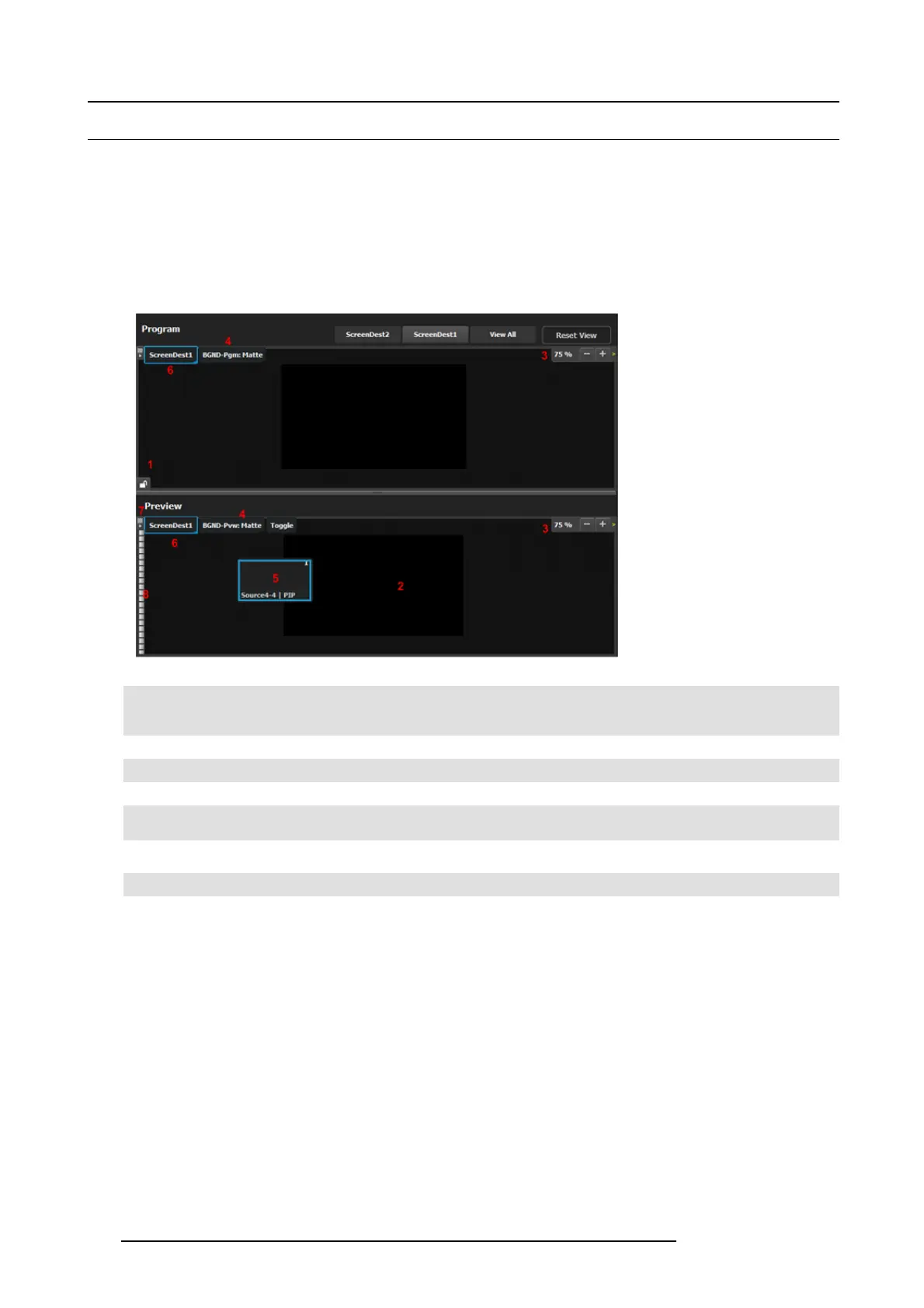
Image 6-39
1 Lock icon indicates whether the PG M destination is locked. When locked, the Program sc reen can only cha nge after a
Mix or Cut transition. When the program screen is unlocked, the user can click o n a layer that is on PGM and mov e or
resize it. The user can also assign a differ
ent S ource into that layer or adjust the backgroun d.
2
Preview screen where the program is com posed before is transitioned to p rogram .
3
Users can zoo m in / out of the diagram area, in from 25% to 150%, in 25% increments.
4
BGND Input tab. This is the menu where users drop the assigned Back ground inputs preview screens.
5
Selected sources are dropped in the layers defined in the pr eview screen. A layer can be placed outside or partially in
the preview area.
6
The D estination tab can be c licked to arm the De stination and become part of the next transition.
7
A small arrow on the left hand s ide o
f Destination n ame expands or co llapses the Destination view.
8 Users can manually c ontrol the transition by clicking on the bar or by sliding the mouse.
Layer and Source into the previous screen
Users can drag layers to the preview screen as long a s the layer is not on program. In the ex ample below, since no source has been
assigned to the layer, the layer will be black and default to a s quare shape.
112
R5905948 E2 12/12/2014


 To Next Page