6. GUI orientation
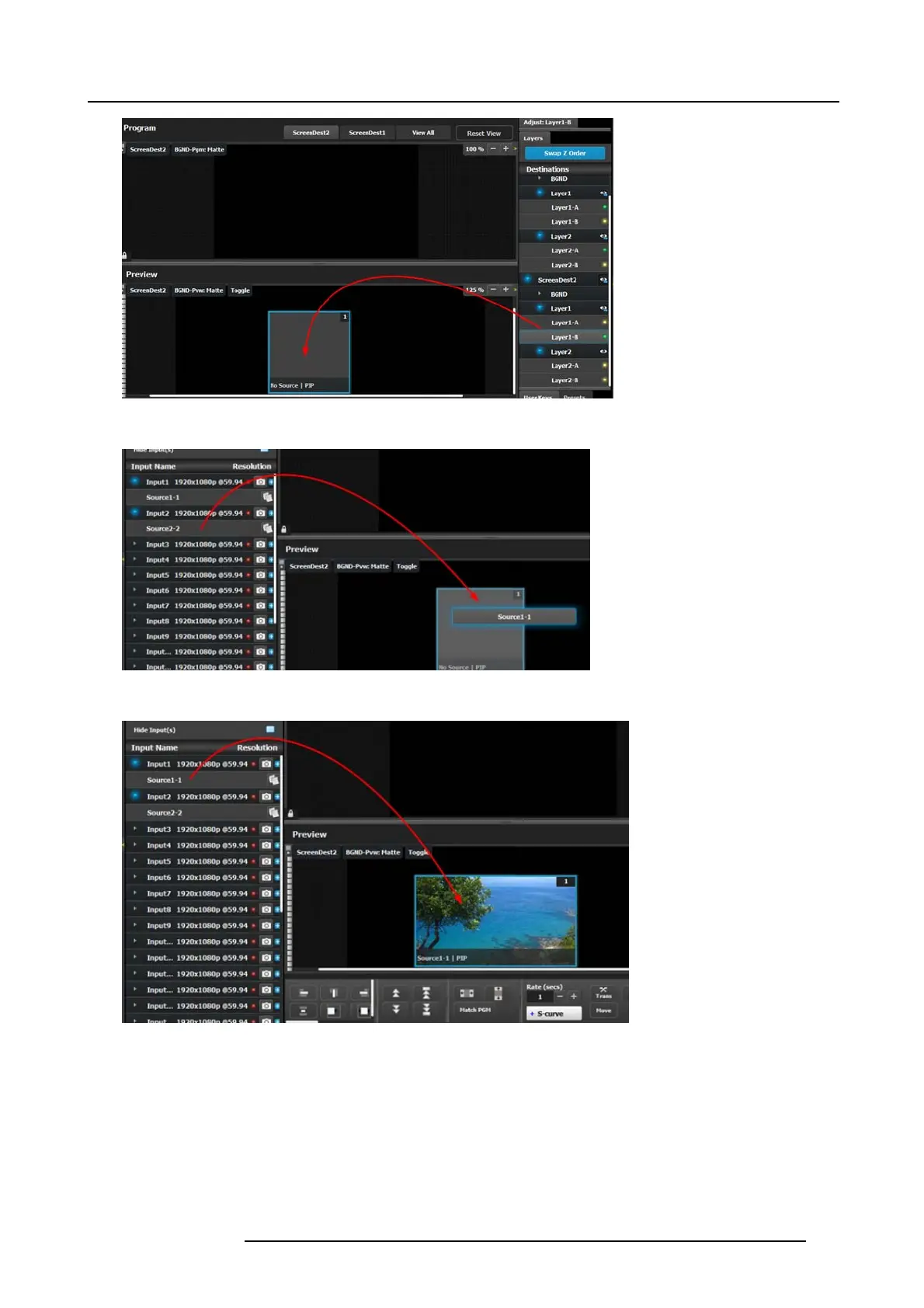
Image 6-40
Next a source from the Input panel on the left hand side can be dragged into the layer.
Image 6-41
Alternatively, an Input or a source can be dragged into the Preview screen directly as long as there are available layers.
Image 6-42
If the ava ilable layer is already in Preview, then the source will immediately be assigned to that layer. The layer will b e resized
automatically to match the source aspect ratio.
If a layer is av ailable
but it hasn’t been placed into the preview screen, then the so ftware will automatically place the layer in the
position where the S ource was dropped and allocate the lowest unassigned layer to the source. The source and layer m ust also
comply with the sizing rule that is explained next.
Rules for assigning S ources into layers
The s ize of the layer has to be greater or equal to the size of the s ource. For examp le, if the source is a 2K input, t he layer needs
to be 2K or more. If the s ource is a 4K and the layer is only a 2K layer, then the source can’t be placed into the Layer. If the Source
is a 2K input and the layer is a 4K layer, the source can be placed into the Layer.
R5905948 E2 12/12/2014
113


 To Next Page