©2020 Baxter International Inc. 5- 63
Data Export
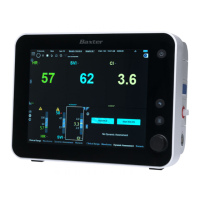
3. Insert a USB storage device (flash drive/disk-on-key) into the USB port on the side of
the Starling Monitor - refer to Figure 2-8 on page 2-13.
4. Tap the Export button.
The Export Data dialog box opens.
5. Tap to select one or more of the required Export options (
Excel, PDF Summary, PDF Full
).
Note
A
Starling
Report in Excel format will include the following categories of Session Results
information: General, Clinical, Test Graphs, Dynamic Assessment Test Results, and Print Screens (as
applicable) - each on a separate sheet.
A
Starling
PDF Full Report includes Test Graphs, Session Results, Dynamic Assessment Test
Results, Events, and Print Screens (as applicable).
6. Tap the Export button.
The Export process commences; a progress bar is displayed - Figure 5-58.
Figure 5-57 Export Data Dialog Box






 To Next Page