185
F3SG-SR
User’s Manual
Chapter4 Basic Operation of SD Manager 3
Setting with SD Manager 3
E
4-2-7. Reading/Saving/Writing Configuration of Intelligent Tap
4-2-7-1. Reading Configuration from Intelligent Tap
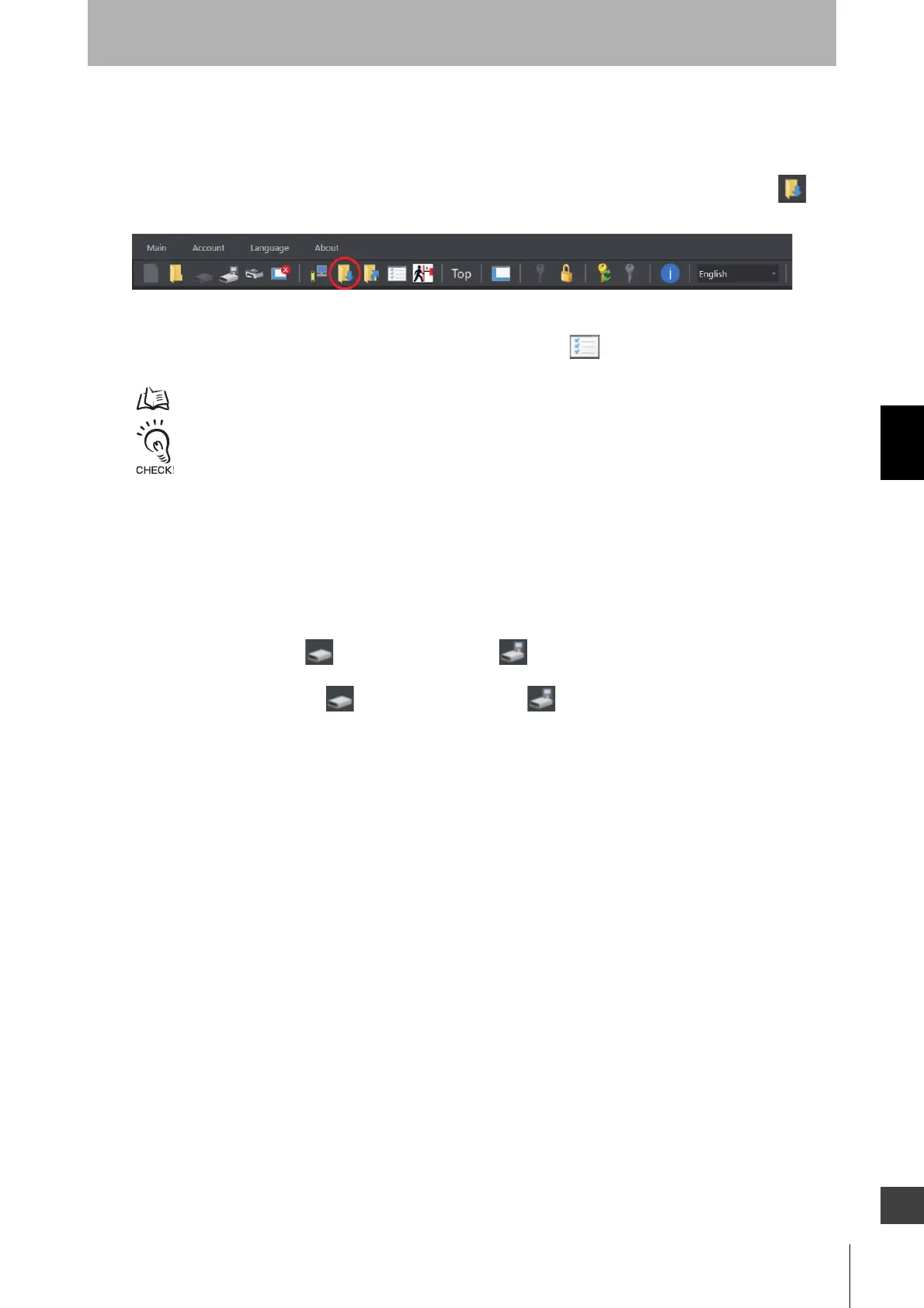
Check that the Intelligent Tap is correctly connected and click the [Read configuration] button .
The configuration data are read by clicking this button. The read data can be confirmed on the setting
screen of each function or using the [Configuration List] button .
It is able to move to a setting screen by clicking an icon of a function on the Top page.
For the display of each setting screen, refer to 4-3. Changing Settings with SD Manager 3.
When the F3SG-SR is in the [Detecting] state, a dialog to confirm if it is OK to change mode is displayed. When OK is
selected, the F3SG-SR enters the Setting state (at the operator level). The safety outputs of the F3SG-SR are turned to
the OFF state.
4-2-7-2. Saving Configuration of Intelligent Tap in PC
Confirm that the Intelligent Tap is connected correctly.
Read the configuration saved in the Intelligent Tap according to the procedure of 4-2-7-1. Reading
Configuration from Intelligent Tap.
Select the [Save] button or the [Save As] button from the [Main] menu on the tool bar to save
the configuration in an arbitrary location on the PC.
Or, click the [Save] button or the [Save As] button directly from the tool menu to save the
configuration in an arbitrary location on the PC.


 To Next Page
 Loading...