Getting Started
18
1
When the Authentication Screen is
Displayed
When Basic Authentication, Windows Authentication, LDAP Authentication, or
Integration Server Authentication is set, the Authentication Screen appears on
the screen. Unless a valid user name and password are entered, operations are
not possible with the machine.
Important
❒ Consult the User Administrator about your login user name and login pass-
word. For details of the various types of user authentication, consult the re-
spective administrators.
❒ When User Code Authentication is set, the screen for entering a user code is
displayed instead.
Note
❒ “Authentication has failed.” appears if the authentication failed. Check the
login user name and login password.
User Code Authentication (Using the Control Panel)
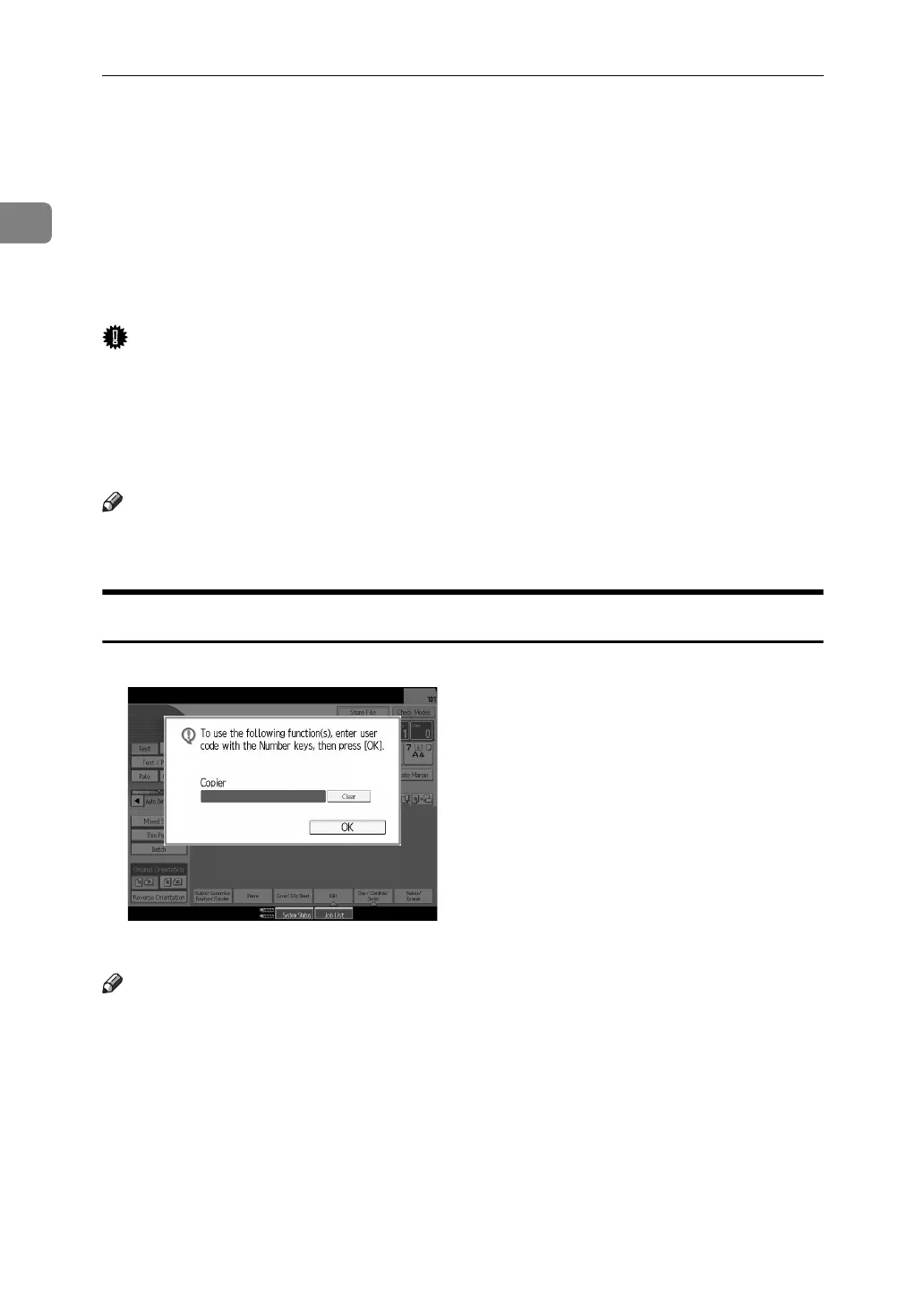
When User Code Authentication is set, the following screen appears:
Enter a user code (up to eight digits), and then press [OK].
Note
❒ To log off, do one of the following:
• Press the Operation switch.
•Press the {User Tools} key, press [System Settings], and then press the {User
Tools} key.
•Press the {Energy Saver} key after jobs are completed.


 To Next Page