Document Server
184
4
Printing a Stored Document
Following describes the procedure for printing a stored document.
Using Web Image Monitor allows you to print a document stored in the Docu-
ment Server from your PC.
A Press the {Document Server} key.
B Select the document to be printed.
When a password is set, enter it and then press [OK].
C When printing two or more documents at a time, repeat the operation in
B
.
Up to 30 documents can be printed.
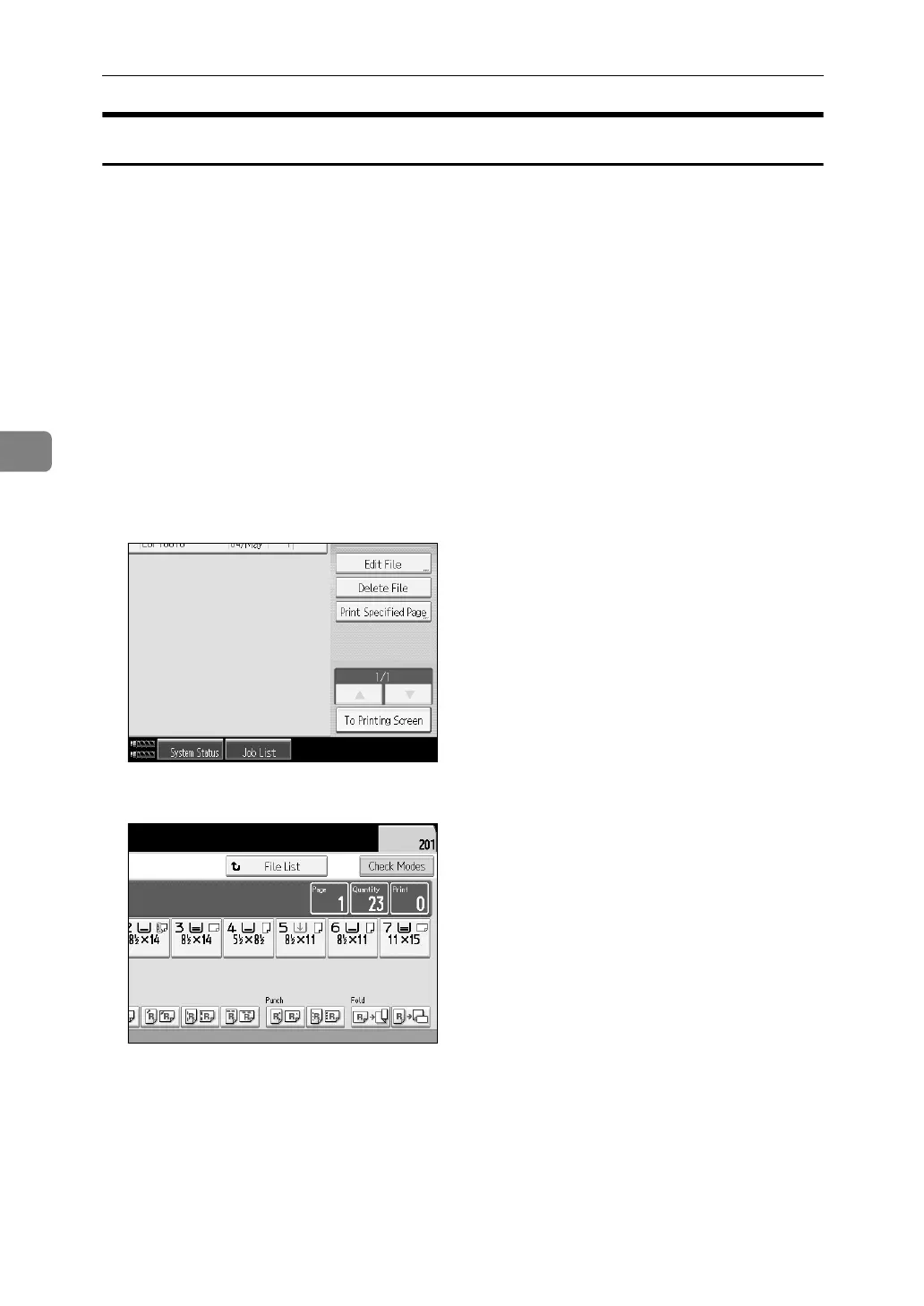
D When specifying printing conditions, press [To Printing Screen].
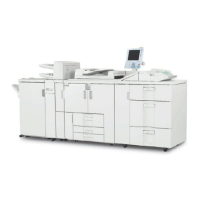
The printing condition screen will appear. User name of the document, doc-
ument name and the order of printing of this document will be displayed.
E Enter the number of print copies from the number keys.
Up to 9999 copies are specifiable.
F Press the {Start} key.
Printing will be started.


 To Next Page