Copier Functions
51
2
Selecting the Original Type Setting
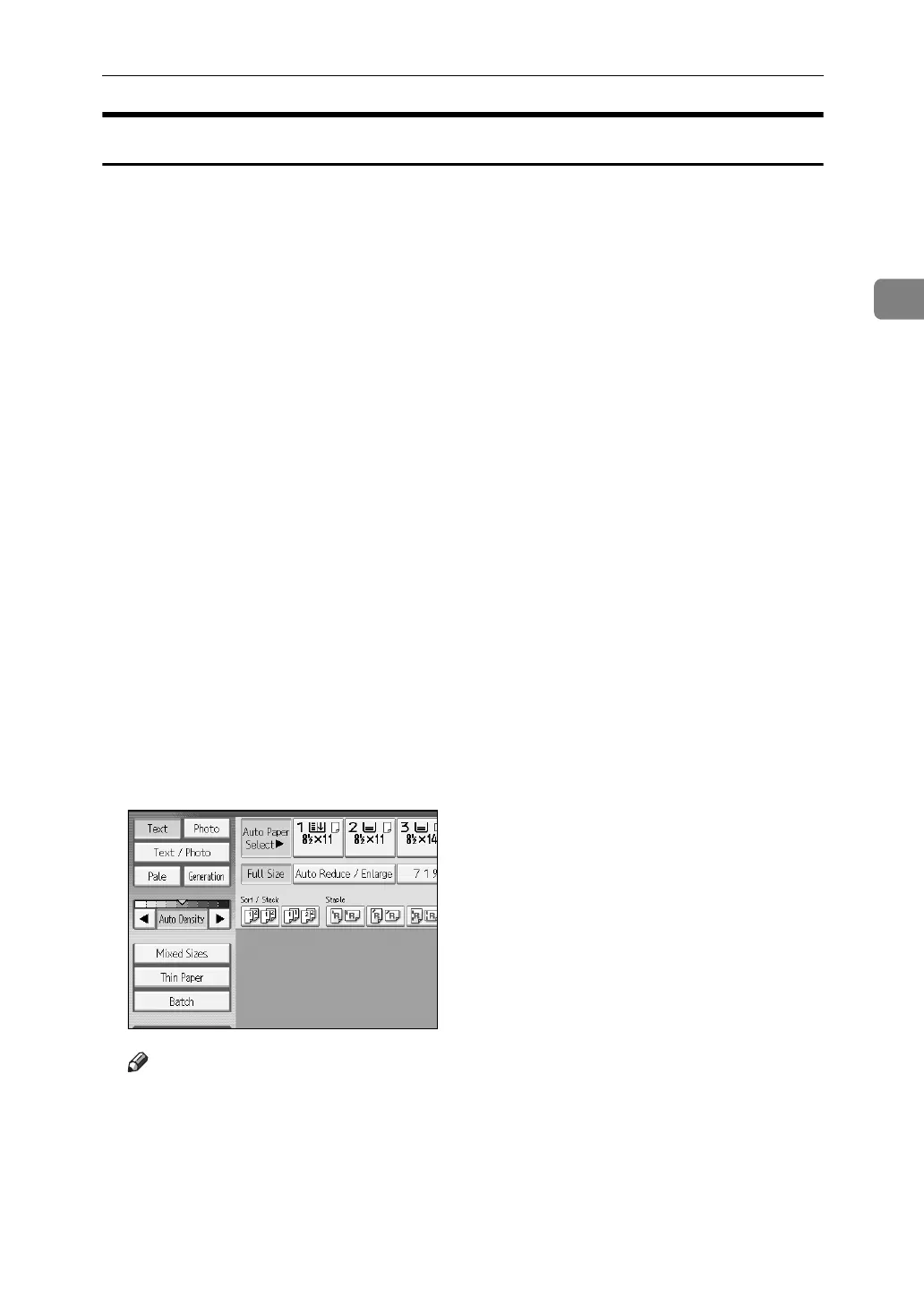
Select one of the following 6 types to match your originals:
❖ Text
When originals contain only text (no pictures).
❖ Text/Photo
When originals contain photographs or pictures alongside the text.
❖ Photo
When you want to reproduce the delicate tones of photographs and pictures.
• When copying developed photographs:
• When copying photographs or pictures that are printed on paper (e.g. magazines):
• When copying copies or originals generated by printers:
❖ Pale
When you want to reproduce originals that have lighter lines in pencil, or
faintly copied slips. Faint lines are copied with greater clarity.
❖ Generation Copy
When originals are copies (generation copies), the copy image can be repro-
duced sharply and clearly.
❖ Dark Background
When you copy originals with dark background such as color tab stock (or-
ange, green, or blue), you can remove the background color in three levels.
A Select the original type, and then press [OK].
Note
❒ To select the original type when [Original Type Display] is set to [Display] un-
der Copier and Document Server Features, press [Original Type].
❒ To display [Dark Background], you must set [Dark Background] to [On] and
[Original Type Display] to [Hide] under Copier/Document Server Features,
and then press [Original Type].
❒ If you select [Dark Background], the auto image density function is disabled,
but the manual image density function is enabled.


 To Next Page