Using Connect Copy
155
3
Using Connect Copy
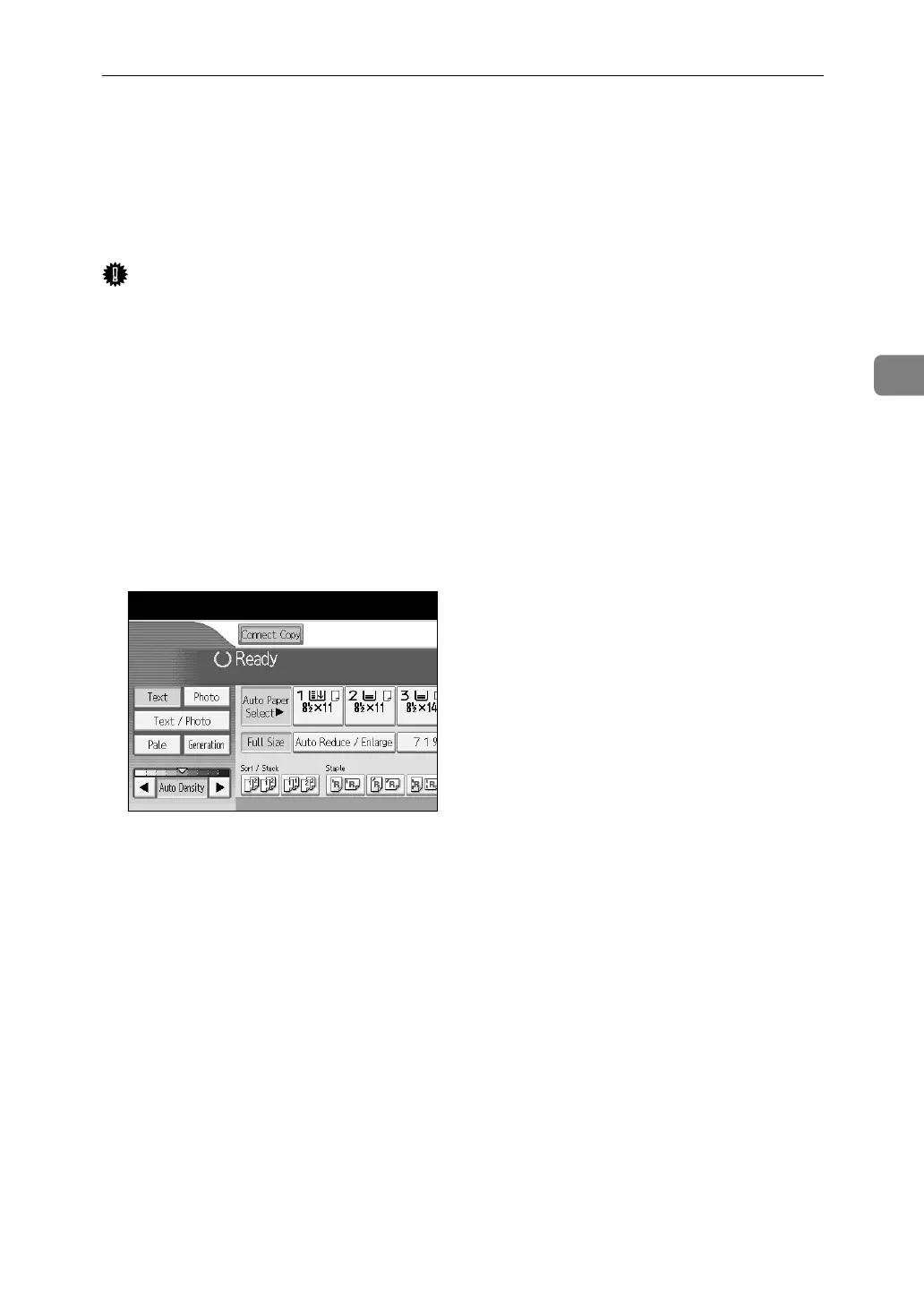
You can select Connect Copy from either machine by pressing [Connect Copy].
The machine on which you pressed [Connect Copy] and made Connect Copy set-
tings becomes the main machine, and the other the sub-machine.
Important
❒ When user authentication is set, use the number keys to enter a user code (up
to 8 digits) that is registered on the main machine, and then press the {q}
key. For details, see “Administrator Tools”, General Settings Guide.
❒ When Basic Authentication, Windows Authentication, LDAP Authentica-
tion, or Integration Server Authentication is set, enter a login user name and
the login password. For the login user name and the login password, contact
your Administrator. For details, see “When the Authentication Screen is Dis-
played”, About this Machine.
❒ In Connect Copy mode, use the main machine to perform this function. See
“Copier/Document Server Features”, General Settings Guide.
A Make sure [Connect Copy] is shown on the display.


 To Next Page