Preventing Information Leaks
80
3
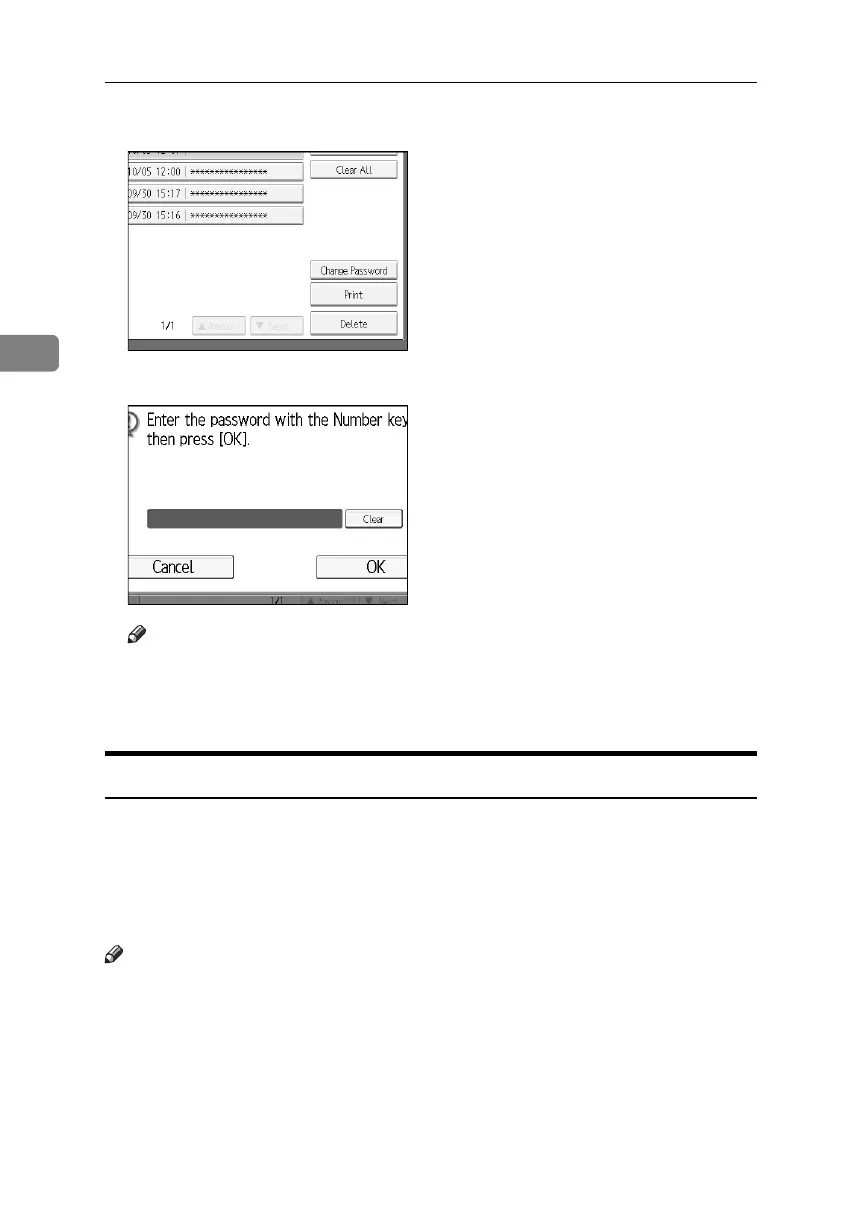
E Press [Print].
F Enter the password for the stored file, and then press [OK].
Note
❒ Enter the password specified in step
D
on p.78 “Choosing a Locked Print
file”.
G Press [Yes].
Deleting Locked Print Files
This can be specified by the file creator (owner).
To delete Locked Print files, you must enter the password for the files. If the
password has been forgotten, ask the file administrator to change the password.
This can also be specified via Web Image Monitor.
For details see the Web Image Monitor Help.
Note
❒ Locked Print files can also be deleted by the file administrator.
A Press the {Printer} key.
BelliniC3-EN_Sec_F_FM_forPaper.book Page 80 Friday, December 16, 2005 9:16 AM


 To Next Page