EasyManua.ls Logo

Ricoh MP9000 - User Manual

Ricoh MP9000
942 pages
Print Icon
To Next Page IconTo Next Page
Loading...
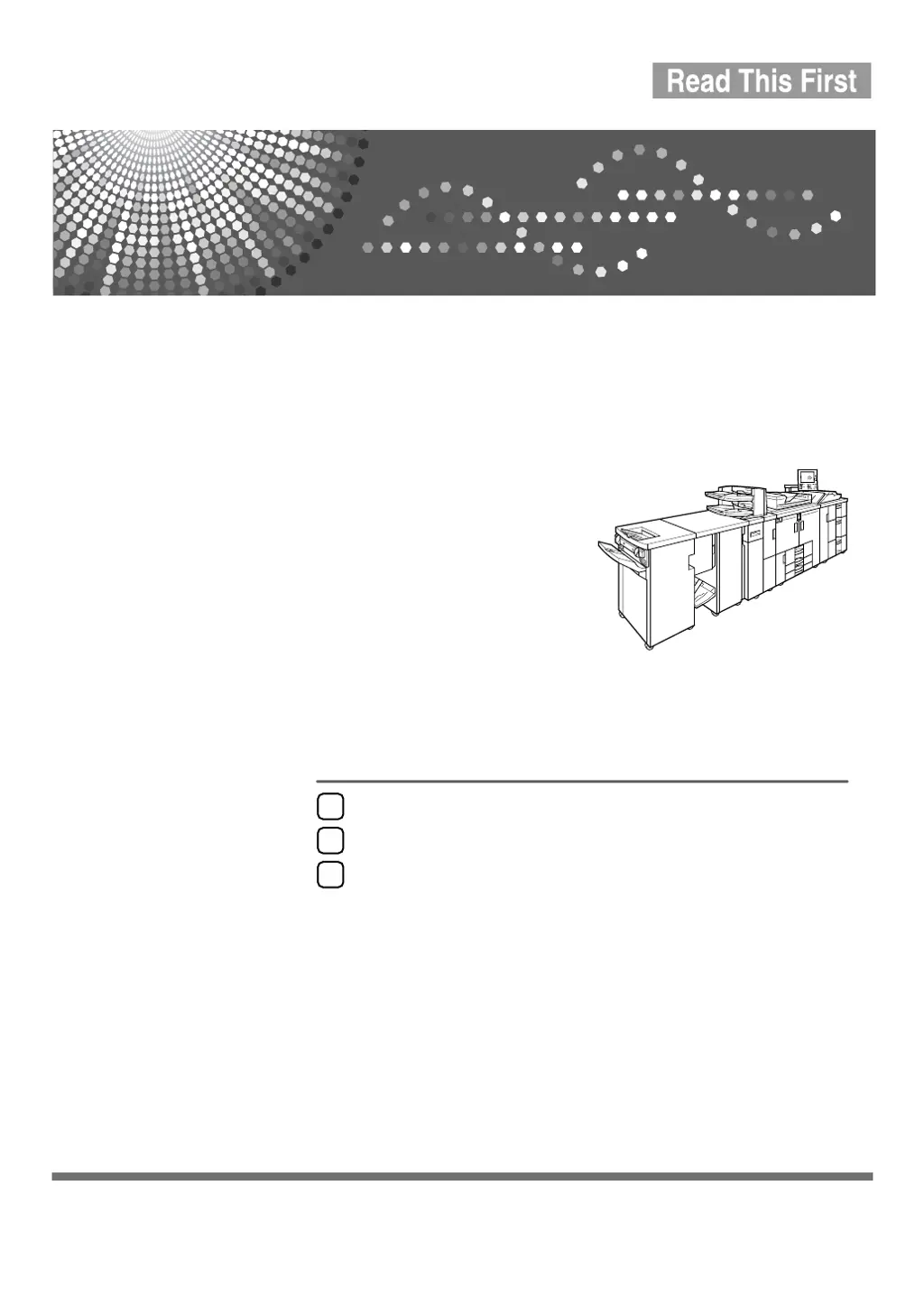
Operating Instructions
About This Machine
Read this manual carefully before you use this machine and keep it handy for future reference. For safe and correct use, be sure to read the
Safety Information before using the machine.
Getting Started
Entering Text
Appendix
1
2
3

Table of Contents

Questions and Answers

  • M
    marquezjamesSep 18, 2025
    What to do if my Ricoh MP9000 Office Equipment displays 'No stamp data in the sub-machine'?
    • A
      Autumn WilliamsSep 19, 2025
      If your Ricoh Office Equipment displays 'No stamp data in the sub-machine,' it means the stamp data on the sub-machine has been deleted. Reprogram the stamp on the sub-machine.
  • J
    Jacob SnyderAug 25, 2025
    What to do if my Ricoh MP9000 Office Equipment says 'Authentication has failed'?
    • S
      Samantha TranAug 25, 2025
      If your Ricoh Office Equipment displays an 'Authentication has failed' message, it means the login user name or password you entered is incorrect. Contact your user administrator to get the correct login information.
  • J
    John HuffAug 25, 2025
    What to do if my Ricoh Office Equipment says 'Orig. is being scanned by another function. Please wait.'?
    • A
      Autumn LeonardAug 26, 2025
      If your Ricoh Office Equipment displays the message 'Orig. is being scanned by another function. Please wait,' it means the Document Server or Scanner function is currently in use. To cancel the job in process, press the Exit key, then press the Document Server or Scanner key, and finally, press the Stop key. When prompted, confirm that you want to stop scanning by pressing Cancel.
  • R
    Ryan AustinAug 26, 2025
    What to do if my Ricoh MP9000 Office Equipment displays 'Please wait'?
    • R
      Randy KingAug 27, 2025
      If your Ricoh Office Equipment displays 'Please wait,' it means the destination list is being updated from the network. Wait until the message disappears, and do not switch off the power while this message is displayed.
  • J
    Jillian WrightSep 23, 2025
    What to do if my Ricoh MP9000 displays 'Cannot print from the sub-machine. Sub-machine will be disconnected'?
    • M
      Mrs. Linda SullivanSep 23, 2025
      If your Ricoh Office Equipment displays 'Cannot print from the sub-machine. Sub-machine will be disconnected,' it means the sub-machine has stopped due to power failure or communication error. Continue copying using the main machine.
  • C
    Christopher JimenezSep 23, 2025
    Why does my Ricoh Office Equipment say 'Z-fold is available only when Sort mode is selected in Connect Copy'?
    • G
      Gary StanleySep 23, 2025
      If your Ricoh Office Equipment displays 'Z-fold is available only when Sort mode is selected in Connect Copy,' it means the Sort function has not been selected with Z-fold. Select the Sort function.
  • T
    Theresa LutzSep 10, 2025
    What does 'Cannot print from the sub-machine. Check the status of the sub-machine' mean on Ricoh Office Equipment?
    • L
      lauren47Sep 10, 2025
      If your Ricoh Office Equipment displays 'Cannot print from the sub-machine. Check the status of the sub-machine,' it could be due to a paper misfeed, low toner, or other supply issues on the sub-machine. Follow the instructions displayed on the screen. If the sub-machine's display indicates that a cover is open, follow those instructions.
  • S
    Sara CunninghamSep 12, 2025
    How to solve 'Cannot print from the sub-machine. Check the status of the sub-machine' if the User Tools menu is open on Ricoh MP9000 Office Equipment?
    • B
      Brandi GarciaSep 12, 2025
      If your Ricoh Office Equipment displays 'Cannot print from the sub-machine. Check the status of the sub-machine,' and the sub-machine's User Tools menu is open, press the User Tools key to close the User Tools menu.
  • T
    Thomas SteeleSep 3, 2025
    What to do if my Ricoh Office Equipment displays 'File being stored exceeded max. number of pages per file. Copying will be stopped.'?
    • V
      vbarnesSep 4, 2025
      If your Ricoh Office Equipment displays the message 'File being stored exceeded max. number of pages per file. Copying will be stopped,' it means the scanned originals have too many pages to store as one document. Press Exit, and then store again with an appropriate number of pages.
  • L
    Larry HansenSep 1, 2025
    What does 'Duplex is not available with this paper size' mean on Ricoh MP9000 Office Equipment?
    • K
      Kristen DurhamSep 1, 2025
      If your Ricoh Office Equipment displays 'Duplex is not available with this paper size,' it means you've selected a paper size that cannot be used in Duplex mode. The following paper sizes are available for Duplex mode: A3L, B4L, A4KL, B5KL, A5KL, B6L, A6L, 12”×18”L, 11”×17”L, Legal (81/ ”×11”)L, Letter (81/ ”×11”)KL, Half Letter (51/ ”×81/ ”)KL, Executive (71/ ”×101/ ”)KL, F/GL (8”×13”)L, Foolscap (8”×13”)L, Folio (81/ ”×13”)L, 11”×15”L, 11”×14”L, 10”×14”L, 81/ ”×14”L, 8”×10”L, 8KL, 16KKL. Select one of these sizes.

Summary

Getting Started

Entering Text

Describes how to enter characters.

Appendix

Describes Dos and Don'ts, key accessories, copy paper, and consumables.

Introduction

Laser Safety

Caution

Use of controls or adjustments or performance of procedures other than those specified in this manual might result in hazardous radiation exposure.

Manuals for This Machine

How to Read This Manual

Safety Information

Safety During Operation

Details safety precautions to be followed during operation.

Positions of WARNING and CAUTION labels

Shows the locations of WARNING and CAUTION labels on the machine.

ENERGY STAR Program

Information about the machine meeting ENERGY STAR Guidelines for energy efficiency.

Recycled Paper

Recommendation to use recycled paper which is environmentally friendly.

Machine Type

Describes the three models which vary in copy speed.

What You Can Do with This Machine

Copier, Printer, and Scanner Functions

Explains the machine's copier, printer, and scanner functions.

Utilizing Stored Documents

Explains how to store and retrieve files on the machine's hard disk.

Connecting Two Machines for Copying

Explains how to connect two machines together for simultaneous copying.

Using the Scanner in a Network Environment

Explains how to use the scanner over the network.

Administrating the Machine;Protecting Documents (Security Functions)

Explains how to manage the machine and protect documents.

Monitoring the Machine Via Computer

Explains how to monitor machine status and change settings using a computer.

Preventing an Unauthorized Copy

Explains how to embed a pattern in the printed document to prevent unauthorized copying.

Notice

Notice To Wireless LAN Interface (optional) Users

Specific notice for users of the wireless LAN interface.

How to Read This Manual

Symbols

Explains the meaning of symbols used in the manual.

Safety Information

Safety During Operation

Details safety precautions to be followed during operation.

ENERGY STAR Program

Low-Power mode

Explains how the product lowers power consumption automatically.

Off Mode (Copier only)

Explains how the product automatically turns off to conserve energy.

Sleep Mode (Printer, Scanner installed)

Explains how the product lowers power consumption when printer and scanner are installed.

Duplex Priority

1. Getting Started

Guide to Components

Introduces the names and functions of the components.

Options

Introduces the names and functions of main optional parts.

Internal Options

Control Panel

Status indicator

Describes machine status by indicator. By default, this indicator is turned off.

Operation switch

Press this switch to turn the power on (the On indicator lights up).

Selecting a User Text

Entering Text

Available Characters

Lists the characters that can be entered.

Deleting Characters

Explains how to delete characters.

Entering Symbols

Explains how to enter symbols.

Simplified Display

[Key Color]

Allows changing key color and display brightness.

When the Authentication Screen is Displayed

User Code Authentication (Using the Control Panel)

Explains how to use user code authentication via the control panel.

Changing Modes

System Reset

Explains the system reset function and its settings.

Turning On the Power

Turning On the Main Power

Describes the procedure to turn on the main power.

Saving Energy

Entering Text

Available Characters

Lists the characters that can be entered.

Keys

How to Enter Text

Deleting Characters

Explains how to delete characters.

Entering Symbols

Explains how to enter symbols.

Selecting a User Text

3. Appendix

Dos and Donts

Lists important guidelines for using the machine.

Software and Utilities Included on the CD-ROM

Viewing the contents of the CD-ROM

Printer Drivers for This Printer

PCL printer drivers

RPCS printer driver

Adobe PostScript Printer Drivers and PPD files

PPD files

TWAIN Driver

File path

Specifies the file path for the TWAIN driver.

System requirements

Lists the hardware and operating system requirements for the TWAIN driver.

DeskTopBinder Lite

File path

Specifies the file path for DeskTopBinder Lite.

System requirements

Lists the hardware and operating system requirements for DeskTopBinder Lite.

SmartDeviceMonitor for Admin

File path

Specifies the file path for SmartDeviceMonitor for Admin.

Available functions

Lists the available functions for SmartDeviceMonitor for Admin.

DeskTopBinder-SmartDeviceMonitor for Client

File path

Specifies the file path for DeskTopBinder-SmartDeviceMonitor for Client.

Operating environment of the printer driver

Lists the operating environments supported by the printer driver.

Copy Paper

Recommended Paper Sizes and Types

Shows recommended types, sizes, and capacity of copy paper loadable in each tray.

Multi Bypass Tray (tray 7)

Large Capacity Tray (LCT) (Optional) Tray 4, 5

Large Capacity Tray (LCT) (Optional) Tray 6

Unusable Paper

Paper Storage

Ricoh MP9000 Specifications

General IconGeneral
Print Speed (Black/A4)90 ppm
Print Resolution1200 x 1200 dpi
Printing TechnologyLaser
ConnectivityUSB, Ethernet, Wi-Fi
Warm-up Time30 seconds
Duplex PrintingAutomatic
Scan Speed120 ipm
InterfaceUSB 2.0, Ethernet, Wi-Fi
TypeDigital Multifunction Imaging System
Operating System CompatibilityWindows, Mac, Linux