Troubleshooting When Using the Copy Function
28
2
When You Cannot Make Clear Copies
This section explains likely causes of and possible solutions for unclear copies.
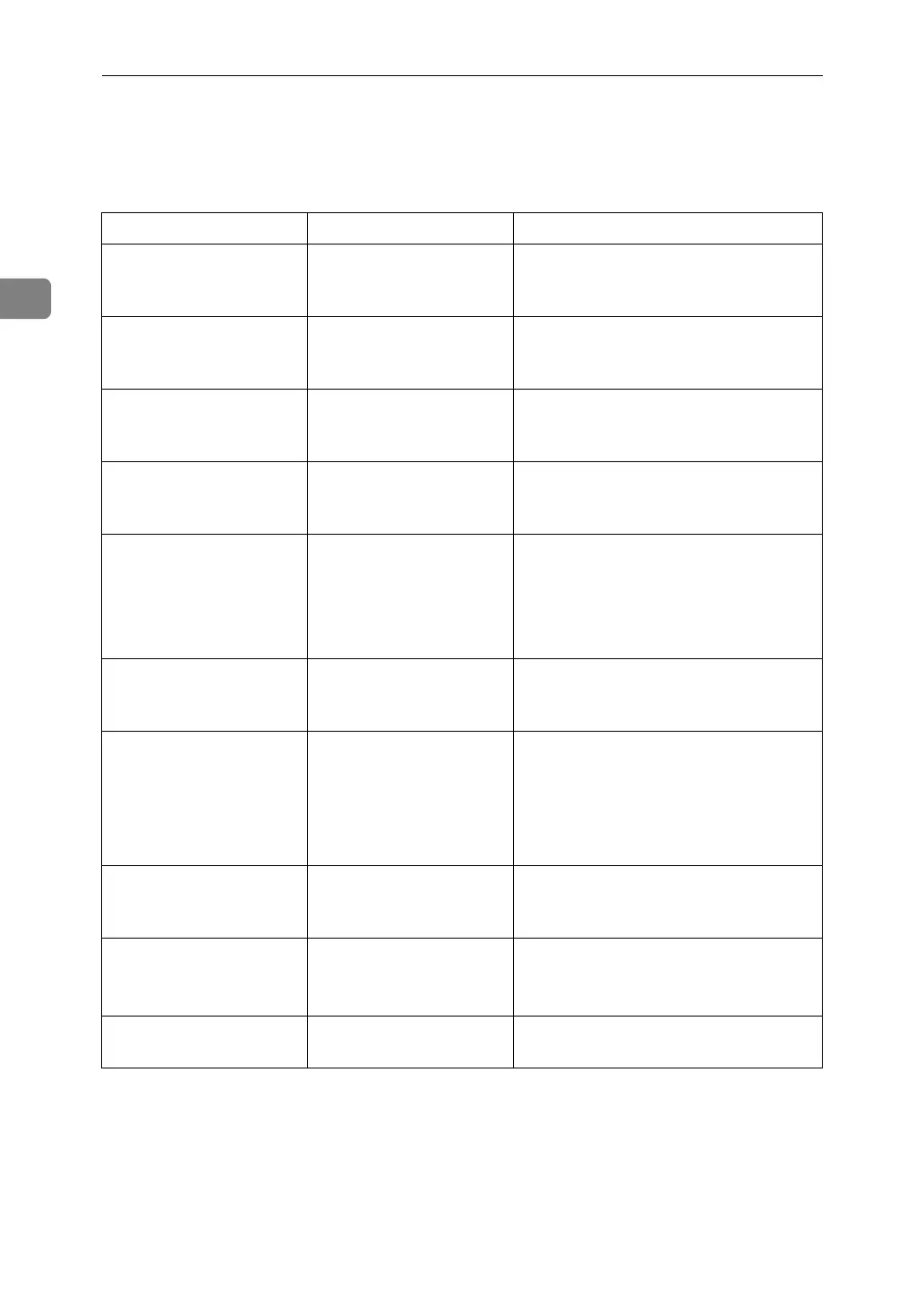
Problem Cause Solution
Copies appear dirty. Image density is too high. Adjust the image density. See “Adjust-
ing Copy Image Density”, Copy/Docu-
ment Server Reference.
Copies appear dirty. Auto Image Density is
not selected.
Adjust the auto density. See “Adjusting
Copy Image Density”, Copy/Docu-
ment Server Reference.
The reverse side of an
original image is copied.
Image density is too high. Adjust the image density. See “Adjust-
ing Copy Image Density”, Copy/Docu-
ment Server Reference.
The reverse side of an
original image is copied.
Auto Image Density is
not selected.
Adjust the auto density. See “Adjusting
Copy Image Density”, Copy/Docu-
ment Server Reference.
A shadow appears on
copies if you use pasted
originals.
Image density is too high. Adjust the image density. See “Adjust-
ing Copy Image Density”, Copy/Docu-
ment Server Reference.
Change the orientation of the original.
Put mending tape on the pasted part.
The same copy area is
dirty whenever making
copies.
The exposure glass or
ADF is dirty.
Clean them. See p.114 “Maintaining
Your Machine”.
The same copy area is
dirty whenever making
copies.
[Original Type Select] is set
to [Text / Photo], and an
original with text and
photographs that can
hardly be distinguished
from each other is loaded.
Press [Others], select [Generation Copy],
and then begin copying. See “Genera-
tion Copy”, Copy/Document Server
Reference.
Copies are too light. Image density is too light. Adjust the image density. See “Adjust-
ing Copy Image Density”, Copy/Docu-
ment Server Reference.
Copies are too light. A light copy may result
when you use damp or
rough grain paper.
Use the recommended paper. See
“Copy Paper”, About This Machine.
Contact your service representative.
Copies are too light. Toner bottle is almost
empty.
Add toner. See p.87 “Adding Toner”.


 To Next Page