When the Authentication Screen is Displayed
19
1
User Code Authentication (Using a Printer Driver)
When User Code Authentication is set, specify the user code in the printer prop-
erties of the printer driver. For details, see the printer driver Help.
Login (Using the Control Panel)
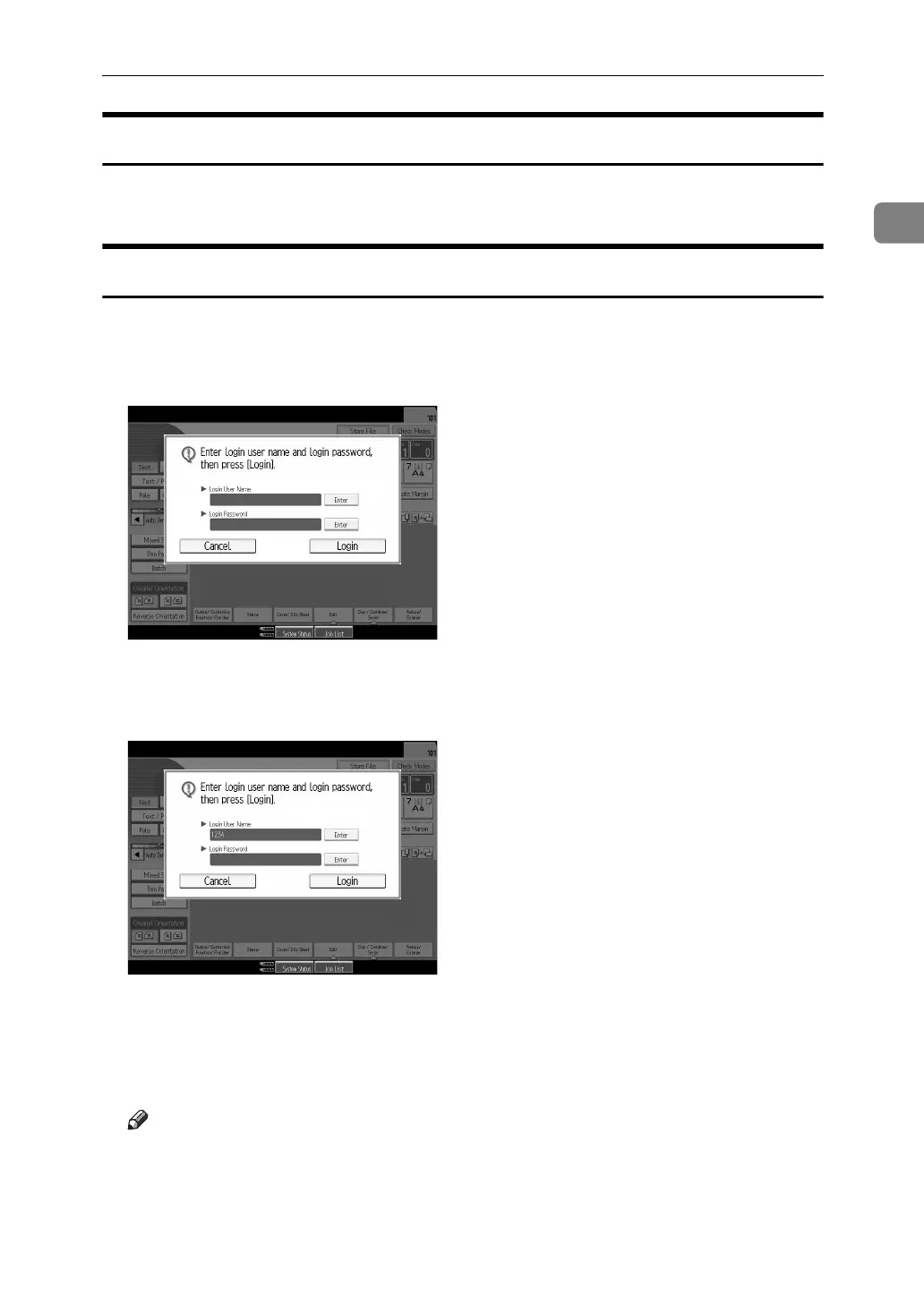
Follow the procedure below to log on when Basic Authentication, Windows Au-
thentication, LDAP Authentication, or Integration Server Authentication is set.
A Press [Enter] for [Login User Name].
B Enter a login user name, and then press [OK].
C Press [Enter] for [Login Password].
D Enter a login password, and then press [OK].
E Press [Login].
When the user is authenticated, the screen for the function you are using appears.
Note
❒ “Authentication has failed.”appears if the authentication failed. Check the
login user name and login password.
❒ If user code authentication is enabled, a different screen appears. See “Au-
thentication Information”, General Settings Guide.


 To Next Page