Copy Paper
41
3
❒ If you load paper of the same size in the same direction in two or more trays,
the machine automatically shifts to the other tray when the first tray in use
runs out of paper. This function is called Auto Tray Switching. (However, if
the Paper Type of one tray is recycled or special paper, the settings of the oth-
er trays must be the same for the Auto Tray Switching function to work.) This
saves interrupting a copy run to replenish paper when making a large
number of copies. See “General Features” and “Tray Paper Settings”, General
Settings Guide.
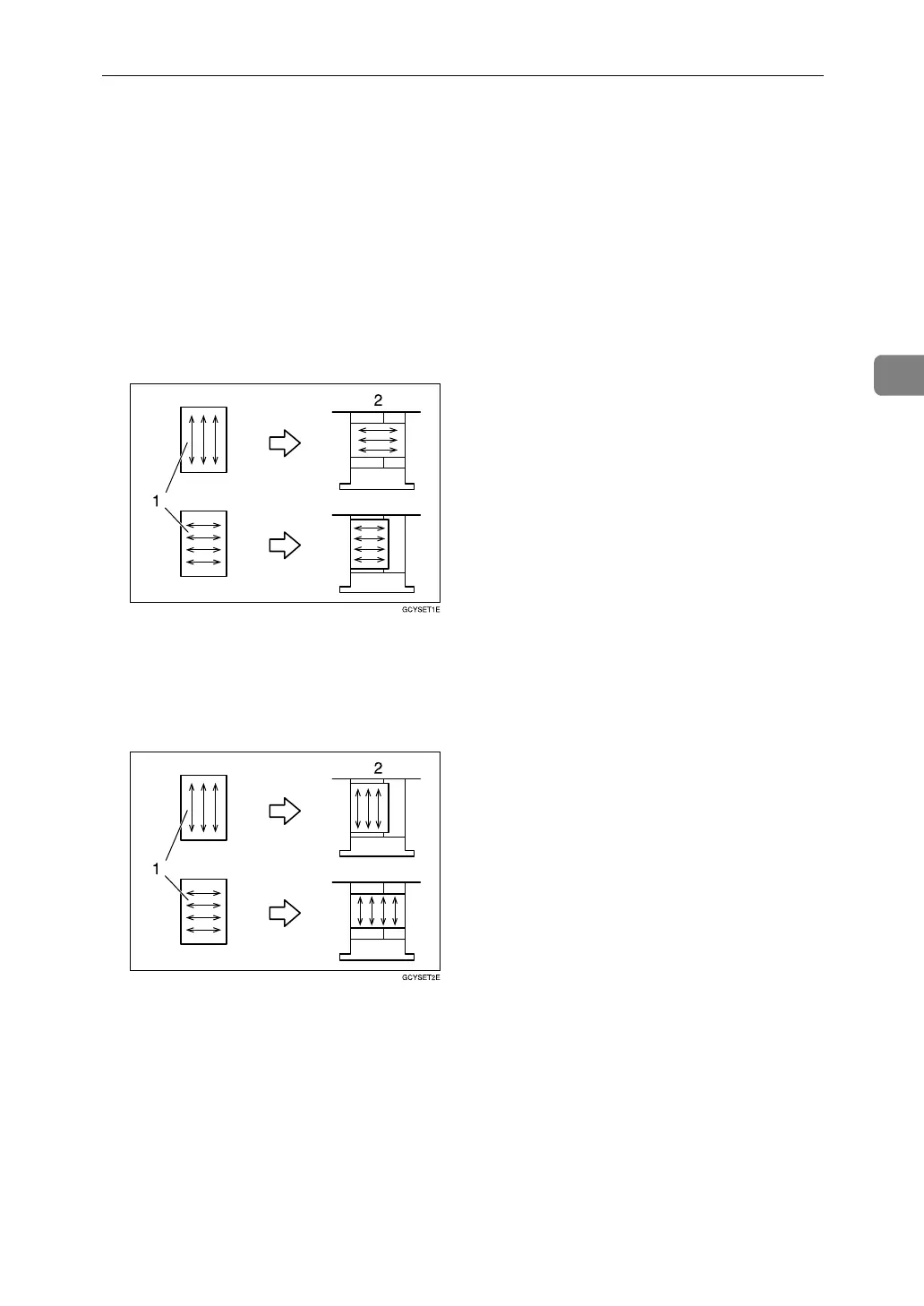
❒ When you want to copy onto translucent paper or paper lighter than 20 lbs,
80 g/m
2
, set the paper as shown in the following illustration. Not doing so
might cause a paper jam, marked edges or the paper edges to be folded.
A Direction of paper grain
B How to set the copy paper in the paper tray
❒ If you want to set 20 lbs, 80g/m
2
or heavier paper, set the paper as shown in
the following illustration.
A Direction of paper grain
B How to set the copy paper in the paper tray
❒ If you load recycled or special paper in the paper trays and use the Tray Paper Set-
tings, this function is not available with these trays unless their settings are identical.
❒ Feeding B5K, A5K, or 8
1
/
2
" × 5
1
/
2
"K paper into the machine might cause a
marked edge or a misfeed. In this case, change the orientation or turn over the
paper stack in the paper tray.
❒ When you use the multi bypass tray, it is recommended to set the copy paper
direction to L.
❒ When you load label paper, set the paper direction to K.


 To Next Page