3. Repair Instructions 1/2010 3 - 78
BA-TE-DE08C M.KAY
Dialog+ SW9xx_sm_Chapter 3_1-2010.doc/pdf <100329> yymmdd
B. Braun Avitum AG
Dialog
+
SW 9.xx
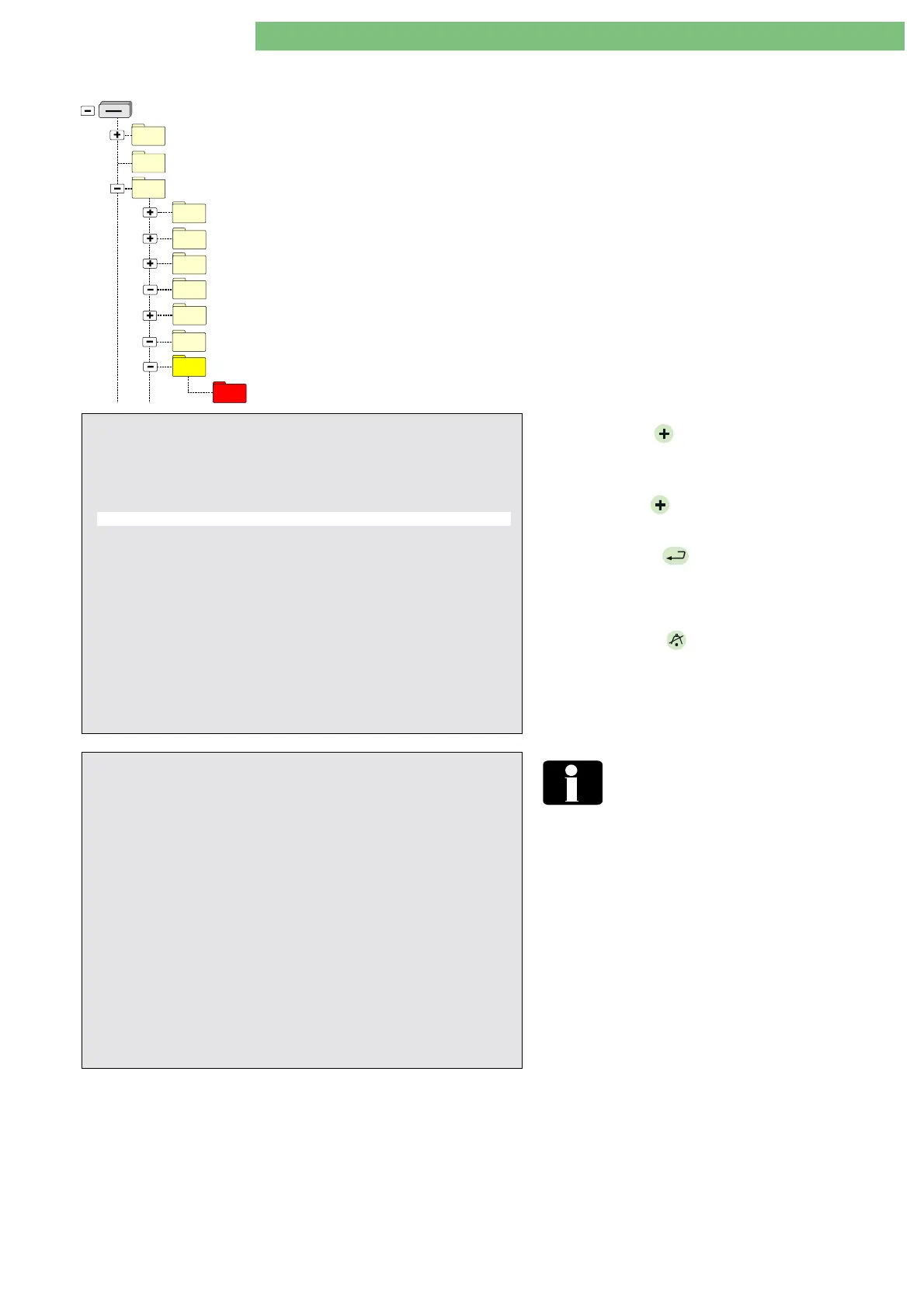
3.6.9.5 Write Patient Diskette to Card
BlueCat
Removable Disk (X: - FSU USB Stick)
DISKTYPE
USER
05_Write_Calibration_Data
04_Write_Languages
06_Write_System_Configuration
09_Card_01_Read_Card_Image
09_Card_02_Write_Card_Image
09_Card_03_Read_Patient_Diskette
09_Card_04_Write_Patient_Diskette_to_Card
DEFAULT
This utility writes the patient files from the USB stick
as a compressed
patdisk.zip
file to the patient card, i.e.
converts a patient diskette to a patient card.
If file is not on FSU USB stick
Copy from the PC the compressed
patdisk.zip
file from
the patient diskette to the following USER
subdirectory:
USB:\USER\09_Card_04_Write_Patient_Diskette_to_
Card\DEFAULT\
patdisk.zip
Field Service Utilities V2.00 - Set000
CRC = XXXX - OK
01. Read Card Image (Card
→
USB Stick)
02. Write Card Image (USB Stick
→
Card)
03. Read Patient Diskette (Diskette
→
USB Stick)
04. Write Patient Diskette to Card (USB Stick
→
Card)
05. Read Patient Card (Card
→
USB Stick)
06. Write Patient Card (USB Stick
→
Card)
07. Remove All Patient Data
BP-
: move cursor up
BP+
: move cursor down
AQ
: back to previous menu
EQ
:
execute
1.
Press the
BP
hardware key, move cursor down
and select
09. Select Menu of Card Reader
Commands
in the main menu.
2.
Press the
BP
hardware key and move the cursor
down to select the utility.
3.
Press the
EQ
hardware key to execute the
utility.
•
Yes, USB stick (patient diskette) is written to
patient card
4.
Press the
AQ
hardware key to skip to the
previous menu.
•
No, USB stick (patient diskette) is not written to
patient card
Field Service Utilities V2.00 - Set000
CRC = XXXX - OK
Write Patient Diskette to Card (USB stick
→
Card)
................
End of Write Patient Diskette to Card . . .
Press the
‘AQ’
key to continue . . .
Remove all patient data from the FSU
USB stick after service with the utility
07.
Remove All Patient Data
. This will delete
all patient data stored on the FSU USB
stick.






 To Next Page