Basic Operations
4-6
4.3.2.2 The display of the SpO
2
screen
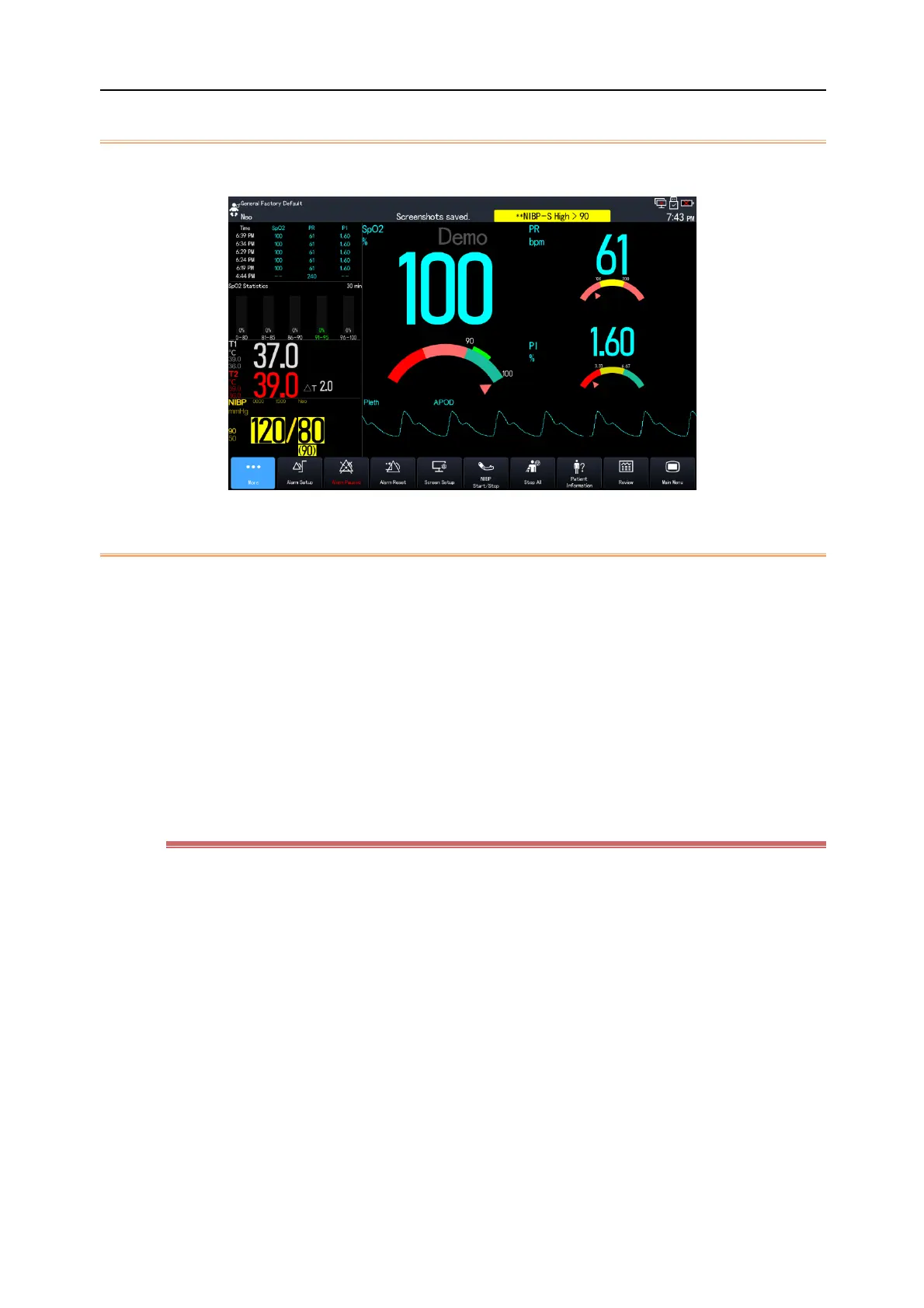
The figure below shows an illustration of SpO
2
screen, your monitor might show a slightly different view.
4.3.2.3 Operating the SpO
2
screen
You can access the parameter setup and trend review from the SpO
2
sceen in the following way:
Click the SpO
2,
PR, PI trend data to enter the [Review] page.
Click the SpO
2
histogram to enter the menu of [SpO
2
statistic]. Set the range of each SpO
2
section and target
section.
Click the SpO
2,
PR, PI value, dashboard or Pleth waveform to enter the [SpO
2
] tab.
Click the body temperature value to enter the [Temp] tab.
Click the NIBP measurement value to enter the [NIBP] tab.
4.3.3 Set Layout of the Normal Screen
You can select parameters and waveforms to be displayed and their positions in the normal screen as shown below:
1) Enter the [Tile Layout] interface in either of the following ways:
Select the [Screen Setup] hot key → select [Tile Layout].
Select the [Main Menu] hot key → select [Tile Layout] from the [Display] column.
2) Select a parameter area or waveform area, and select the parameters to be displayed in this area from the pop-
up parameter list. All selected parameters and waveforms will be displayed according to the set positions;
parameters and waveforms not selected will not be displayed on the screen.



 To Next Page