2.3.4 Set Quick Keys Displayed on the Screen
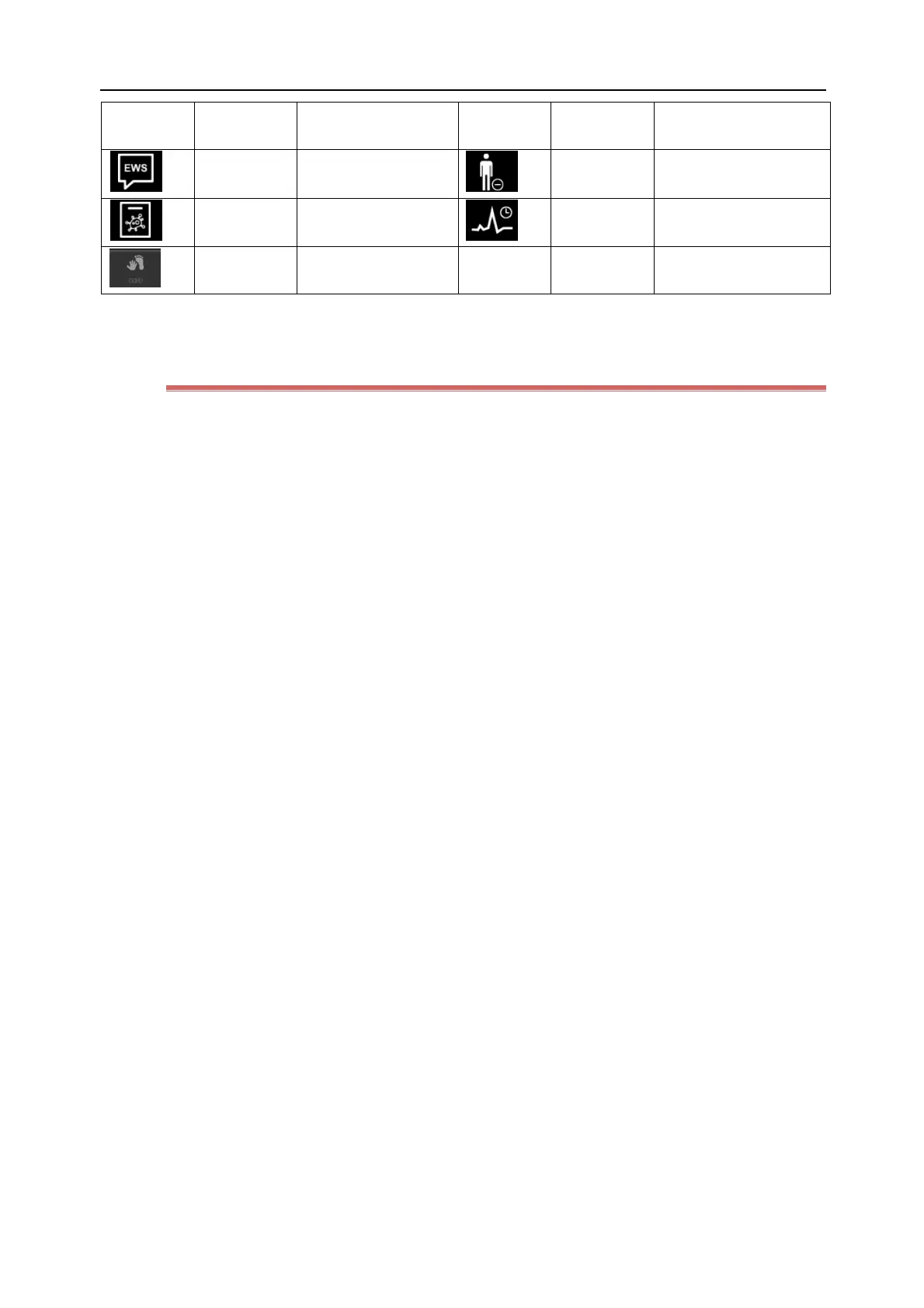
You can set which hot keys are to be displayed on the screen according to the following steps:
1) Enter the [Display] page in either of the following ways:
Select the [Screen Setup] hot key → select the [Quick Keys] tab; or
Select the [Main Menu] hot key → select [Quick Keys] from the [Display] column.
2) Select the [Current] tab to set the hot keys to be displayed on the screen: Select the area where a hot key is to
be displayed from the top of this page; then select the desired hot key from the Quick Key List. For example, if
you want to display the [Screen Setup] hot key at the first position of the Hot Key Area, click this position; then
select [Screen Setup] from the Quick Key List.
3) Select the [More] tab to set the hot keys displayed when the [More] hot key on the bottom bar is clicked.



 To Next Page