ECG Monitoring
8-21
2) Select [ST] tab → [Alarm] tab.
3) Set [ST Alarm Mode] to [Absolute] or [Relative].
If selecting [Absolute], you can set each ST value alarm separately.
If selecting [Relative], you can set [Single ST Alarm] and [Multiple ST Alarms] separately.
4) Set the properties of ST alarms as required.
8.7.4 Set ST Alarm Delay
1) Select [Main Menu] hot key → [System] → [Maintenance], enter the maintenance password and click the
Enter key.
2) Select [Alarm] tab → [Other] tab.
3) Set the time of [ST Alarm Delay].
8.7.5 Display ST Parameters
1) Enter the [Tile Layout] screen in any of the following ways:
Select [Screen Setup] hot key → [Tile Layout]
Select [Main Menu] hot key → [Display] → [Tile Layout].
2) Click on the parameter area to display ST parameters and select [ECG] → [ST].
All available leads can be monitored continuously and there is no need to display the ECG waveform.
Depending on the type of lead used, the ECG parameter area displays different ST parameters.
3-lead: 1 ST parameter is displayed in the ECG parameter area, not the ST parameter area.
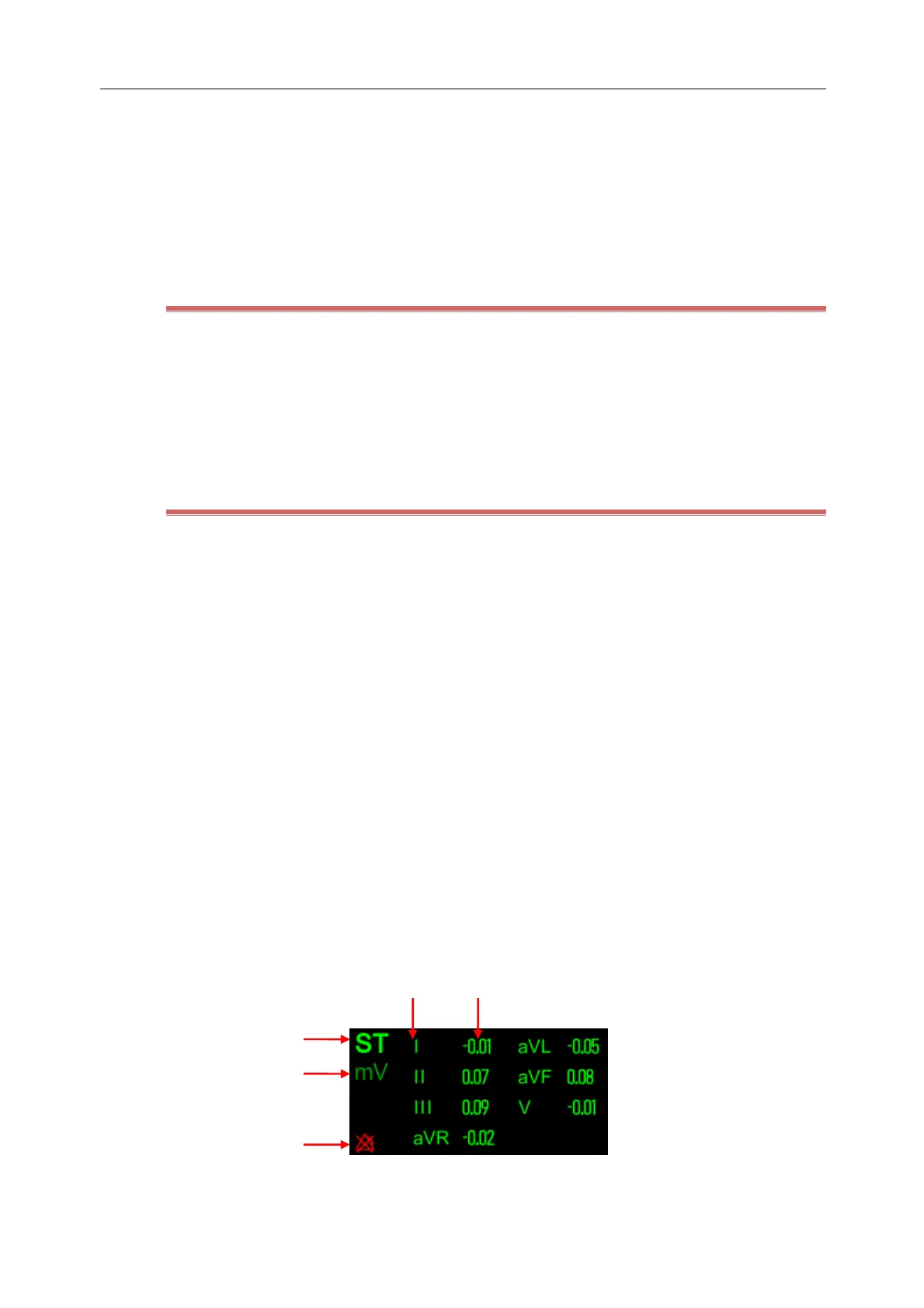
5-lead: 7 ST parameters, i.e. ST-I, ST-II, ST-III, ST-aVR, ST-aVL, ST-aVF and ST-V, are displayed in the ST
parameter area.
6-lead: 8 ST parameters, i.e. ST-I, ST-II, ST-III, ST-aVR, ST-aVL, ST-aVF, ST-Va and ST-Vb, are displayed in the
ST parameter area.
12-lead: 12 ST parameters, i.e. ST-I, ST-II, ST-III, ST-aVR, ST-aVL, ST-aVF, ST-V1, ST-V2, ST-V3, ST-V4, ST-V5
and ST-V6, are displayed in the ST parameter area.
Taking the 5-lead type as an example, the ST parameter area is shown as follows:
(1) Parameter name (2) ST unit (3) ST alarm off icon



 To Next Page