113
DISC mode
Video CD playback
To open the PBC menu: In the native
video CD menu, select the menu item
PBC Menu.
You will see the PBC menu in full-
screen mode and the speller.
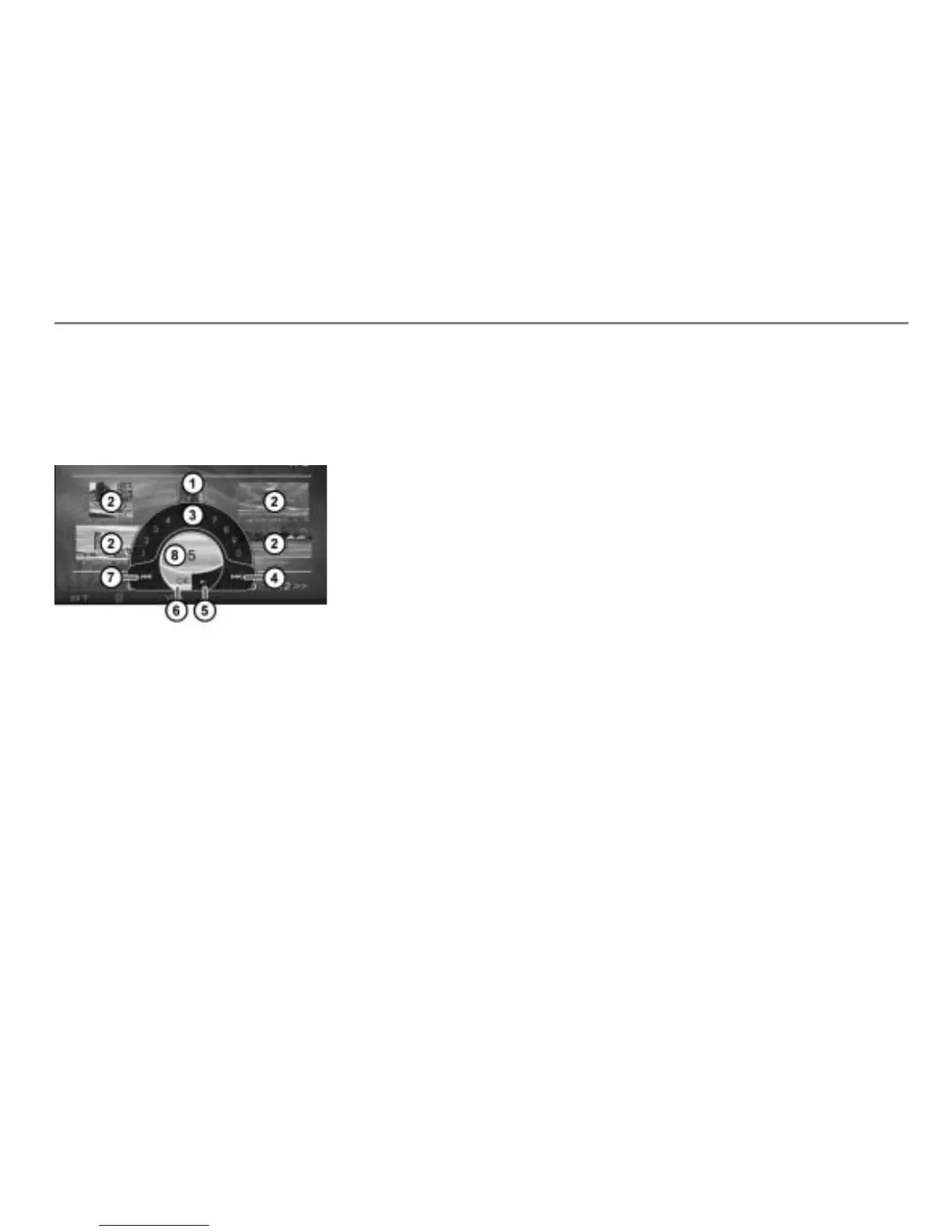
PBC menu
Individual tracks
Speller
Change to the next PBC page
Delete entered track number
Menu item OK
Change to the previous PBC page
Shows the selected speller menu item
The individual tracks are numbered in the
PBC menu
.
The speller
provides the following
functions:
Entering a track number from 0 to 99
Skipping tracks or changing the PBC
menu page
Entering track numbers
Single-digit track number: In the
speller, highlight the desired digit by
turning
the controller and press
the controller
.
Two-digit track number: In the speller,
highlight the first digit by turning
the
controller and press the
controller
, then highlight the second
digit and again press the controller .
After you enter the second digit, the menu
item
OK is automatically highlighted. You
can now confirm or clear the entry.
To completely clear an entry: In the
speller, select the menu item .
You can then enter a new number.
To confirm an entry: In the speller,
select the menu item
OK.
If the entry is not valid, you can enter a
new number after a short time.
If the entry is valid, the PBC menu is
automatically closed and the
corresponding track started.
Changing the PBC menu page
To change to the next PBC menu
page: In the speller, select the menu
item
.
To change to the previous PBC
menu page: In the speller, select the
menu item
.
Back to the native video CD menu
Briefly press the button.
Track list
This function is also available in the on-
screen menu, see the section “Opening the
PBC menu or calling up the track list” on
page 116.
If a video CD contains several tracks, you
can use the track list to directly select a
specific track for playback.



 To Next Page