230
Navigation
Functions after entering the destination
For information on general system
operation, please refer to the chapter
“Functional introduction” from page 17.
Options after entering the
destination
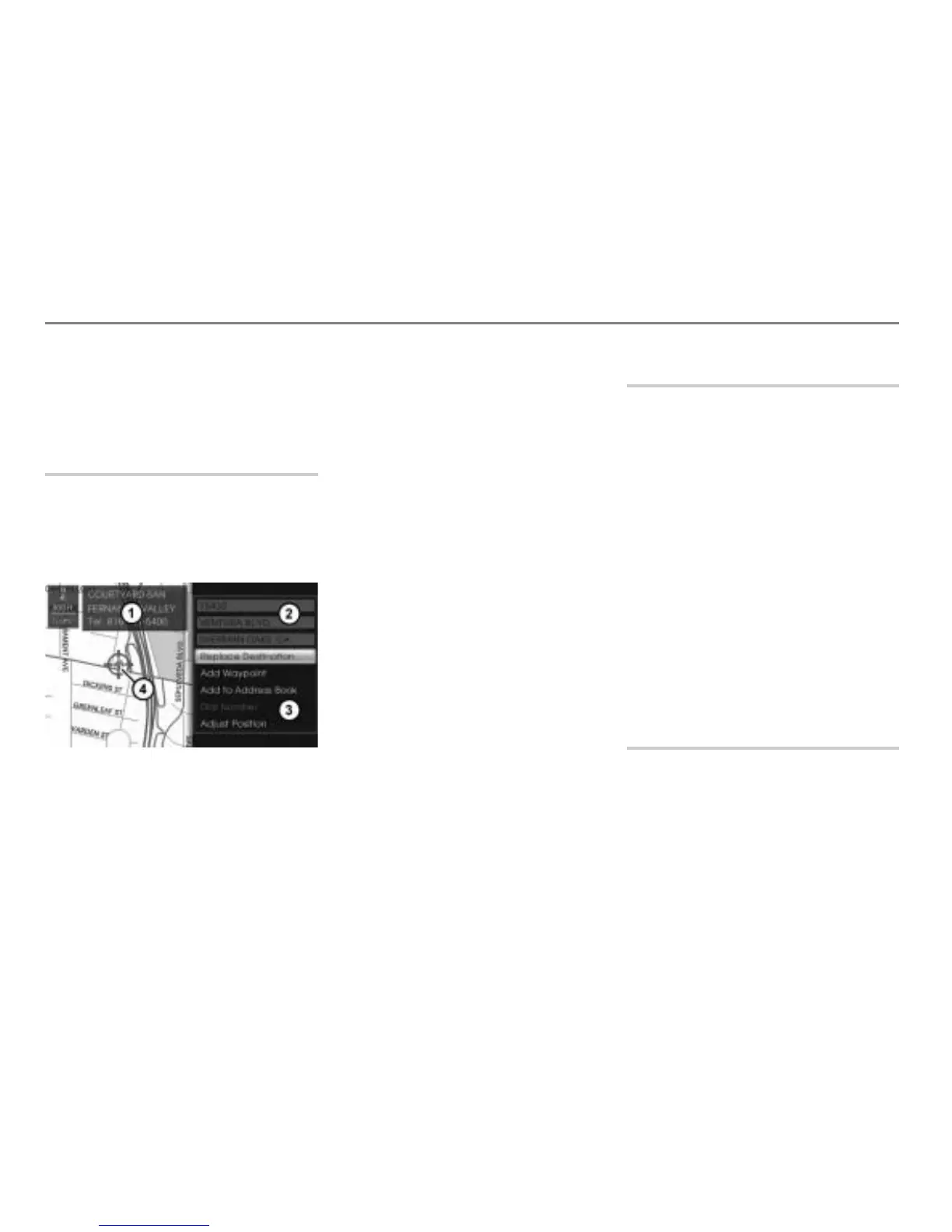
After you have entered the destination, you
will see the destination on the map and, on
the right-hand side of the display, the
Options menu with information about the
destination.
Map display shows day mode
Information about the destination (not
shown if the destination has been
entered via the map)
Address of the destination
Options menu
Destination
The functions available in the Options
menu
will vary depending on the
following factors:
Whether the destination was entered
via the map
Whether route guidance to a
destination is already active
The illustration above shows the Options
menu when route guidance is already active
and the new destination was not entered via
the map.
Functions possibly available in the Options
menu:
Set/replace destination, see page 230
Add waypoint (only available if route
guidance is already active), see
page 230
Add to Address Book, see page 231
Dial number, see page 231
POIs (points of interest) include gas
stations, restaurants and banks, for
example.
Adjust position (not available if the
destination was entered via the map),
see page 231
Set/replace destination
In the Options menu, select the menu
item Set Destination or Replace
Destination
.
The menu item Set Destination is only
available if route guidance is not yet active.
The menu item
Replace Destination is
only available if a route to a destination has
already been calculated.
Selecting either of these two menu
items confirms the destination. If the
menu item
Replace Destination is
selected, the previous destination and
all waypoints are first discarded.
After the destination is confirmed, the
system starts to calculate the route, see
the section “Route calculation” on
page 232.
Add waypoint
This function adds the entered destination
as a waypoint to an existing route. You can
add a maximum of two waypoints to the
route.
In the Options menu, select the menu
item Add Waypoint.



 To Next Page