204
Navigation
Basic functions
For information on general system
operation, please refer to the chapter
“Functional introduction” from page 17.
Calling up the map display and
switching to Navigation mode
Press the button.
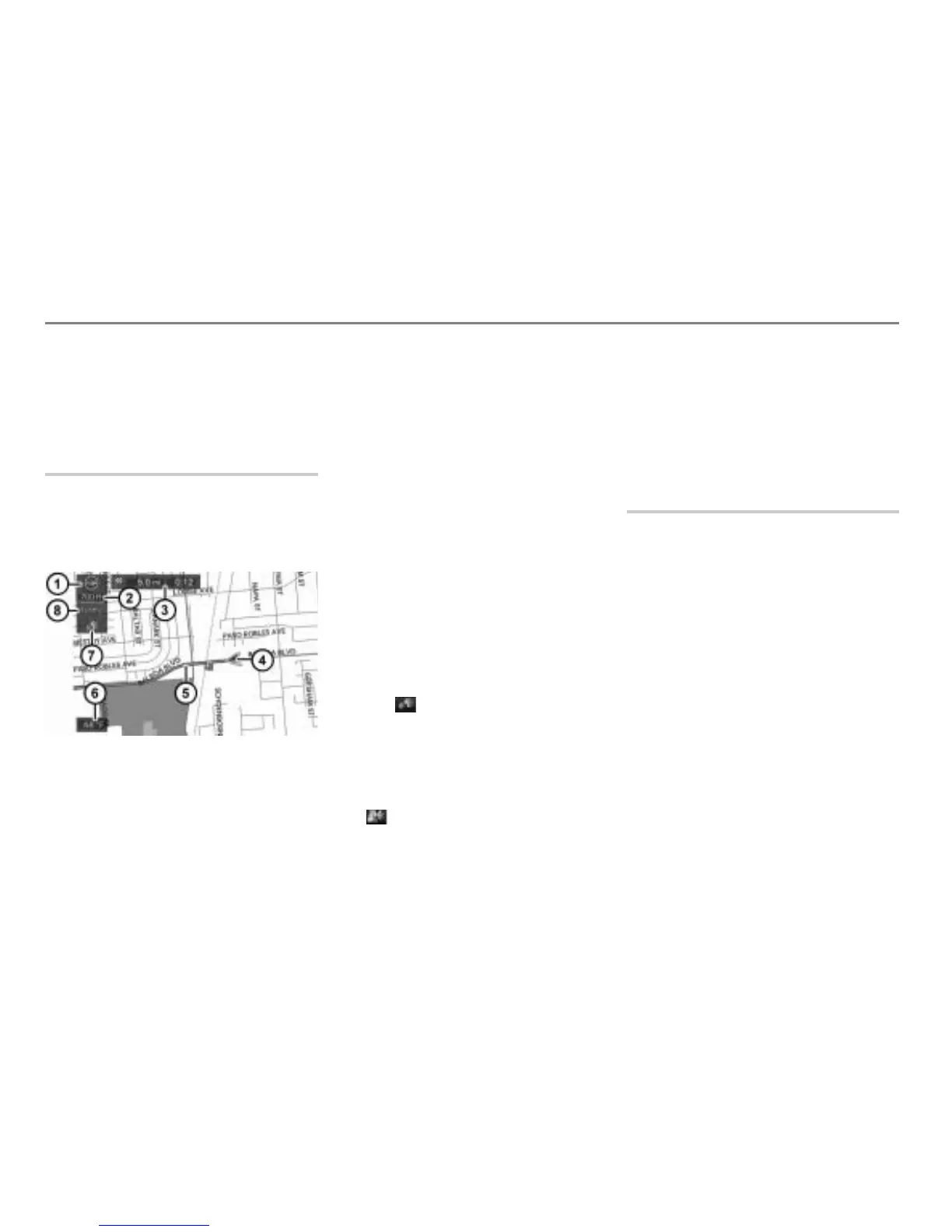
The map display showing the current
vehicle position and further information
appears.
Map display shows day mode
Currently set map orientation
Current set map scale
Remaining distance/journey time to
destination
Current vehicle position
Route
Outside temperature
Voice control system is active
XM NavTraffic
®
information available
You can switch the map orientation, see the
section “North up view/Heading up view” on
page 265.
You can set the map scale, see the section
“Moving the map/setting the map scale” on
page 206.
The display
only appears when route
guidance is active. You can switch the
display between displaying the data for
the next waypoint or for the main
destination, see the section “Switching the
remaining distance/journey time display”
on page 239.
The route
only appears if a route
guidance is active.
The icon shown in the display
only
appears if the voice control system is
activate, see the section “Activating voice
control” on page 269.
If the audible driving recommendations are
deactivated, the display
will show the
icon .
The display
only appears if XM
NavTraffic
®
information are available.
For further information about XM
NavTraffic
®
information please refer to
section “Traffic information” on page 245.
Position/scroll mode within the map
display
If you call up the map display as previously
described, position mode is automatically
set.
In position mode, you always see the
current vehicle position.
In scroll mode, you see a crosshairs on the
map and you can move (scroll) the map.
Switching mode
To switch from position mode to
scroll mode: Push the controller
in
any direction (
).
The crosshairs appear and you can
move the map, see the section “Moving
the map/setting the map scale” on
page 206.



 To Next Page