232
Navigation
Functions after entering the destination
Keep moving the map until the
destination position is in the crosshairs
center. To do so, proceed as described
in the section “Moving the map/setting
the map scale” on page 206.
To confirm the position: Press the
controller
.
If the position is invalid, you will see an
appropriate message.
To close the message: Press the
controller
.
You can adapt the destination
position again.
If the position is valid, the Options menu
reappears and all previously described
options are once more available.
Route calculation
After the destination entry has been
confirmed, route calculation starts.
During route calculation, the message
Route Calculation in Progress Please
wait.
appears.
If the destination is too close to the current
vehicle position, the message
Destination
ist too close to the current location.
Please use the map for guidance.
appears.
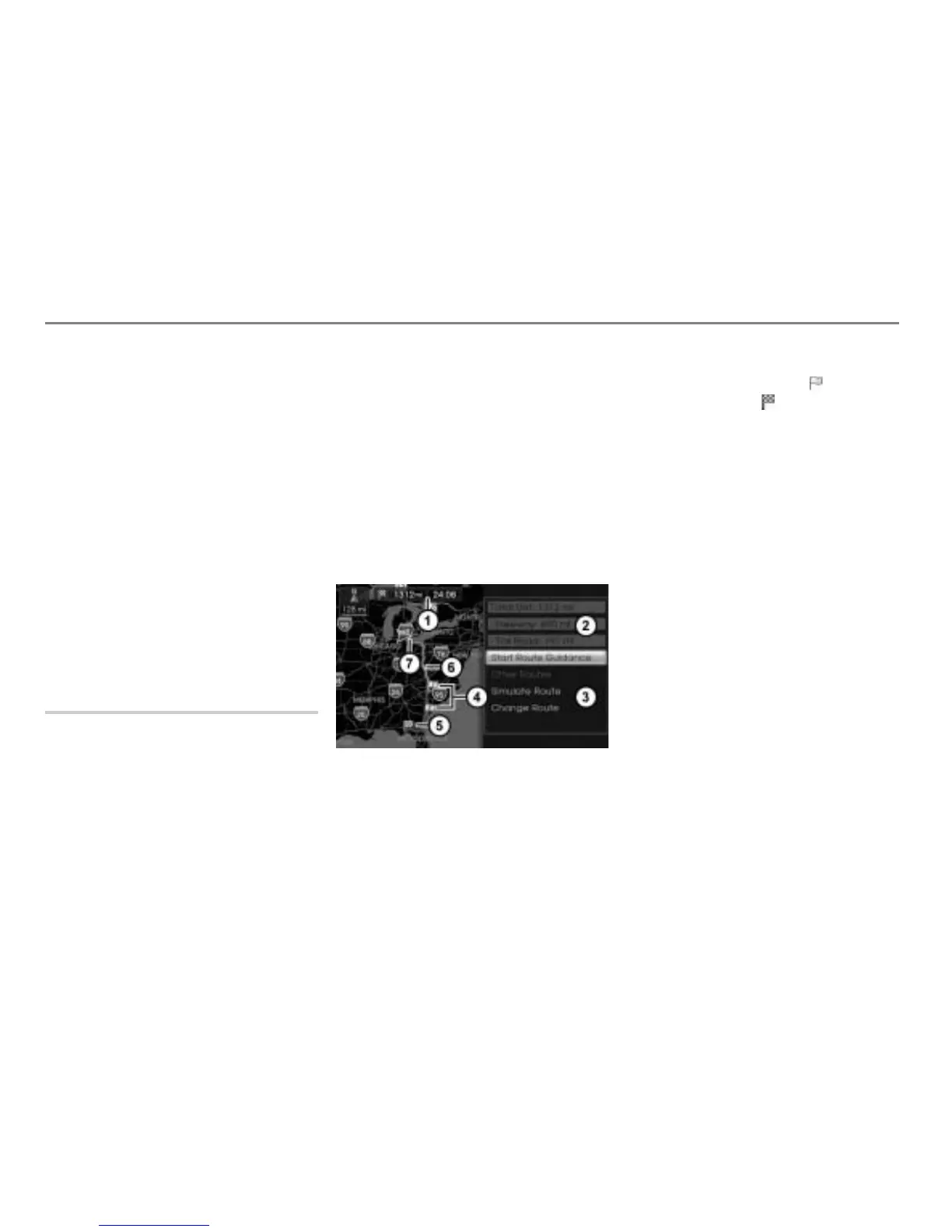
After the route has been calculated, you will
see the entire route including start/
destination and any waypoints in the map.
To the right of the map you will see route
information and the Options menu.
Options menu
Map display shows night mode
Remaining distance/journey time to
destination
Route information
Options menu
Waypoints (Yellow icons )
Destination (Icon )
Route
Current vehicle position
The following functions are available in the
Options menu
:
Start route guidance, see page 232
Other routes, see page 233
Simulate route, see page 234
Change route, see page 234
Start route guidance
Route guidance is automatically started
after a certain time without operation.
In the Options menu, select the menu
item
Start Route Guidance.
The system starts route guidance, see
the section “Route guidance” on
page 235.



 To Next Page