264
Navigation
Settings
In the editing menu, highlight the menu
item
Avoid Area and push the
controller .
The Options menu appears.
In the Options menu, select the menu
item
Details.
The complete entry is displayed.
To close the details display: Press
the controller
.
Setting the status
If you set the status to on, the navigation
system will try to avoid the area for route
guidance. If you set the status to off, the
navigation system will not try to avoid the
area for route guidance.
Open the editing menu, see the section
“Opening the editing menu” on
page 263.
In the editing menu, highlight the menu
item
Use Avoid Area.
To open the Options menu: Push
the controller .
The Options menu appears.
In the Options menu, select the menu
item
On or Off.
Depending on the menu item selected,
the status will be set accordingly.
Displaying navigation information
Open the Settings menu, see the
section “Opening the Settings menu” on
page 258.
In the Settings menu, select the menu
item
NAVI Information.
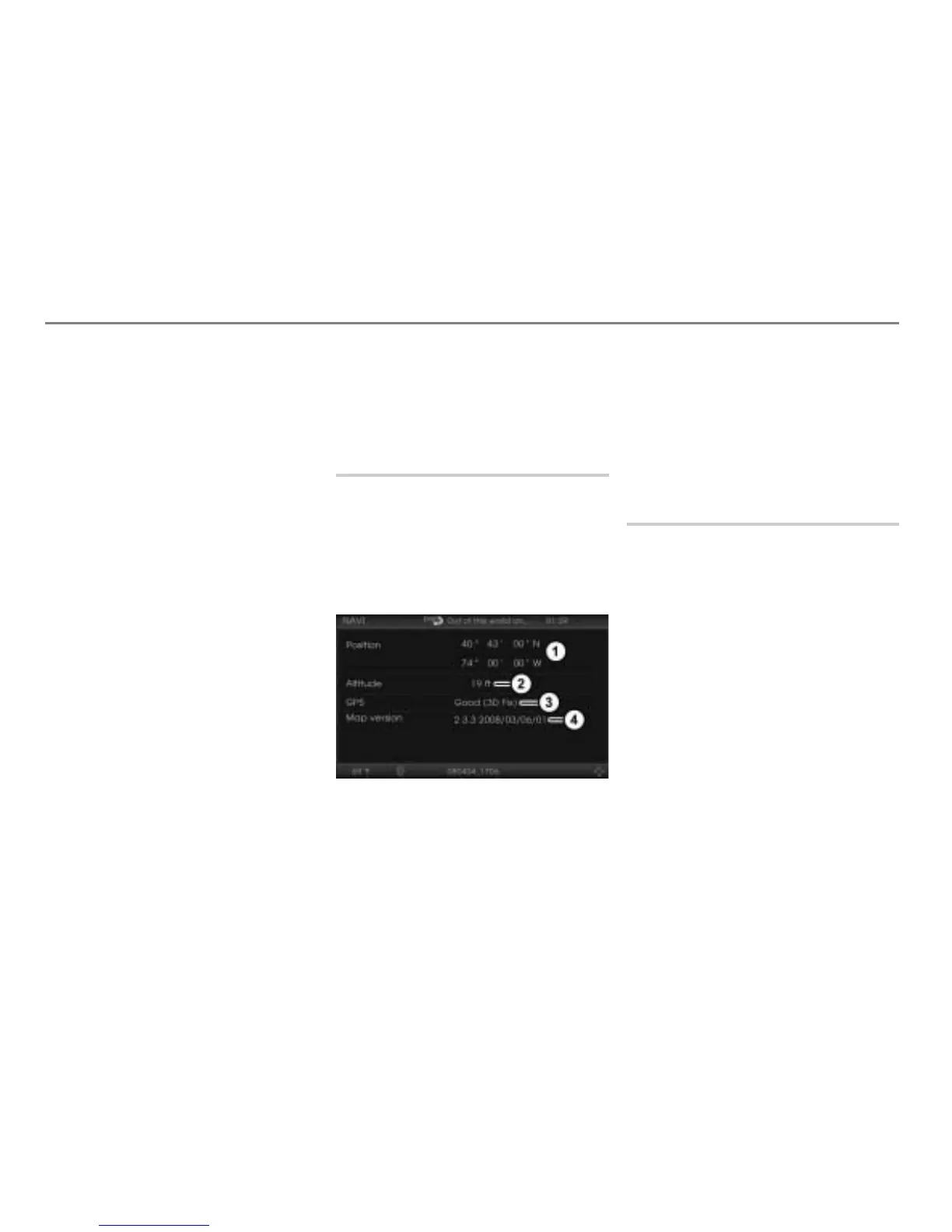
The Information menu appears.
Geo-coordinates of the current vehicle
position
Current vehicle position in feet above
sea level
GPS reception quality
Version number of the digital map
Adequate GPS reception must be available
for the displays
and . The altitude
display
may differ from reality because
the system calculates it using the GPS
signals.
To close the Information menu:
Press the button.
Reset function
This function resets the navigation settings
to their factory settings. The Address Book
data except the previous destinations will
not be reset.
Open the Settings menu, see the
section “Opening the Settings menu”
on page 258.
In the Settings menu, select the menu
item
Factory Reset.
You will be prompted to confirm that
you wish to reset the settings.
Select
Yes or No.
The settings will or will not be reset,
depending on the answer you select.



 To Next Page