67
XM Satellite Radio mode
Settings
The labelling of the topmost menu item
always shows the current setting. It will
change with every selection.
Possible labellings:
Display by CH Nr. (Upper status line
shows channel number instead of
channel name)
Display by CH Name (Upper status
line shows channel name instead of
channel number)
The current setting is also identified by the
icon to the left of the topmost menu item
.
Icon = Upper status line shows
channel number instead of channel
name
Icon = Upper status line shows
channel name instead of channel
number
To change the setting: In the XM
®
Radio settings menu , select the
topmost menu item
.
Setting the category filter for the
channel list
With this function, you can set one or more
category filters. After that, only channels
matching to the filter setting are shown in
the channel list. Additionally, the Scan
function plays only channels matching to the
filter setting.
Open the XM
®
Radio settings menu,
see section “Opening the XM
®
Radio
settings menu” on page 66.
XM
®
Radio settings menu
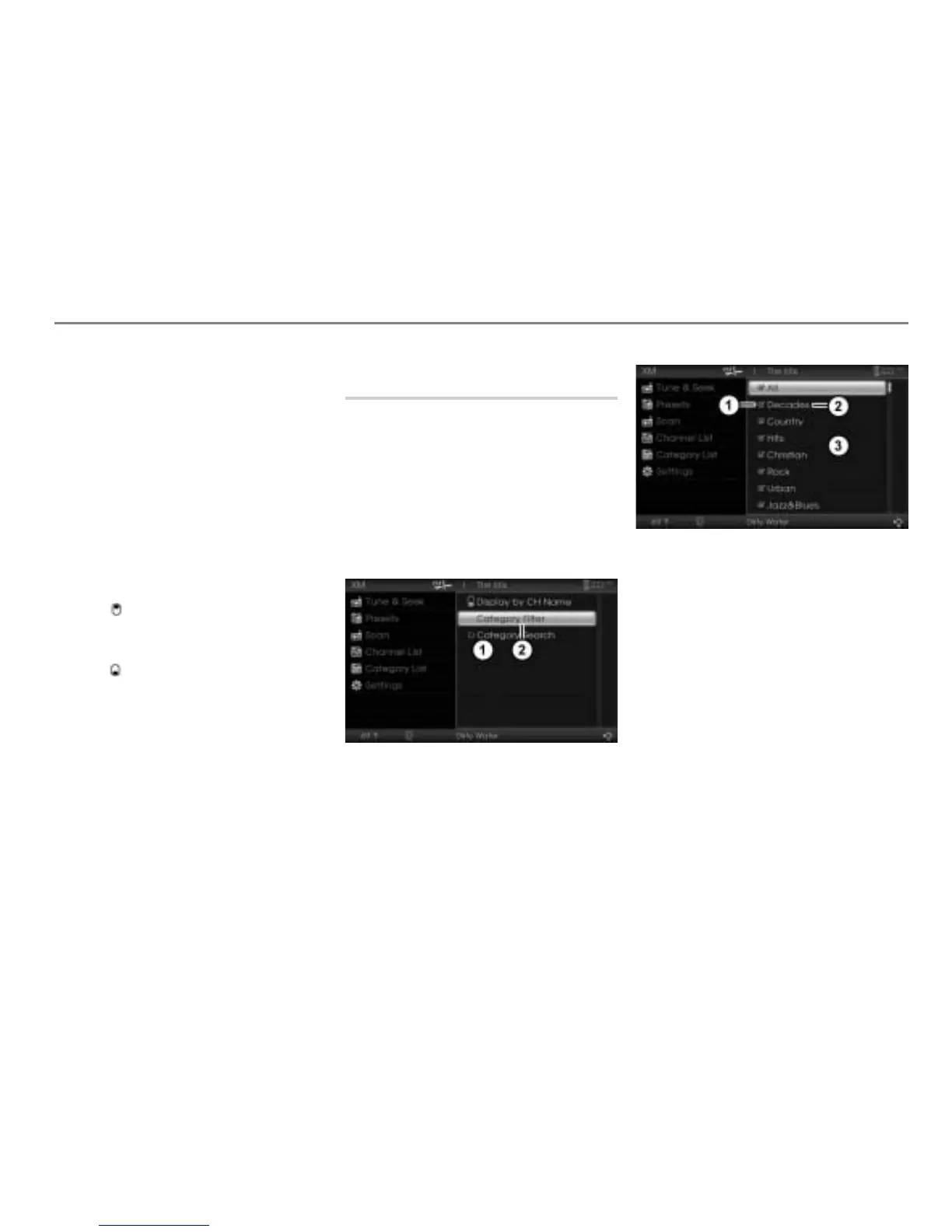
Menu item Category Filter
To request the category list: In the
XM
®
Radio settings menu, select the
menu item Category Filter.
You will see the category list.
Status display
Category filter
Category filter list
To set a category filter: Select the
desired filter.
The status display
changes
accordingly.
Display
= Filter is activated
Display
= Filter is deactivated



 To Next Page