165
PHONE
Options
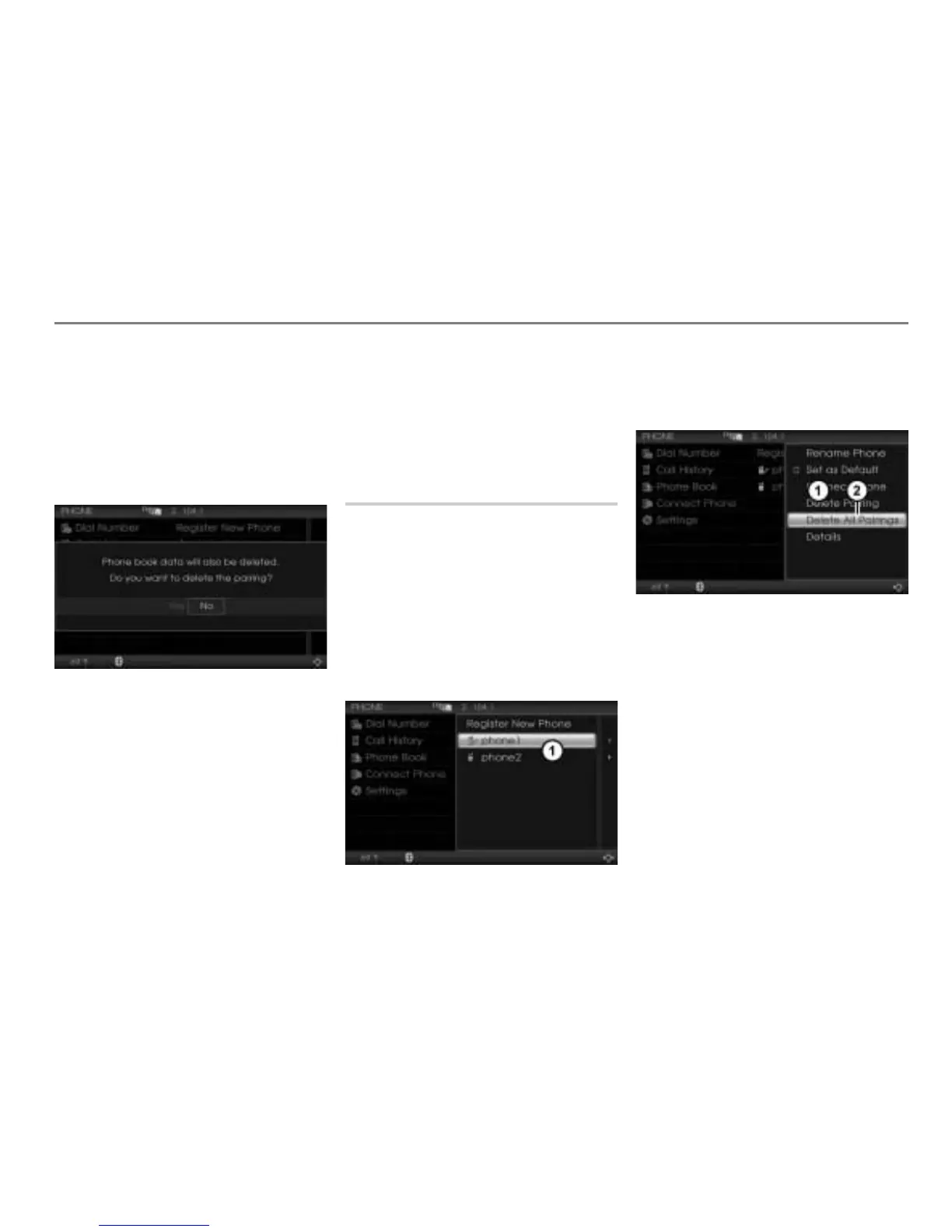
In the Options menu, select the menu
item
Delete Pairing.
The menu item Delete Pairing cannot be
selected if the highlighted mobile phone is
connected with the system.
You will be prompted to confirm that
you wish to delete the pairing.
Select Yes
The pairing and the phonebook data of
the mobile phone will be deleted.
Before you can reconnect this mobile
phone with the system you must pair it
with the system again, see the section
“Pairing a mobile phone” on page 153.
After the pairing is deleted, the system
will automatically search for another
mobile phone already paired with the
system. If it finds one, this mobile phone
will be automatically connected with the
system.
Deleting all pairings
This function deletes all pairings, all
phonebook data and all call history lists of all
mobile phones stored in the Driver
Information System, except for the currently
connected mobile phone.
If you want to delete this too, first you must
disconnect the mobile phone, see section
“Terminating a connection” on page 158.
Call up the device list, see the section
“Calling up the device list” on page 161.
Device list
In the device list, highlight a mobile
phone push the controller .
The Options menu appears.
Options menu
Menu item Delete All Pairings
In the Options menu, select the menu
item
Delete All Pairings.
The menu item Delete All Pairings cannot
be selected if the device list does not
contain any mobile phones.
You will be prompted to confirm that
you wish to delete all pairings.



 To Next Page