228
Navigation
Entering destinations
Refer to the section “Saving/deleting
destinations in the Adress Book”
on page 247 to find out how to store
destinations.
To sort the list by date of storage or
alphabetical: Select the menu item
Sort by Date or Sort Alphabetically.
The list is resorted and the text of the
menu item and the icon to the left of the
menu item change accordingly, both
always show the current status.
Icon = List is sorted by date of
storage
Icon = List is sorted alphabetical
The menu item cannot be selected if the list
contains fewer than three entries.
To select a destination: Select a list
entry.
Entry of the destination is complete and
you see the corresponding destination
on the map. Further options are now
available, see the section “Options after
entering the destination” on page 230.
Entering an emergency destination
Emergency destinations are Hospitals or
Police stations, for example.
Open the Navigation main menu, see
section “Opening the Navigation main
menu” on page 209.
In the Navigation main menu, select the
menu item
Destination.
A selection list appears.
Select the menu item
Emergency.
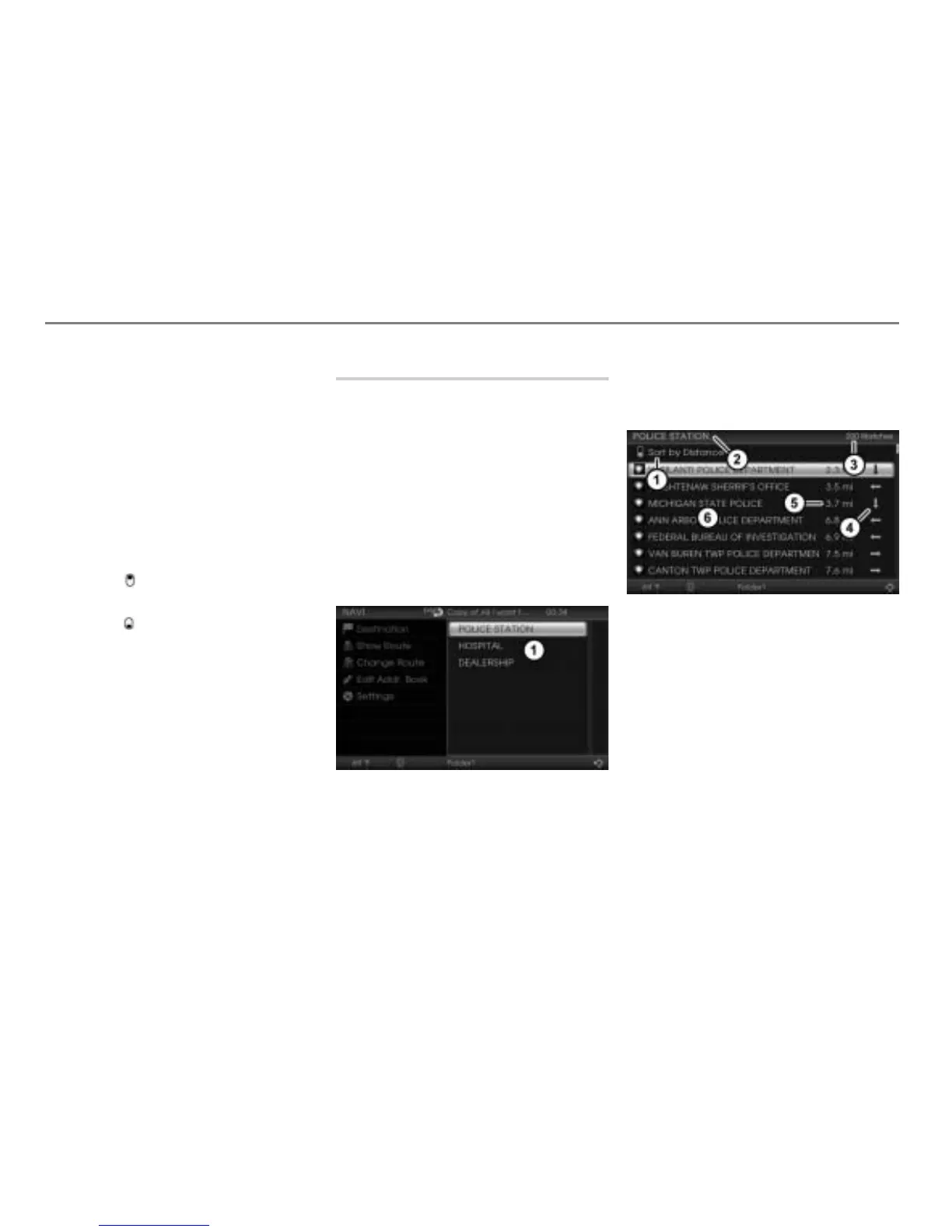
The Emergency category list appears.
Emergency category list
Select the desired category, e.g.
POLICE STATION.
A POI list appears.
Sorting menu item
Input progress display
Number of hits in the POI list
Direction to the POI
Distance to the POI
POI list
To sort the POI list: Select the menu
item
.
The POI list is resorted.
The labelling of the menu item
always shows the current sorting
status. It will change with every
selection.



 To Next Page