227
Navigation
Entering destinations
To activate/deactivate route filtering:
In the POI list, select the menu item
Along Route.
Route filtering will be activated or
deactivated, depending on the previous
status. The status display to the left of
the menu item changes accordingly.
Display
= function activated
Display
= function deactivated
To select a POI: Select a POI in the list.
Entry of the destination is complete and
you see the corresponding destination
on the map. Further options are now
available, see the section “Options after
entering the destination” on page 230.
Entering a destination via the
Address Book
Calling up the Address Book
Open the Navigation main menu, see
section “Opening the Navigation main
menu” on page 209.
In the Navigation main menu, select the
menu item
Destination.
A selection list appears.
Select the menu item
Address Book.
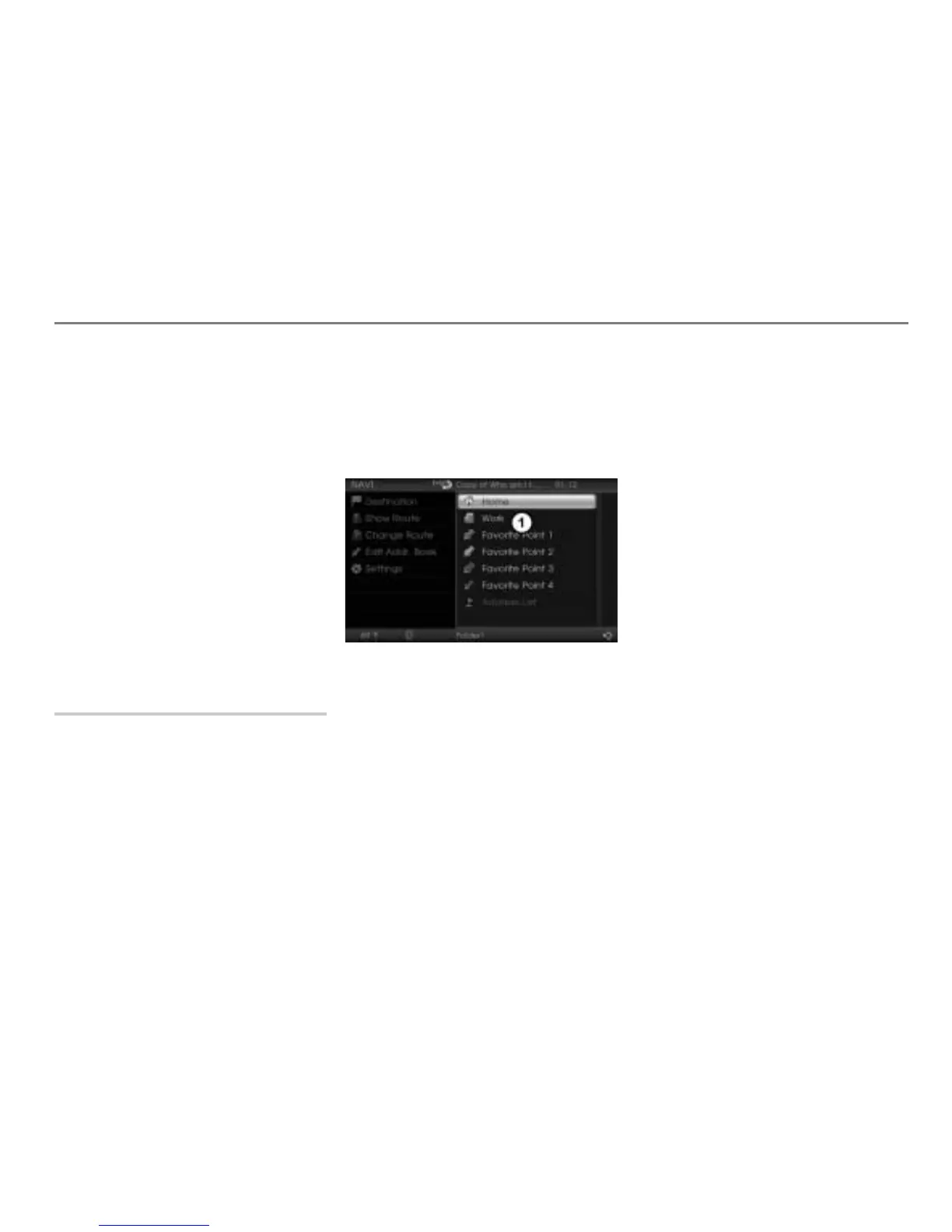
The Address Book appears.
Address book
Selecting the destination in the Address
Book
Option 1
Select one of the following destination
Address Book categories:
Home
Work
Favorite Point 1
Favorite Point 2
Favorite Point 3
Favorite Point 4
If a category does not yet contain a
destination, then that respective category
cannot be selected. Refer to the section
“Saving/deleting destinations in the Adress
Book” on page 247 to find out how to store
destinations.
After you select a category, entry of the
destination is complete and you see the
corresponding destination on the map.
Further options are now available, see
the section “Options after entering the
destination” on page 230.
Option 2
Select the Address Book category
Address List.
After you select the category, you will
see a list of the destinations you have
stored. This list contains a maximum of
200 entries.



 To Next Page