226
Navigation
Entering destinations
Selecting a POI in the map
To close the menus: Press the
button repeatedly until all of the menus
are closed.
The map display appears. The
available POIs in accordance with the
activated categories/subcategories are
shown as icons.
To select a POI: Keep moving the map
until the desired POI is in the
crosshairs. To do so, proceed as
described in the section “Moving the
map/setting the map scale” on
page 206.
To confirm selection: Press the
controller
.
If the selection is invalid, you will see an
appropriate message.
To close the message: Press the
controller
.
You can select a POI in the map
again.
If the selection is valid, entry of the
destination is complete. Further options
are now available, see the section
“Options after entering the destination”
on page 230.
Selecting a POI in the POI list
To call up the POI list: In the POI
menu, select the menu item
Show POI
List
.
A list with POIs corresponding to the
previously selected categories or
subcategories appears.
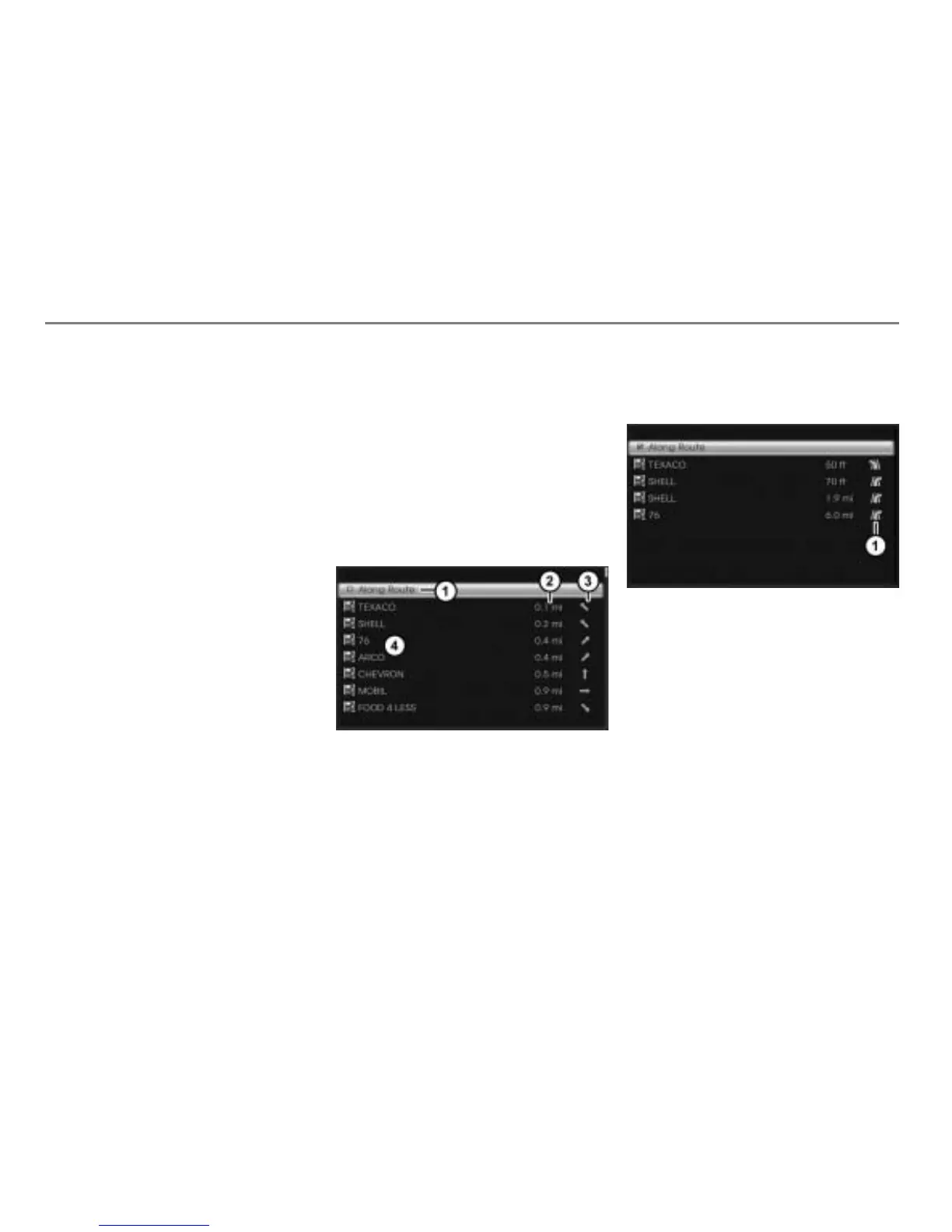
The illustration below shows an
example display with route filtering
deactivated.
Activate/deactivate route filtering
Distance of the POI from the vehicle
position
Direction to the POI
POI list
The illustration below shows an
example display with route filtering
activated.
Direction in which you must leave the
route to get to the POI
When route filtering is activated, the list will
show only POIs along the route.
When route filtering is deactivated, the list
will show additionally POIs not along the
route.
You can only activate route filtering when
route guidance is active.



 To Next Page