205
Navigation
Basic functions
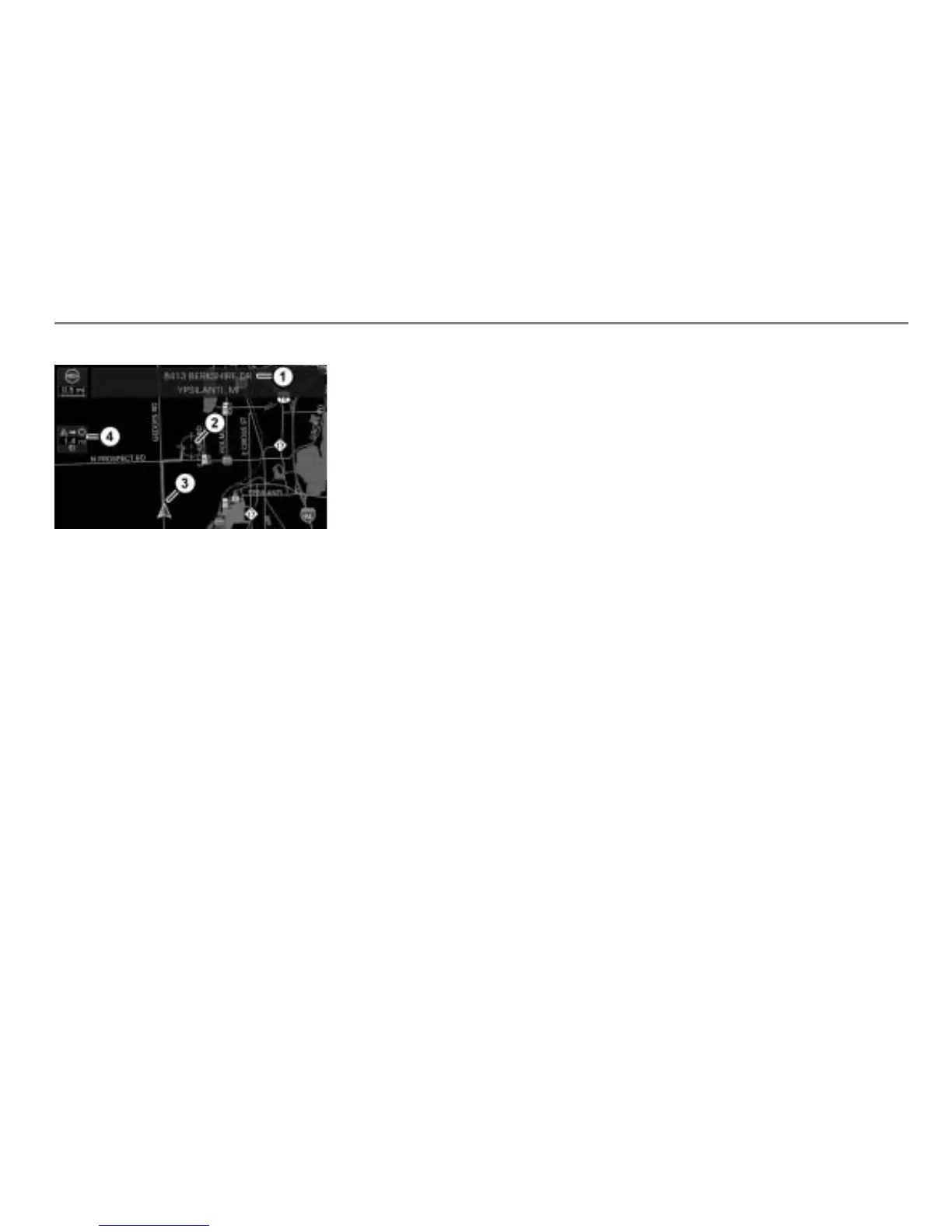
Map display shows night mode
Information on the crosshairs position
Crosshairs
Current vehicle position
Distance and direction from the vehicle
position to the crosshairs position in a
straight line
To switch from scroll mode to
position mode: Press the button.
The crosshairs disappear and the map
is automatically set to the current
vehicle position.
If you have moved the map, you can quickly
move the map to the vehicle position using
this function.
If you press the
button while route
guidance is active, you will also hear a
current audible driving recommendation.
Options in position/scroll mode
Different options are available in the Options
menu depending on whether position mode
or scroll mode is set.
Opening the Options menu
In the map display, press the
controller
.
The Options menu appears. The
options available in the respective
mode are described in the following
sections.
To close the Options menu: Briefly
press the button.
Options in position and scroll mode
The following options are available in
position and scroll modes:
Traffic information, see page 245
“North up view/Heading up view”, see
page 265
Entering a POI destination via a vicinity
search, see page 224
Options in scroll mode only
The following options are available in scroll
mode:
Saving the crosshairs position as a
destination in the address book
category Address List, see the section
“Option 2 (only for the category Address
List)” on page 248
Setting the center point of the
crosshairs as the destination, see
the section “Set/replace destination” on
page 230
Adding the center point of the
crosshairs as the waypoint, see
the section “Add waypoint” on page 230
Initiating a phone call to a POI, see the
section “Initiating a phone call to a POI”
on page 244
POIs (points of interest) include gas
stations, restaurants and banks, for
example. This function is only available if
the center point of the crosshairs is
indicating a POI.



 To Next Page