246
Navigation
Functions independent of route guidance
The labelling of the menu item
always shows the current sorting
status. It will change with every
selection.
Possible labelings:
Sort by Distance
Sort by Icon
The sorting status is also identified by
the icon to the left of the menu item
.
Icon = List is sorted by distance
Icon = List is sorted by icon
The menu item cannot be selected if the
list contains fewer than three entries.
To show further information: Select a
list entry.
You will see the further information.
To go back to the Traffic Info list:
Briefly press the button.
Displaying the traffic information in the
map
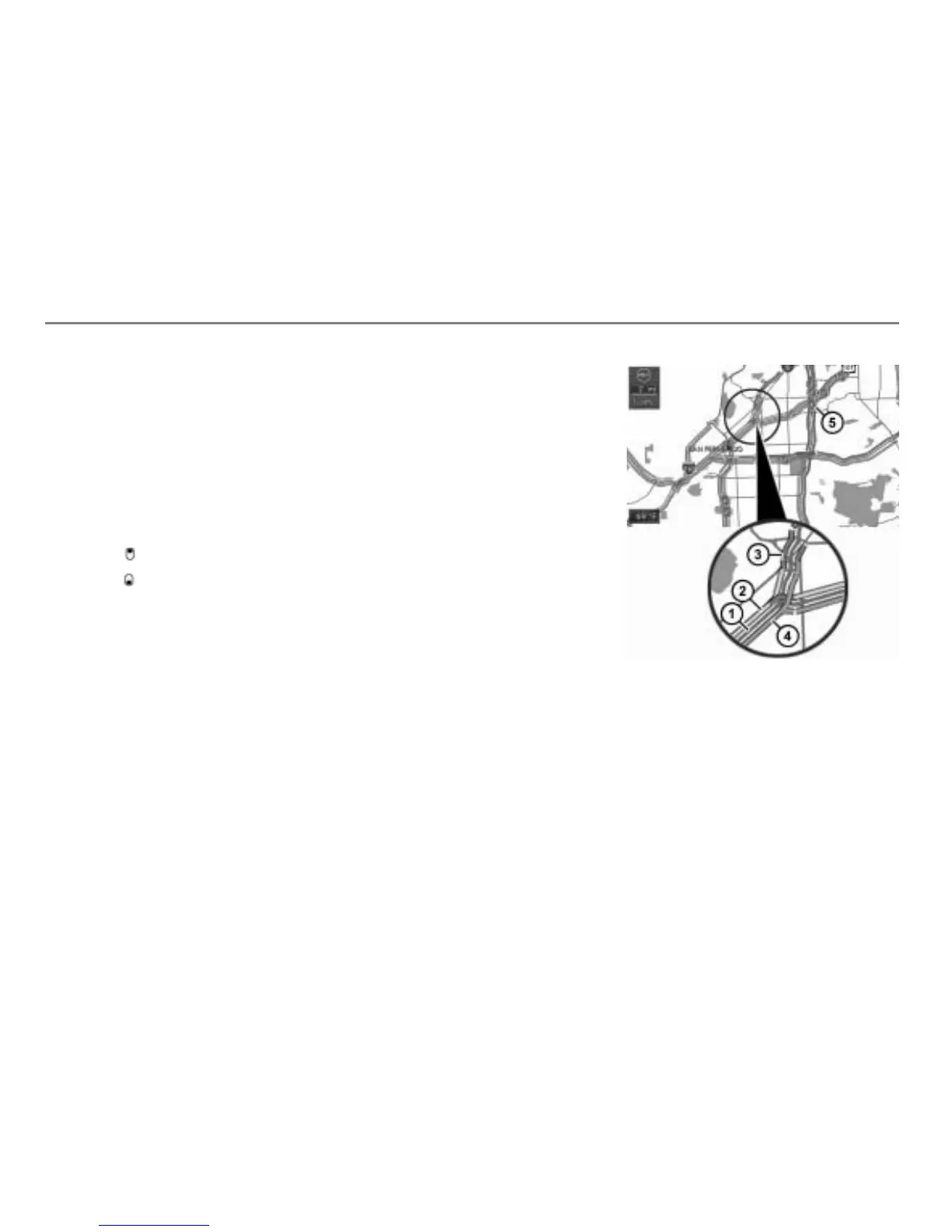
If the function “Show Traffic Info on Map” is
activated, the traffic information will be
shown in the map. Please refer to the
section “Map display settings” on page 258
to find out how to activate or deactivate the
function “Show Traffic Info on Map”.
The traffic information will be shown in the
map in form of green, yellow and red lines
beside the roads affected by the
information.
Corresponding icons will be displayed also,
the icons are the same as in the Traffic Info
list, see previous illustration.
Map display shows day mode
Road (red line)
Yellow line (moderate traffic
congestion)
Red line (heavy traffic congestion)
Green line (free flow traffic)
Incident icon
The position of the lines (on the right or on
the left side of the road) shows which side
of the road is affected.



 To Next Page