221
Navigation
Entering destinations
To enter and delete characters:
Proceed as previously when entering a
POI name, see section “Entering a POI
name” on page 217.
Option 1 to complete the entry: Keep
entering characters until the hit
list
contains just one entry.
The menu item
OK is automatically
highlighted.
Press the controller
.
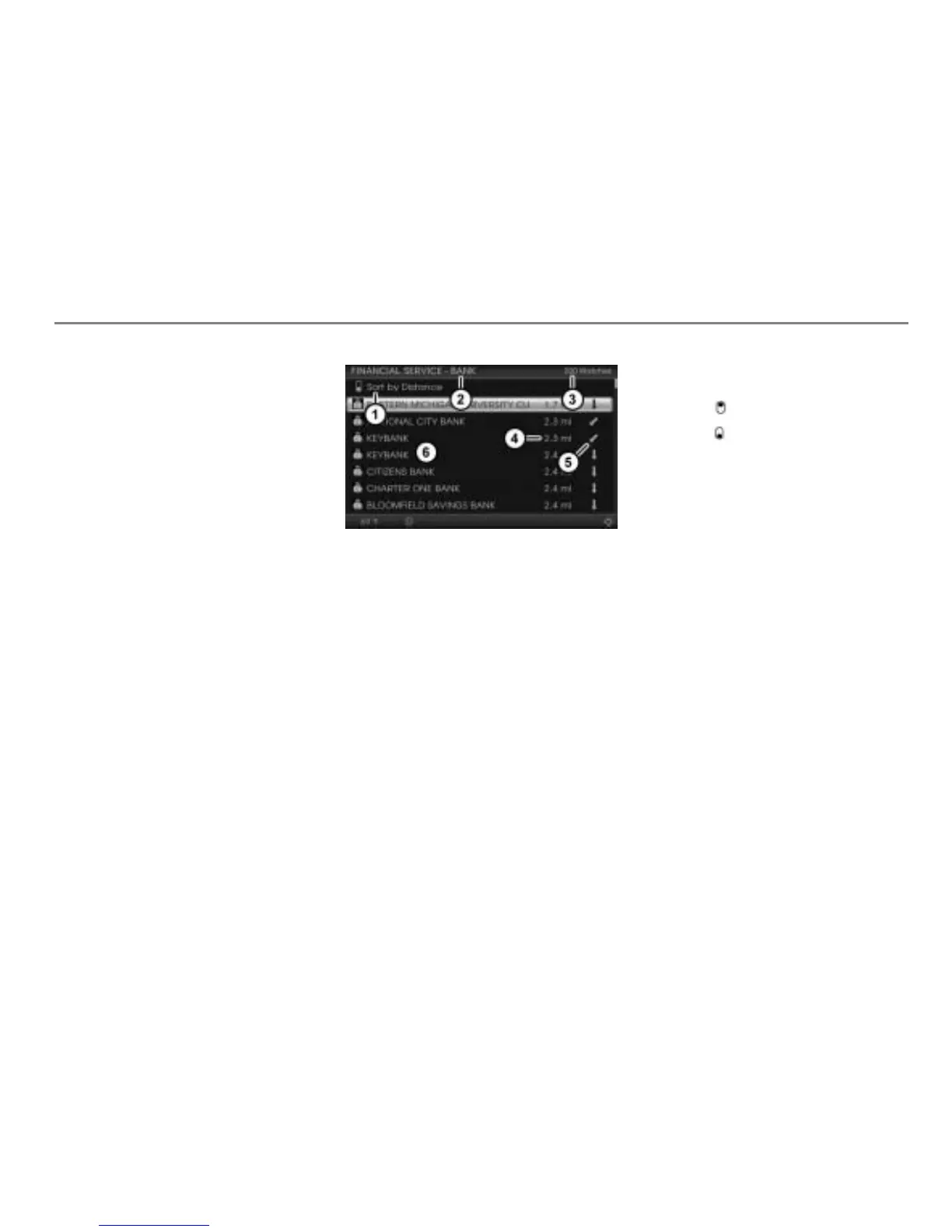
The POI list appears, see illustration
below.
Option 2 to complete the entry:
Push
the controller .
Option 3 to complete the entry: After
entering at least one character, push
the controller
and select the menu
item OK.
After choosing option 2 or 3, the hit list
is active now.
Select an entry in the hit list
.
The POI list appears.
Sorting menu item
Input progress display
Number of hits in the POI list
Distance to the POI
Direction to the POI
POI list
To sort the POI list: Select the menu
item
.
The POI list is resorted.
The labelling of the menu item
always shows the current sorting
status. It will change with every
selection.
Possible labelings:
Sort Alphabetically
Sort by Distance
The sorting status is also identified by
the icon to the left of the menu item
.
Icon = List is sorted alphabetical
Icon = List is sorted by distance
The menu item cannot be selected if the
list contains fewer than three entries.
To select a POI: Select a list entry.
Entry of the destination is complete and
you see the corresponding destination
on the map. Further options are now
available, see the section “Options after
entering the destination” on page 230.
POIs near to a particular city center
Open the POI category main menu, see
section “Opening the POI category
main menu” on page 220.
In the POI category main menu, select
the menu item
Near City Center.
The city input menu appears. You can
enter a city.


 To Next Page
 Loading...