CHAPTER 12
Global Functions: Collage Generator™ Effect
144 DL.3 Digital Light User Manual
Make viewpoint adjustments:
10. On the Graphi
c Effect Mode channel set to Spherical Control 1 (DMX =
253), use Mo
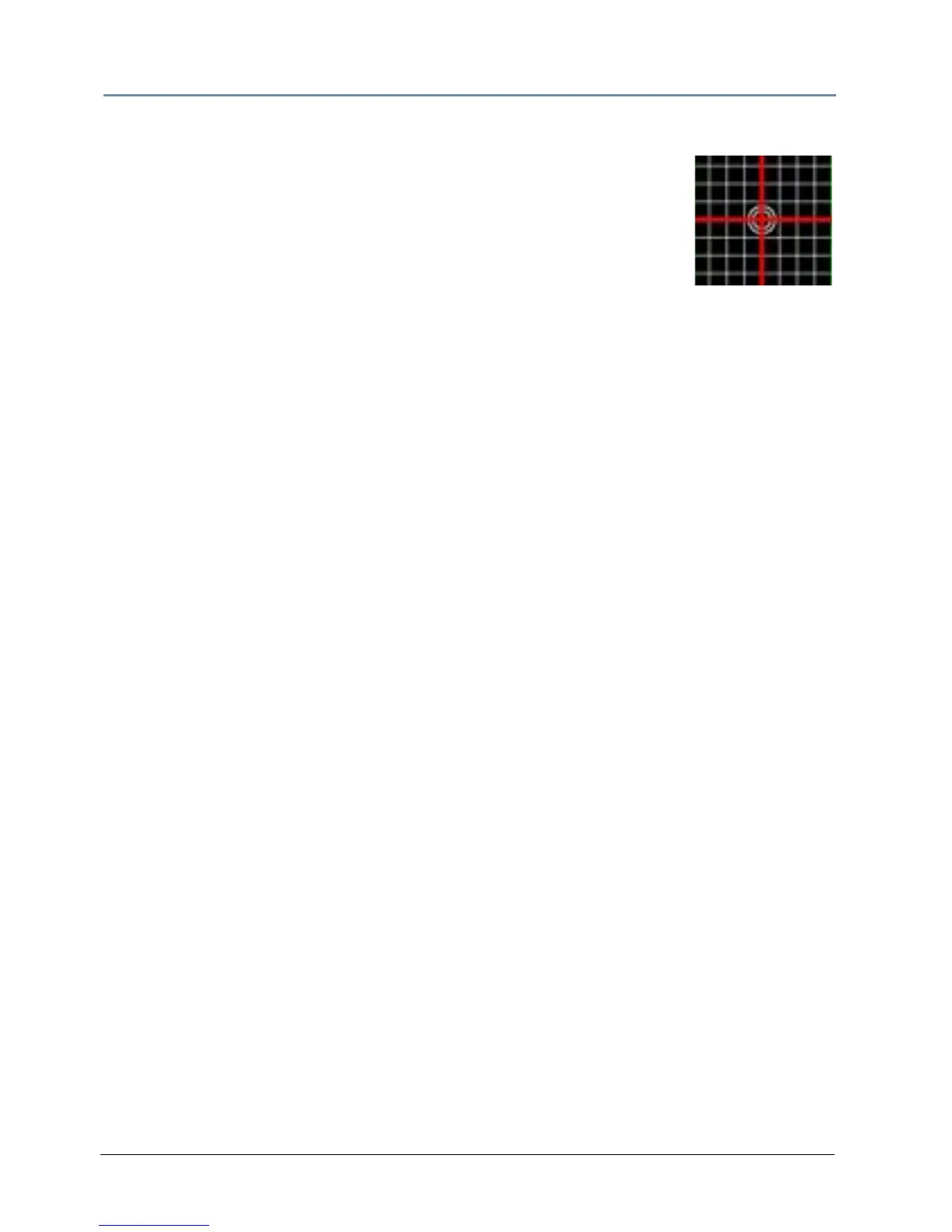
difier 1 to move the center of the grid to the center of the
output marked by the double circles aroun
d the crossed lines. This
adjusts vertical offset to accommodate the projector’s position. The
default value assumes a viewpoint straight on to the “equator”. Modifier
2 adjusts the sphere’s offset to compensate for projector head tilt.
NOTE: After completing a rough adjustment, you will use these two modifier
channels for the fine tuning.
11. Use Modifier 3 to adjust the vertical size of the output, stretching and compressing it to
adjust for the size of the sphere, keeping the vertical size of the grid filling the output
without clipping the image.
Correct for the flat to round surface distortions
12. On any of the Glob
al or Graphic Effect Mode channels set to Spherical Control 2
(DMX = 254), and then use the associated Mo
difier 3 to compress the grid edges adjusting
the bend in horizontal grid lines. This adjustment should not be used to fill the projector
output horizontally. Instead, it should be used in conjunction with the Spherical Mapping
Global Effect Modifier 1 to control the longitude angle of the projected image. Global Effect
Modifier 1 should be maintained close to the theoretical longitude angle.
13. Use Mo
difier 1 and Modifier 2 to adjust the amount of bend, up or down, in the horizontal
lines of the grid. Modifier 1 controls amount of correction. Modifier 2 controls where the
center of correction occurs.
14. If the spherical mapping effect
is being used in conjunction with the Collage Generator
effect, select the Enhanced Collage Generator option (DMX = 141) in the other Global
Effect channel now. Set the appropriate grid size and grid elements selected with the
internal Collage alignment grid enabled. Go back through steps 1 through 11. Remember
that pan and tilt adjustments are also available when using a DL.3 or DL.2 fixture.
Now you have a rough adjustment of the spherical mappin
g effect. From this point, finely adjust
all the parameters until you bring the output to the desired shape.
When fine tuning Spherical Mapping adju
stments, remember the following:
• The Graphic Object effect 253 Modifiers 1 and 2
have a major influence on the shape of the
vertical lines.
• The Spherical Mapping Global Effect modifiers can be us
ed to provide fine control of the shape
of the vertical lines, but should be within several degrees of the expected latitude and
longitude values.
• The Graphic Object effect 253 Modifiers 1 and 2 are used to
finely adjust the vertical bend in
horizontal lines.



 To Next Page