CHAPTER 5
Tutorials
DL.3 Digital Light User Manual 49
Lesson 1: Cross Fading Between Graphic Objects
1. On your lighting console, set MOTION fixture Dimmer parameter (for DL.3 or DL.2 fixtures),
the GLOBAL fixture Intensity parameter, and GRAPHIC OBJECT 1 fixture Opacity
parameter to 100% (DMX value = 255).
Define Graphic Object 1
2. Set the Media Folder Parameter for the GRAPHIC
OBJECT 1 fixture to DMX value = 4. This selects
preloaded media folder HES Atmospheric.
3. Set the Med
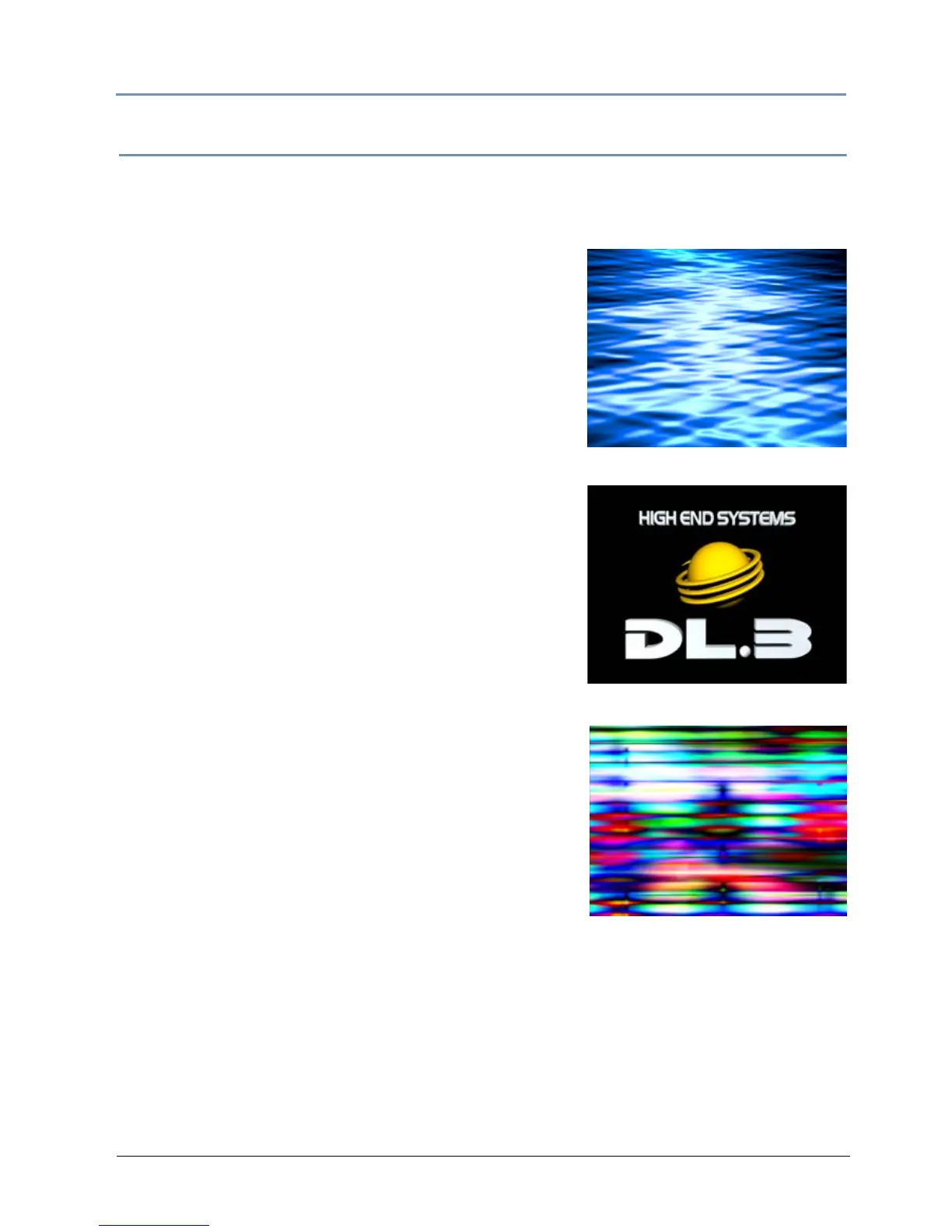
ia File Parameter to DMX = 23. This
selects a water movie (23-Moonlite_Waves).
Add the DL.3 logo as Graphic Object 2
4. Select GRAPHIC OBJECT 2 fixture and change the
Opacity parameter to 100% (DMX = 255).
5. Set the Med
ia Folder parameter to 1 and set the
Media File parameter to DMX = 01. This selects the
preloaded fixture logo as content.
Define Graphic Object 3
6. Select GRAPHIC OBJECT 3 fixture and set the Opacity
to DMX = 255 (100%).
7. Change the Me
dia Folder parameter to DMX = 7
(A Luna Blue col
lection).
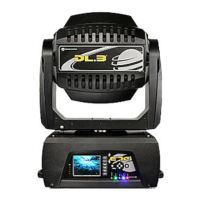
8. Change the Me
dia File parameter to DMX = 2
(2-
Blurs_Streaks_34).
Create Crossfade Cues
9. Select GRAPHIC OBJECT 2 and 3 fixtures and set the
Opacity parameter on both to DMX = 0. The only
content that is now showing is GRAPHIC OBJECT 1.
10. Record this look to your console as cue 1.
11. Set the of GRAPHIC OBJECT 3 Opac
ity parameter to
DMX = 255 (100%) and record this into your lighting
console as cue 2.
12. Now set the Op
acity parameter of GRAPHIC OBJECT 3
to DMX = 0 and the Opacity of GRAPHIC OBJECT 2 to
DMX = 255 (100%). Record this as cue 3.
13. Now clear out all information in your console
's programmer and play through the cues you
just recorded. You will see GRAPHIC OBJECT 1 crossfade to GRAPHIC OBJECT 3 and then
crossfade to GRAPHIC OBJECT 2.
Graphic Object 1
Graphic Object 2
Graphic Object 3


 To Next Page