CHAPTER 16
Content Management Application (CMA)
DL.3 Digital Light User Manual 279
Configuring Columns
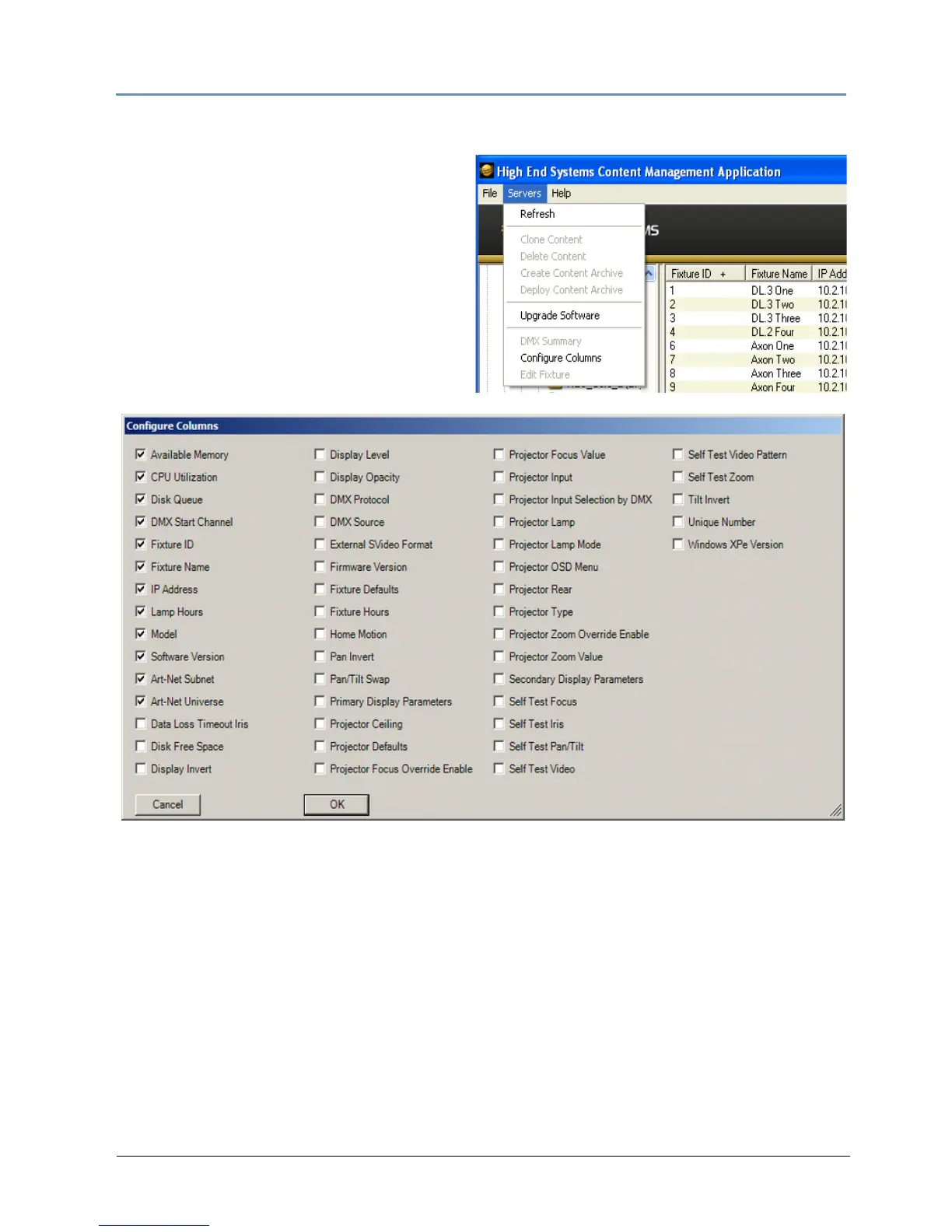
Select which columns are present by selecting
Configure Columns from the Servers menu
in the menu bar or by right clicking anywhere
in the main pane of the CMA.
Once you select Configure Columns, you
c
an view a list of all possible columns. Choose
which columns to view by either checking or
un-checking each selection. Once you have
selected the columns you want to display,
click on OK.
Re-Order Columns
You also have the option to change the order that the columns are displayed. Left-click on the
head of the column you wish to move, hold down the mouse button and drag the column to the
desired position. Releasing the mouse button will move that column to the new location.
Viewing Individual Fixture Configuration Values
To view configuration information for a individual server, click on All Servers in the left pane of
the CMA window and select the + to view all the servers on the fixture network. Select a server
in the left pane to view its configuration information in the right pane. Configuration information
is grouped under tabs in the right pane. Fields are provided for all editable configuration
values.The number of tabs is determined by the model selected. DL.3 and DL.2 fixtures have six
tabs while Axon media servers have four.


 To Next Page