CHAPTER 16
Content Management Application (CMA)
DL.3 Digital Light User Manual 263
You can automatically assign DMX values to all folders at once or to all the files within a folder
at once. You cannot set both files and folder values at the same time. To automatically assign
DMX values to all the User content folders or all files within a User content folder:
1. Display the User content folders or the files for a si
ngle folder in the right pane of the
Content Management window and deselect all files or folders.
2. Select Auto
set All DMX from either the Media Folders or Objects drop down menu or
the right click popup list. The CMA will assign a valid DMX value to all selected files or
folders.
Using the same steps, you can also Rese
t DMX for a single file or folder or Reset All DMX for
all display files or folders displayed in the right pane to zero.
Editing User Content DMX Values
You can manually assign any valid DMX value to your files or folders by selecting the file or
folder in the right pane and then, using the pull down menu or the right click popup, selecting
Edit DMX. A dialog box will allow you to input the DMX value. If it is a valid value from
0-255, the CMA will change the DMX value displayed for the file or folder.
Valid DMX Values
Certain DMX values are Reserved for special purposes and are not user assignable. You can
change the assigned DMX value for a User Content item to another valid DMX value. A valid
DMX value is:
•From 0-255
•
Is not one of the reserved values for that type of content
• Is unique from other content of its type except for zero
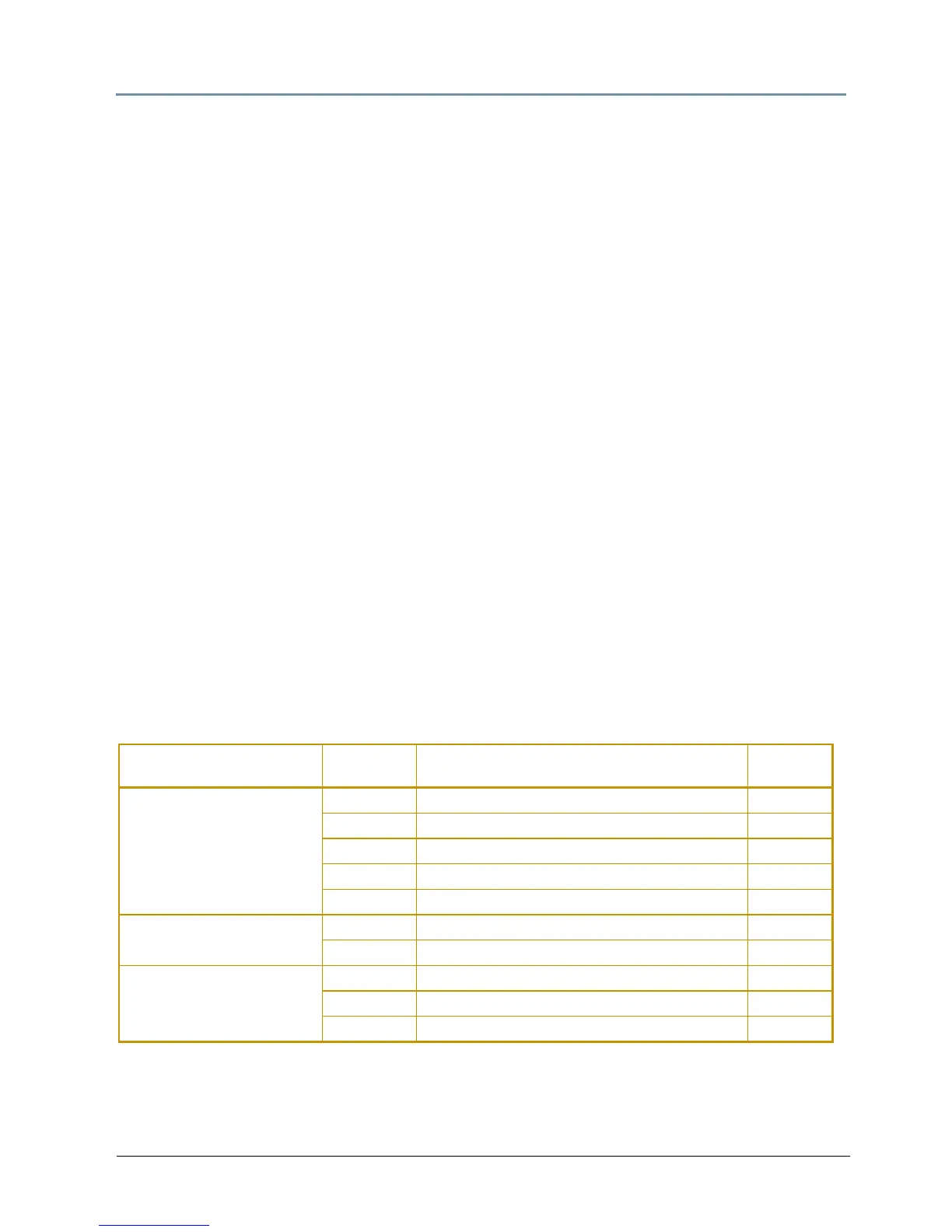
The following table shows v
alid and reserved values for User Content.
Content Type
DMX
Va
lues
Description
Reserved
?
Media Folders
(media file collections)
0
No Selection
No
1-40
Default Stock media
Yes
41-239
User collections
No
240-254
Reserved
Yes
255
Internal Camera video feed
Yes
Media Files
0
No Selection
No
1-255
Media files
No
Objects
0
No selection
No
1-149
Stock Objects
Yes
150-255
User Objects
No


 To Next Page