CHAPTER 3
The Digital Light Menu System
DL.3 Digital Light User Manual 33
Set Tab
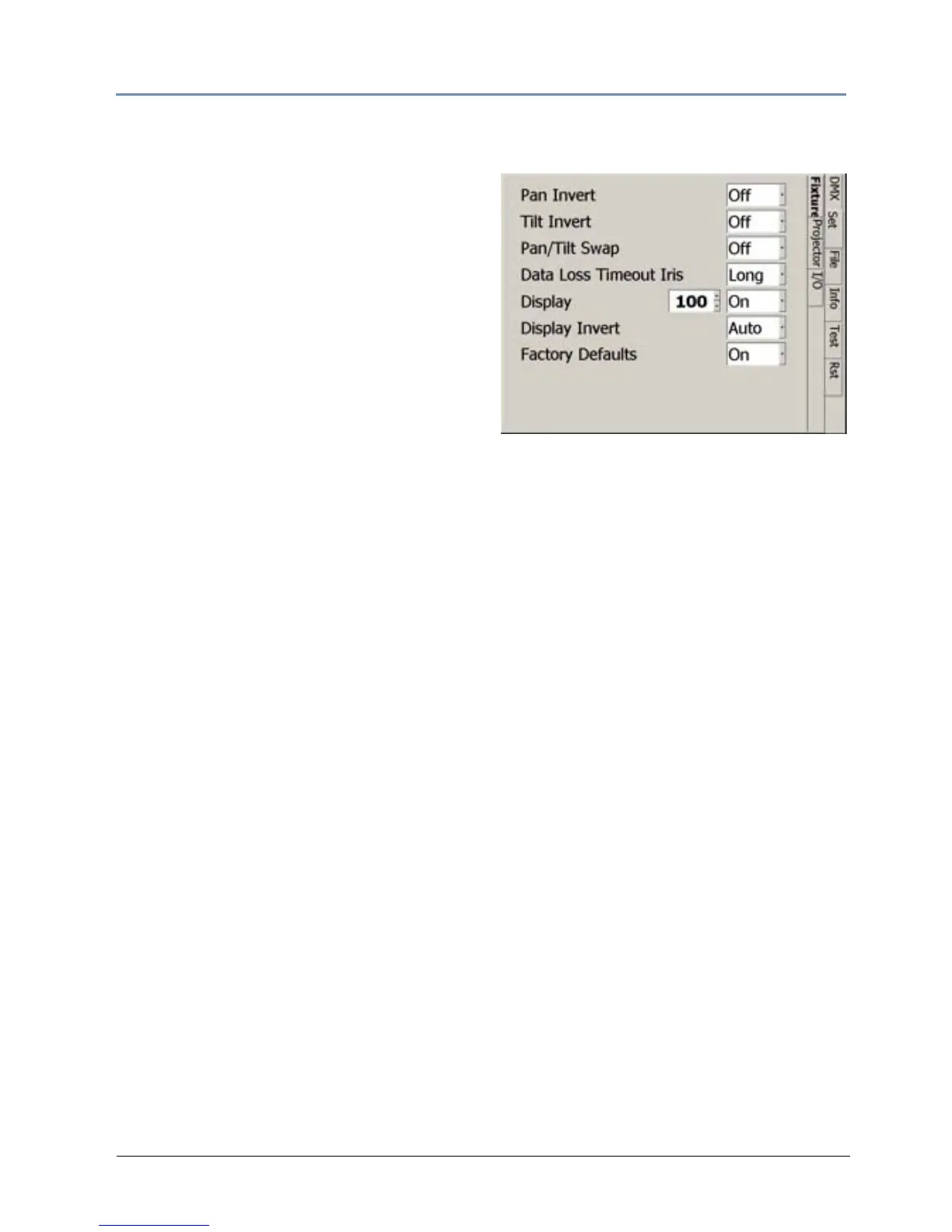
Set_Fixture Screen
The Fixture sub-tab provides options for
selecting or changing fixture movement,
dimming the mechanical iris, and controlling the
LCD display black level and orientation.
Movement Option Fields
Set the Pan Invert option On to invert the
direction of the pan motor. Use this option to
coordinate movements between fixtures facing
each other in a horizontal orientation. Off is the
default setting.
Setting the Til
t Invert field to On inverts the direction of the tilt motor. Use this option to
coordinate movements between fixtures facing each other in a vertical orientation. Off is the
default setting.
Setting Pan Til
t Swap field to On swaps the pan and tilt motor operation to coordinate
movements between fixtures mounted perpendicular to each other. Off is the default setting.
Timeout Option
The Dimmer Iris closes when it stops receiving DMX data for a designated time interval. Use the
Data Loss Timeout Iris field to set the DMX data loss time interval as Long (5 minutes) or
Short (5 seconds). Short is the default setting.
After 10 minutes of no data, the fixture will sh
ut down the projector and the motion functions.
Fans remain on to maintain the temperature control for the internal graphics engine.
Display Options
The Display field lets you adjust the black level of the Menu display with the following options:
• On
is the factory default.
• Preview displays the most recent media change of any Graphic function when opacity > 0.
The Menu screen displays content in both partial and full screen. The Preview function can
be enabled from the menu system, the CMA, as well as remotely via DMX.
— When Preview is enabled, a parti
al, full color video is shown on the LCD display along
with the folder, file, and DMX information. If there is no change of content on any
Graphic Function it will automatically switch to full screen mode within 12 seconds.
— The Preview function always shows the latest selected content without any modification
of
effects. Preview mode displays movies and still images only. S-video and internal
camera input will not be displayed in the Preview mode.
— The Preview function uses substantial memory and shoul
d be turned off when rendering
multiple Graphic Object options to ensure high quality playback.


 To Next Page